Upper Threshold Moisture Sensor-Based Watering
Step 8 – Setting Up the Water Windows for a Program
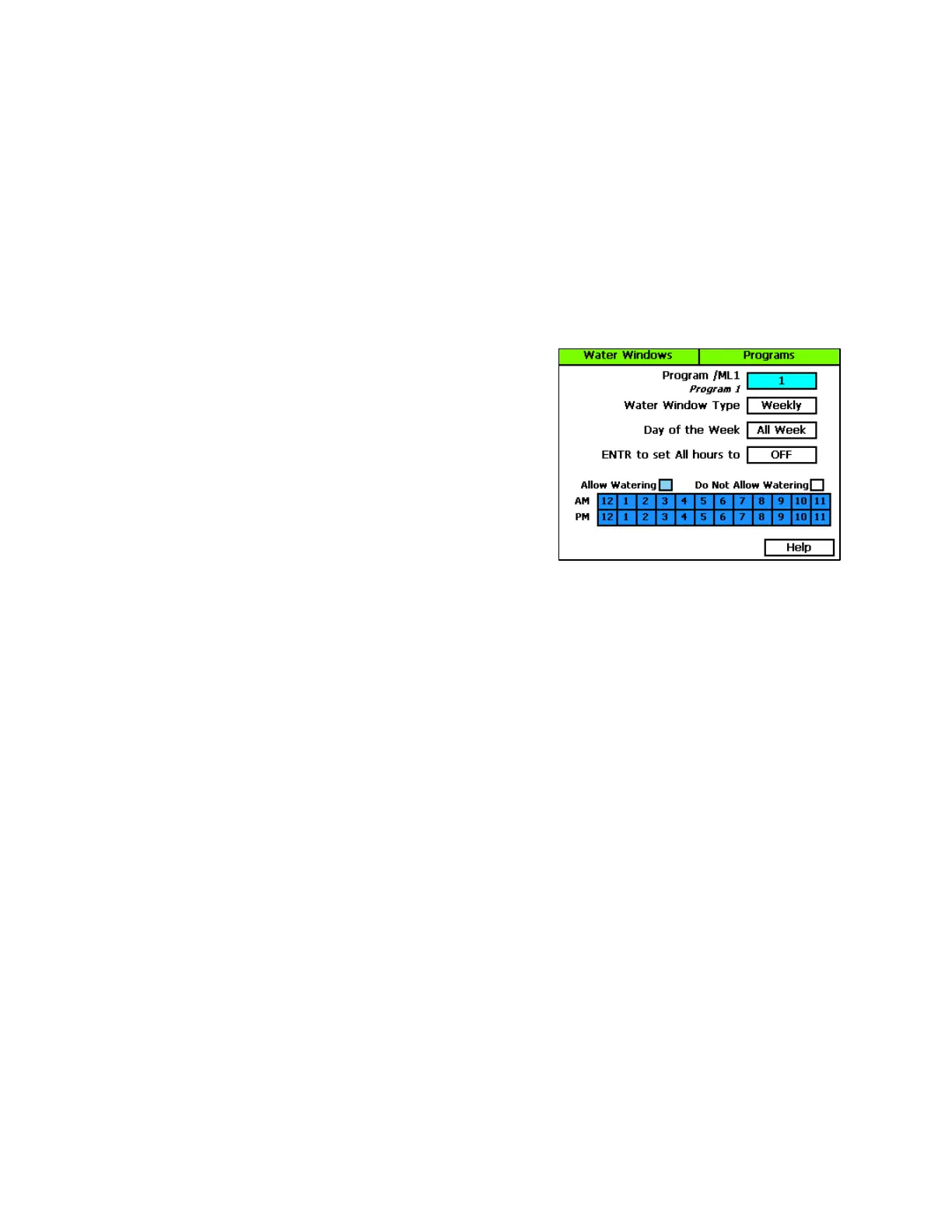
Water windows tell the controller when watering is allowed and not allowed. You can set water
windows for either Weekly (shown on illustration below) or daily – when moving from weekly to daily,
the weekly settings are copied to each day of the week.
Selecting daily water windows gives you hourly control of watering for each day of the week, and for
each program. A white square will pause watering for that hour, or keep a start time from starting a
program.
1. Turn the dial to the Programs position.
2. Press the Next button to select the Program Water Windows Setup option. The Water Windows
screen displays.
3. Press the + or – button to select the program that you
want to set up water windows for.
4. Press the Next button to move to the Water Window
Type field, and then press the + or – button to select
either Weekly or Daily.
Note: If you use “Weekly” to set up the water windows
and then you decide to convert to “Daily,” the weekly
settings are copied to each day of the week.
Selecting daily water windows gives you hourly control of watering for each day of the week and for
each program.
5. Press the Next button to move to the Day of the Week field. If you are using the “Weekly” Water
Window Type, you cannot change the setting in this field, but if you are using “Daily,” press the + or
– button to display the day of the week that you want to set up water windows for.
6. Press the Next button to move to the ON/OFF field.
If the boxes in the grid are blue (allow watering), the field displays OFF. Press the Enter button
to turn all the water windows off.
If the boxes in the grid are white (do not allow watering), the field displays ON. Press the Enter
button to turn all the water windows on.
7. To make changes to the individual boxes in the grid, press the Next button. The color of the number
in the first box of the grid changes to red (indicating that you can change the setting in that box).
To change the water setting for the time/day represented by that grid, press the + button.
To move to next box in the grid, press the Next button.
Note: If you want to set up daily water windows, start by setting a basic profile in weekly mode, and
then change to daily mode to modify specific days (like a mow day). Pressing the Enter button will
maintain the current selected field and advance through the days of the week.
Step 9 – Setting the Controller to Run
When you have finished making changes, turn the dial to the RUN position.
Baseline Support: 866-294-5847 8 www.baselinesystems.com


 To Previous Page