Use Forget Device, then pair your Beats again
4. Disconnect your Beats product.
On your iOS device, go to Settings > Bluetooth, tap the i next to the name of your Beats
product, then tap Forget This Device.
On your Mac, choose Apple ( ) menu > System Preferences, click Bluetooth, select your Beats
product, click the X, then choose Forget Device.
5. Pair your Beats product again.
Reset your Beats product, then pair them again
Reset your headphones, reset your earphones, or reset your speakers. Then pair your
Beats product with your device again.
Pair your Beats product
Follow the pairing instructions for your Beats product:
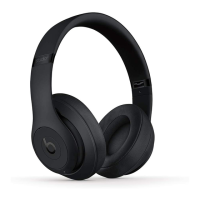
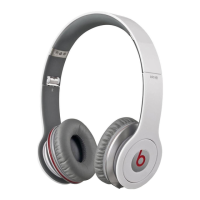
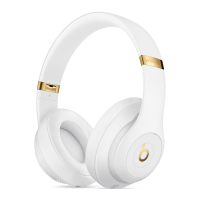
o Studio
3
Wireless
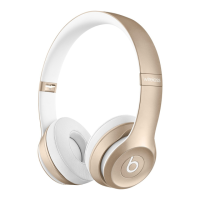
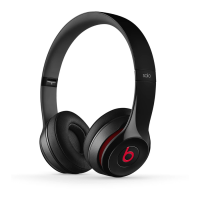
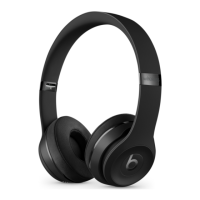
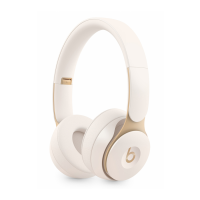
o Solo
3
Wireless
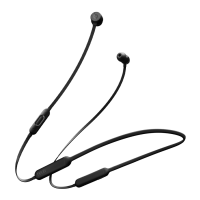
o Beats
x
o Pill
+
o Powerbeats
3
Wireless
o Beatbox Portable
o Pill 1.0, Pill 2.0
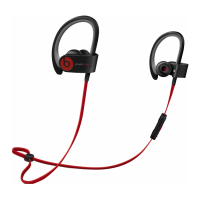
o Powerbeats
2
Wireless
o Studio Wireless
o Wireless
If you still need help
If you hear distorted sound, learn how to troubleshoot audio issues with your Beats
speakers or with your Beats headphones or earphones.
Reset your Beats on-ear or over-ear
headphones
Share via Email(opens in new window)
Share via link(opens in new window)
Print


 To Next Page