12
Keypad lock
Preventsaccidentalpressesofthekeys/buttons.
1.PressthePowerOn/Offbuttonbrieytolockorunlockthe
keypad.Thedisplayshows:Keyboardlocked.Presspower
to unlock.
Operation
USB Connection
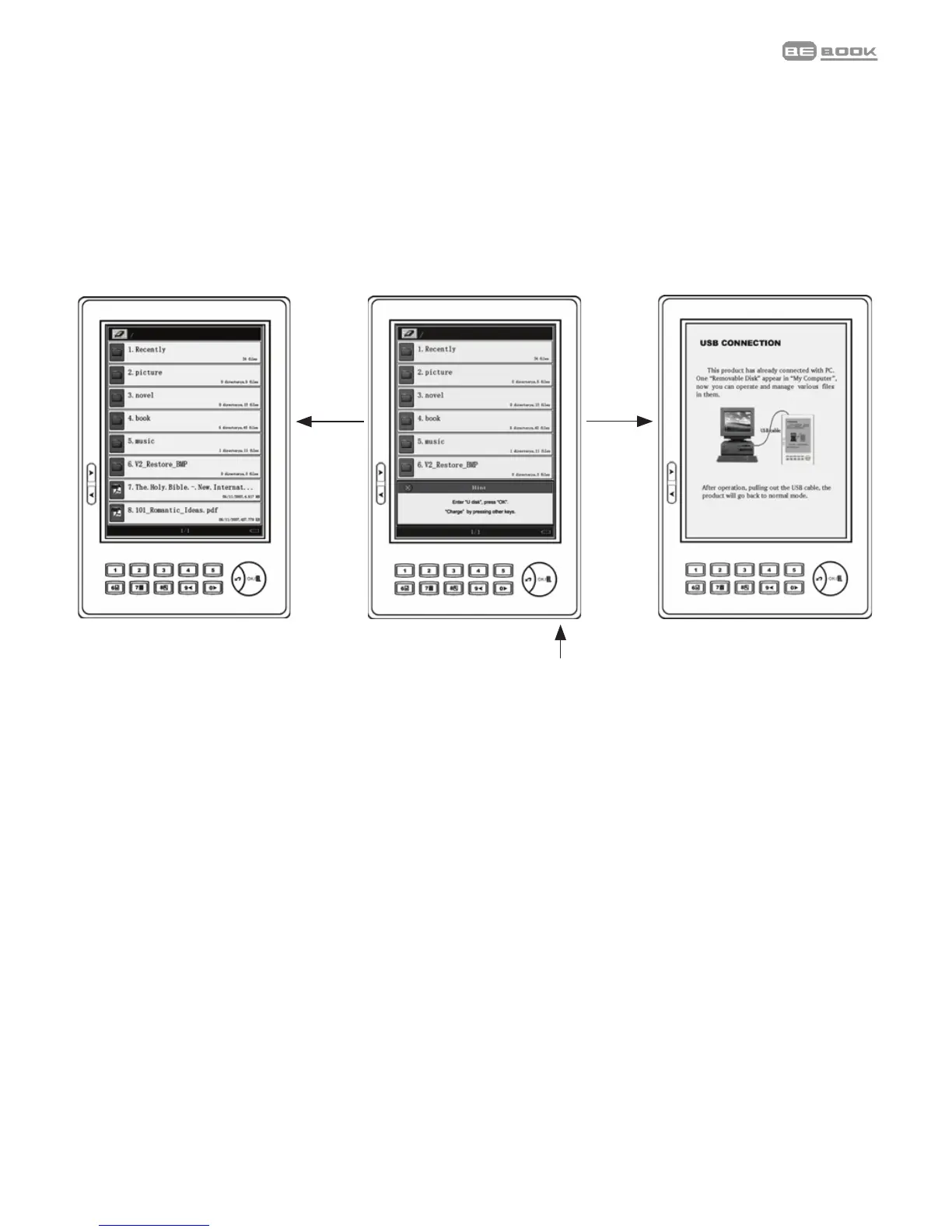
The device can be directly connect to your
computer using an USB cable. Once connected,
the “Removable disk” icon will automatically
display in “My Computer”.
Exit
Insert USB Cable
O
Operation
USB Connection
The device can be directly connect to your
computer using an USB cable. Once connected,
the “Removable disk” icon will automatically
display in “My Computer”.
Exit
Insert USB Cable
O
Operation
USB Connection
The device can be directly connect to your
computer using an USB cable. Once connected,
the “Removable disk” icon will automatically
display in “My Computer”.
Exit
Insert USB Cable
O
InsertUSBcable
Exit Ok
USB connection
YoucanconnectyourBeBooktoyourPCorMacbyUSBcable
supplied.PlugintheUSBcabletoyourcomputerandBeBook
andpressOKtoconnect.WhenconnectedtheMyComputer
windowwilldisplayaRemovableDiskicon.
Note
When the USB cable is connected, you will not be able to read
books on your BeBook screen.


 To Next Page