Operation
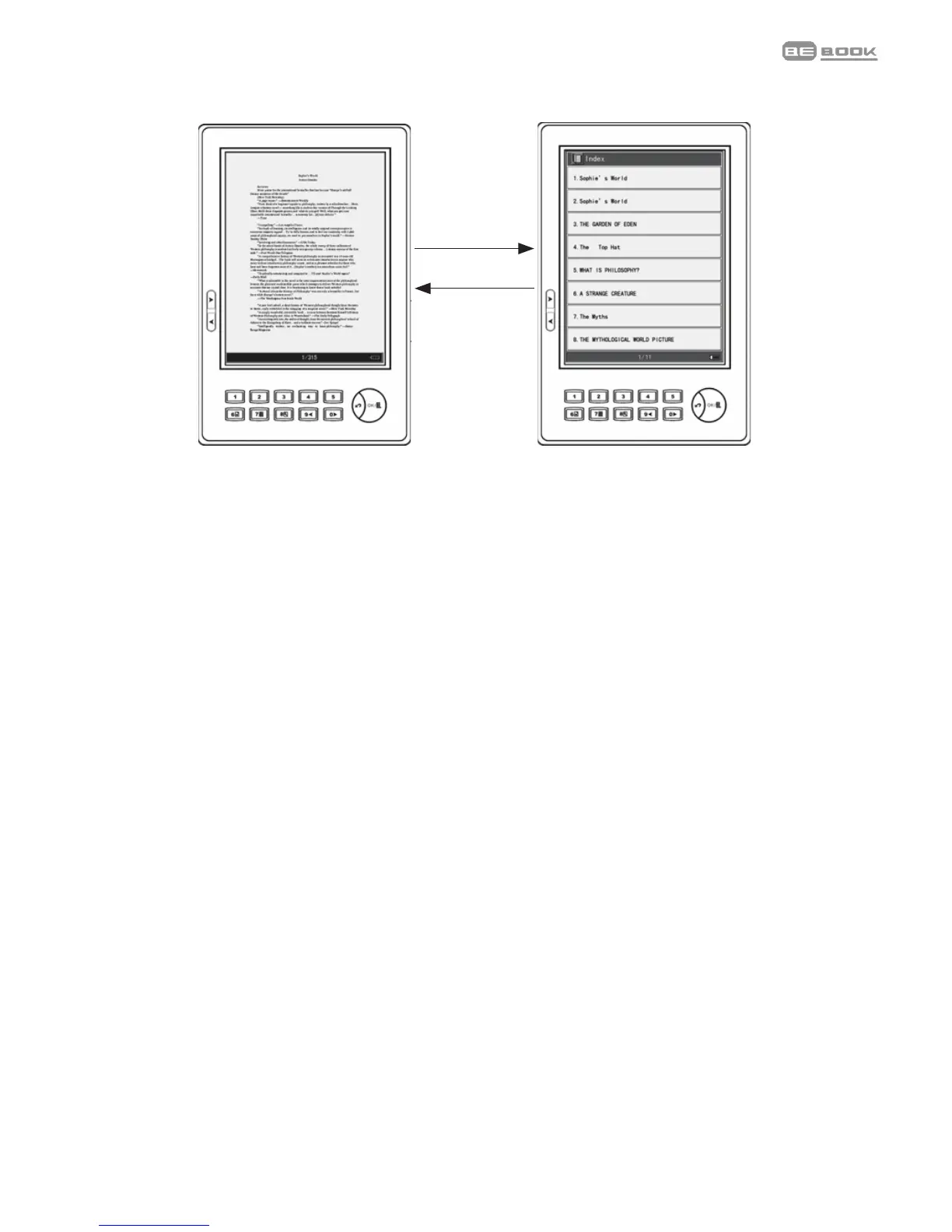
See Index
Under the text interface, press “Go to index/7”
button to enter the index interface, the system
supports multi-level index. Press number keys
1~8 to enter the index of next level, if the
current index is the last level index, press the
number key go to the chapter of the book or
press 'Exit' to return to previous level index.
(TXTǃHTMLǃImages file don’t support this
function.)
Text Index
Go to Index/7
Exit
Under the text interface, press OK to display
the menu, and select “Go to index” by pressing
Operation
See Index
Under the text interface, press “Go to index/7”
button to enter the index interface, the system
supports multi-level index. Press number keys
1~8 to enter the index of next level, if the
current index is the last level index, press the
number key go to the chapter of the book or
press 'Exit' to return to previous level index.
(TXTǃHTMLǃImages file don’t support this
function.)
Text Index
Go to Index/7
Exit
Under the text interface, press OK to display
the menu, and select “Go to index” by pressing
Index/7
Exit
1.Whenapageoftextisdisplayed,pressIndex/7keyto
displaytheindexscreen.
2.Pressakey1-8toselectfromtheindex
optionsdisplayed.Ifrequired,selectfromthenext
indexoptionscreen.
3.Atthenalscreenpressthenumberkeytogotothe
chapteryouwant.
4.PressExittoreturntothepreviousscreen.
Note
The index is not available for images or documents in txt and
html formats.
Search
Search for a book
1.Whenthebookshelfpageisdisplayed,uptoeighttitlesare
shown.PressNext>or<Previousbuttonstodisplaythe
nextbookshelfpage.



 To Next Page