15
Reading eBooks
Open an ebook
1.WhenyouswitchyourBeBookon,themainbookshelfpage
isdisplayedwithuptoeighttitlesshown.
2.PressNext>or<Previousbuttonstodisplaythenext
bookshelfpage.
3.Pressakey1-8toselectthetitleyouwant.
Therstpageisdisplayed.
Page turning
1.Whenapageoftextisdisplayed,pressNext>or0
toturntothenextpageor<Previousor9togoback.
2.Pressandholdthebuttontoskip10pagesforward
orback.
Operation
Reading eBooks
Page Turning
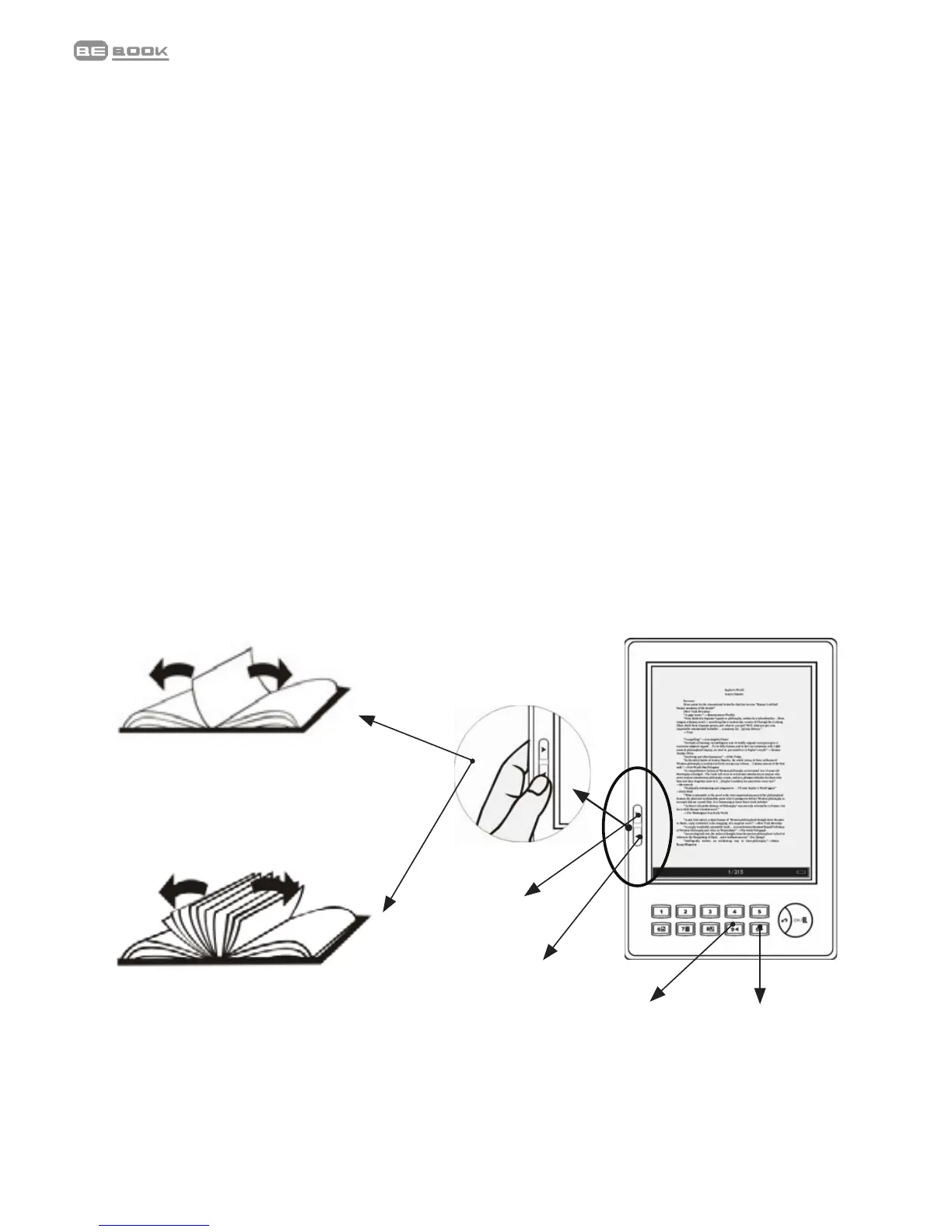
Page turning by sequence
In the text interface, press page turning button
or number key 9 and 0 to turn pages by
sequence.
Press at one
time to display
the previous
or next page
Long press
to turn 10
pages at
one time
Operation
Reading eBooks
Page Turning
Page turning by sequence
In the text interface, press page turning button
or number key 9 and 0 to turn pages by
sequence.
Press at one
time to display
the previous
or next page
Long press
to turn 10
pages at
one time
Operation
Reading eBooks
Page Tu rning
Page turning by sequence
In the text interface, press page turning button
or number key 9 and 0 to turn pages by
sequence.
Press at one
time to display
the previous
or next page
Long press
to turn 10
pages at
one time



 To Next Page