K-FRAME — User Manual 321
Partial Keyframing
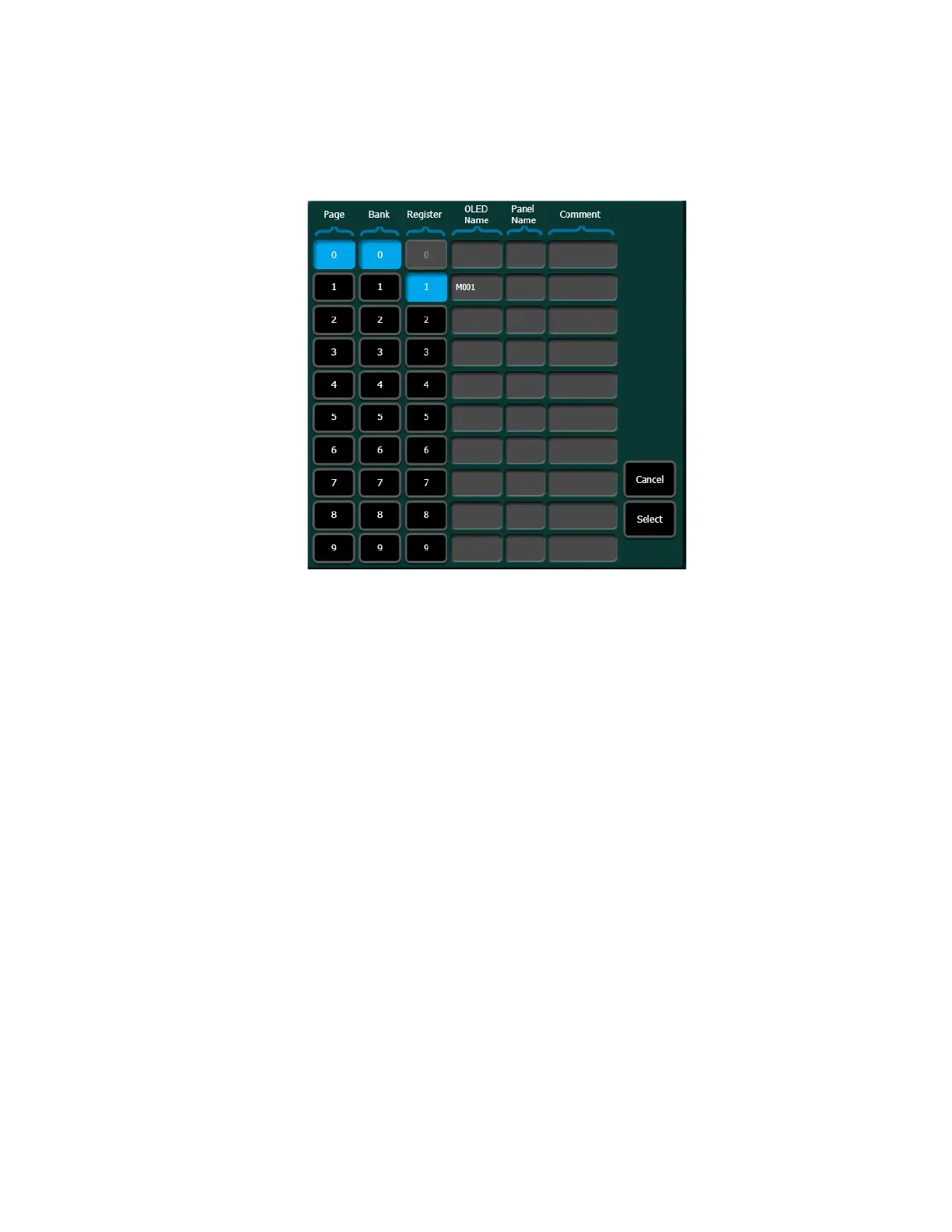
1. Select the Macro No. data pad in the Macro in E-MEM pane to open the
Macro selection menu.
Figure 162. Macro in E-MEM Selection Menu
2. Select the desired macro in the menu, then select Select to confirm your
choice or
Cancel. The name of the selected macro appears in the data
pad.
3. Select the Enable button to enable (select again to disable) that specific
macro.
4. Navigate to the desired location in the current effect.
5. Insert or Modify a keyframe to associate that macro and its enabled
state to that location in the effect.
Partial Keyframing
Partial Keyframing is the ability to create and control independent sub-
level timelines on a keyframe by keyframe basis in an effect. A partial key
-
frame is created when any sub-level is ‘excluded’, i.e. temporarily disabled
for a level in a timeline, whether the keyframe is inserted or edited.
Partial Keyframing can include definable sub-levels as available resources
using the Define E-MEM feature which is discussed later in this section.
Note Partial Keyframing is available in the Menu only.



 To Next Page