Troubleshooting
33
section
1
2
3
4
5
6
If you’re not using a Belkin Router, please consult your router
manufacturer’s user manual for the default name.
The name of your wireless network appears in
“Network List”
If the correct network name is listed in the “Network List”, please
follow the steps below to connect wirelessly:
1. Click on the correct network name in the “Network List” to
connect to the network.
2. If the network has security (encryption) enabled, you will need
to enter the network key. For more information regarding
security, see the “Securing your Wi-Fi Network” section in this
User Manual.
3. Within a few seconds, the tray icon in the lower,
right-hand corner of your screen should turn green,
indicating a successful connection to the network.
If you are still unable to access the Internet after connecting to
the wireless network, please contact Belkin Technical Support.
The name of your wireless network DOES NOT appear
in “Network List”
If the correct network name is not listed, check the SSID settings
to see if they match. The SSID is case-sensitive and the spelling
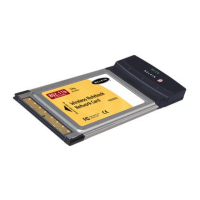
on each computer must be exactly the same in order for the Card
to connect to the wireless router or access point.
NOTE: To check the SSID settings or look for an available
network, double-click the Signal Indicator icon to bring up the
“Network List” window. Click “Create” if you do not see the
network you are trying to connect to and type in the SSID. For
more information about setting up a SSID, please reference your
router manufacturer’s user manual. If issues persist even at close
range, please contact Belkin Technical Support.


 To Next Page