How to Access the Belkin Wireless Client Utility
Double-click the Signal Indicator icon to bring up the Wireless Client
Utility. If the icon is not present, click on “Start > Programs > Belkin >
Belkin Wireless Client Utility”.
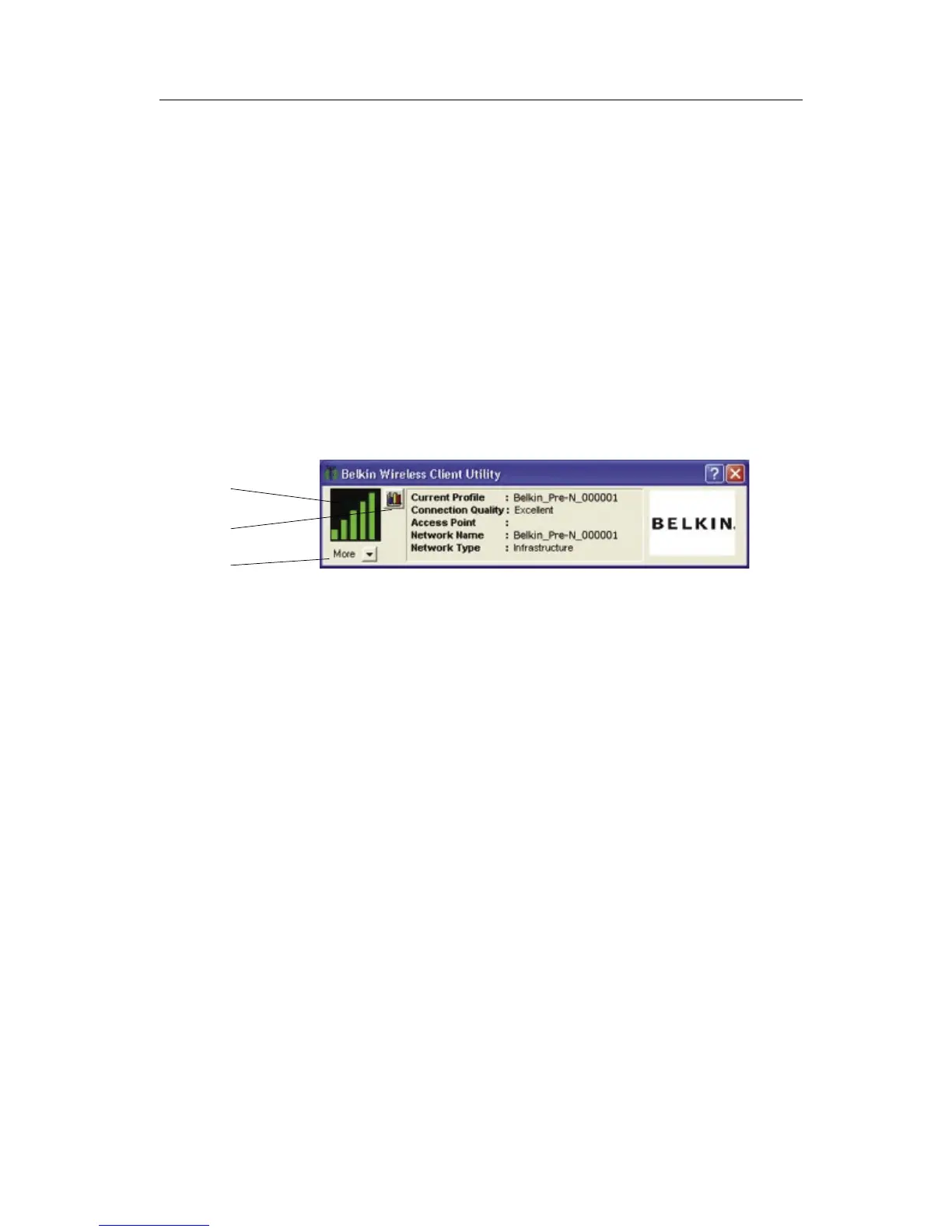
The following screen will appear.
Navigating the User Interface
Using the Compact View
(a) Signal icon
The signal icon on the left changes color according to current received
signal strength: green indicates an excellent signal, yellow indicates it is
acceptable, and red means there is no active signal.
(b) Display Mode
The Display Mode button alternates between the current Connection
Information Screen and the received Signal Strength Chart. The Signal
Strength Chart displays the signal strength of the Card for the last
60 seconds.
(c) More
The More button opens the expanded view that allows you to view and
configure more options of your Card.
(
b
)
(
a
)
(
c
)


 To Next Page