EasyManua.ls Logo

Belkin F7D1101 - User Manual

Belkin F7D1101
28 pages
Print Icon
To Next Page IconTo Next Page
Loading...
8820-00382_F7D1101_Basic_Wireless_USB_ADR_mnl_gemtek (2)
Page 1 of 28
Belkin
Basic Wireless USB Adapter
User Manual
F7D1101
8820-00382
Ok mk 12/29/08
Table of Contents
1 Introduction........................................................................................................ x
Benefits of a Home Network ................................................................................. x
Advantages of a Wireless Network ....................................................................... x
Placement of your Wireless Networking Hardware for
Optimal Performance............................................................................................ x
2 Overview............................................................................................................ x
Product Features ..................................................................................................x
Applications and Advantages................................................................................ x
Product Specifications ......................................................................................... x
System Requirements...........................................................................................x
Package Contents................................................................................................. x
3 Installing and Setting up the Adapter ................................................................ x
A — Installation Process for Windows Vista and 7 ............................................... x
B — Installation Process for Windows XP ............................................................ x
C — Configuration ............................................................................................... x
Connecting to a Secure Wi-Fi Network................................................................. x
5 Troubleshooting ................................................................................................. x
6 Information........................................................................................................ x
Introduction
Thank you for purchasing the Belkin Basic Wireless USB Adapter. Now you can
take advantage of this great new technology and gain the freedom to network
your home and office computers wirelessly. This Adapter allows you to connect a
notebook or desktop computer to your network. Please be sure to read through
this User Manual completely, and pay special attention to the section entitled
“Placement of your Wireless Networking Hardware for Optimal Performance”.
Benefits of a Home Network
Your Belkin Home Network will allow you to:
• Share one high-speed Internet connection with all the computers

Questions and Answers

Summary

1 Introduction

Benefits of a Home Network

Explains the advantages of having a home network.

Advantages of a Wireless Network

Lists the benefits of using a wireless network.

Placement of your Wireless Networking Hardware for Optimal Performance

Guides on optimal placement of wireless hardware for best performance.

2 Overview

Product Features

Details the technical features of the Belkin Wireless USB Adapter.

Applications and Advantages

Outlines the uses and benefits of the wireless adapter.

Product Specifications

Lists the technical specifications of the adapter.

System Requirements

Specifies the necessary hardware and software for the adapter.

Package Contents

Lists all items included in the product package.

3 Installing and Setting up the Adapter

Installation Process for Windows Vista and 7

Step-by-step guide for installing the adapter on Windows Vista and 7.

Installation Process for Windows XP

Step-by-step guide for installing the adapter on Windows XP.

Configuration

Details the configuration steps for the wireless adapter.

Connecting to a Secure Wi-Fi Network

Explains how to connect to secured Wi-Fi networks.

5 Troubleshooting

6 Information

FCC Statement

Declaration of conformity with FCC rules for electromagnetic compatibility.

Technical Support Information

US

US technical support contact details and website.

UK

UK technical support contact details and website.

Australia

Australia technical support contact details and website.

New Zealand

New Zealand technical support contact details and website.

Singapore

Singapore technical support contact details and phone number.

Europe

Europe technical support website.

Summary

1 Introduction

Benefits of a Home Network

Explains the advantages of having a home network.

Advantages of a Wireless Network

Lists the benefits of using a wireless network.

Placement of your Wireless Networking Hardware for Optimal Performance

Guides on optimal placement of wireless hardware for best performance.

2 Overview

Product Features

Details the technical features of the Belkin Wireless USB Adapter.

Applications and Advantages

Outlines the uses and benefits of the wireless adapter.

Product Specifications

Lists the technical specifications of the adapter.

System Requirements

Specifies the necessary hardware and software for the adapter.

Package Contents

Lists all items included in the product package.

3 Installing and Setting up the Adapter

Installation Process for Windows Vista and 7

Step-by-step guide for installing the adapter on Windows Vista and 7.

Installation Process for Windows XP

Step-by-step guide for installing the adapter on Windows XP.

Configuration

Details the configuration steps for the wireless adapter.

Connecting to a Secure Wi-Fi Network

Explains how to connect to secured Wi-Fi networks.

5 Troubleshooting

6 Information

FCC Statement

Declaration of conformity with FCC rules for electromagnetic compatibility.

Technical Support Information

US

US technical support contact details and website.

UK

UK technical support contact details and website.

Australia

Australia technical support contact details and website.

New Zealand

New Zealand technical support contact details and website.

Singapore

Singapore technical support contact details and phone number.

Europe

Europe technical support website.

Overview

This document is the User Manual for the Belkin Basic Wireless USB Adapter, model F7D1101 (part number 8820-00382). It provides instructions for installation, usage, troubleshooting, and warranty information for the device.

Function Description:

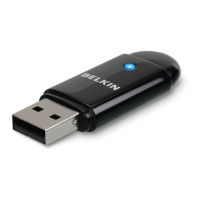
The Belkin Basic Wireless USB Adapter is designed to enable wireless networking for notebook or desktop computers. It allows users to connect to a wireless network (Wi-Fi) to share a high-speed Internet connection, files, printers, and other networked resources with other computers in a home or office environment. This adapter provides mobility, allowing users to work on a networked laptop or desktop computer anywhere within the wireless range without the need for physical cabling. It is particularly useful in environments where installing Ethernet cabling is difficult due to solid or finished walls, or in open areas.

Important Technical Specifications:

  • Model: F7D1101
  • Part Number: 8820-00382
  • Host Interface: USB 2.0
  • Wireless Standards: Complies with IEEE 802.11g specification, compatible with 802.11n devices (draft 802.11n), and backward-compatible with 802.11b products.
  • Frequency Band: Operates on the 2.4GHz ISM (Industrial, Science, and Medical) frequency band.
  • Data Rates:
    • Up to 150Mbps* (draft 802.11n)
    • Up to 54Mbps (802.11g)
    • Up to 11Mbps (802.11b)
    • *NOTE: The standard transmission rate—150Mbps—is the physical data rate. Actual data throughput will be lower.
  • Security: Supports WPA, WPA2, 64-bit WEP (Wired Equivalent Privacy), or 128-bit encryption.
  • Operating Temperature: 32–140 degrees F (0–60 degrees C)
  • Storage Temperature: -4–176 degrees F (-20–80 degrees C)
  • Humidity: Max. 90% (non-condensing)
  • Typical Operating Range: Up to 1,000 ft.**
    • **Wireless performance may vary depending on the networking environment.
  • System Requirements: PC-compatible laptop with one available USB 2.0 bus-power port, Windows® XP with SP2 or later, Vista®, and Windows 7.
  • Package Contents: Basic Wireless USB Adapter, Quick Installation Guide, CD with Installation Software and User Manual.
  • Physical Features:
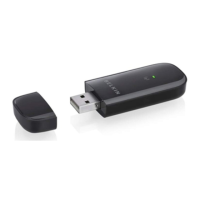
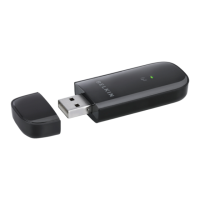
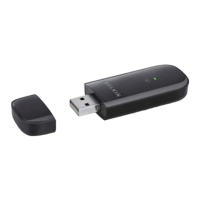
    • Protective Cap: Provided to protect the USB connector during transportation.
    • Power/Activity LED: Lights when the Adapter is powered on and flashes when it is active.
    • USB Connector: Part of the Adapter that fits into your computer's USB port.

Usage Features:

  • Easy Installation: Belkin Easy Installation Wizards simplify the setup process. The software should be installed before inserting the adapter into the computer.
  • Wireless Roaming: Offers the freedom to network without cables, allowing users to move their laptop around the home or office while maintaining connectivity.
  • High Connection Rates: Provides immediate high-speed wireless connectivity at home, work, and hotspot locations.
  • Broad Compatibility: Backward-compatible with existing Wi-Fi (IEEE 802.11b/g) products and also supports 802.11n devices.
  • Network Sharing: Facilitates sharing of a single high-speed Internet connection, files, hard drives, printers, documents, music, video, and digital pictures among connected computers.
  • Optimal Performance Placement:
    • Place the wireless router (or access point) as close to the center of the wireless network devices as possible.
    • Ensure router antennas are parallel to each other and positioned vertically (toward the ceiling).
    • In multistory homes, place the router on a floor as close to the center of the home as possible, potentially an upper floor.
    • Avoid placing the router near cordless 2.4GHz phones or devices that emit radio "noise" like microwave ovens.
    • Other obstructions that can inhibit wireless communication include refrigerators, washers/dryers, metal cabinets, large aquariums, and metallic-based, UV-tinted windows.
    • If signal is weak, try moving the computer 5-10 feet from the wireless router to check if distance is the problem.
  • Cordless Phone Interference: If performance is impaired, try moving cordless phones away from the router and wireless-enabled computers. Unplug and remove the battery from any 2.4GHz cordless phone to check for interference. If the phone supports channel selection, change its channel to be as far as possible from the wireless network's channel. Consider switching to a 900MHz or 5GHz cordless phone.
  • Channel Selection: In areas with many wireless networks (e.g., apartment buildings), use the Site Survey capabilities of the Belkin Wireless Networking Utility to find the "quietest" channel for your network to avoid conflicts and interference.
  • Secure Connections (VPNs, AOL, Banking): Secure connections requiring a username and password can be interrupted by a computer's power management settings (sleep mode). Reconnecting via VPN/AOL software or re-logging into the website is the simplest solution. Alternatively, change power management settings to prevent the computer from sleeping.
  • Connecting to a Secure Wi-Fi Network: When connecting to a secure network, determine the security type (WPA/WPA2 or WEP) and enter the appropriate network security key or passphrase. WEP keys are 10- or 26-character hex keys (a-f, 0-9). WPA/WPA2 passphrases are 8–63 characters (alphabet letters and numbers).
  • Troubleshooting: The manual provides guidance for common issues such as inability to connect to the Internet wirelessly, power LED not coming ON, slow link LED blinking, poor signal strength, and slow data transfer. It advises checking router lights, cable connections, modem functionality, driver installation, SSID settings, and encryption key settings.
  • Wireless Transmit Rate Adjustment: Users can limit the wireless transmit rate via Windows Control Panel (Network Connections -> Adapter Properties -> Advanced tab) to improve maximum wireless range and connection stability. Slower transmission rates are generally more stable.
  • Handling Multiple Wireless Cards: If the computer has a second built-in wireless network card (e.g., mini PCI or Intel® Centrino™), it may cause unstable connections. The built-in card should be disabled in Device Manager under "Network Adapters."
  • Handling Active Ethernet Card: If the computer has an active wired Ethernet card, it may cause slow or unstable connections. The Ethernet card should be disabled in Device Manager under "Network Adapters."

Maintenance Features:

  • Driver Updates: Users are advised to visit www.belkin.com/support for updated drivers.
  • Technical Support: Belkin Technical Support is available for persistent issues or complex problems not resolved by the manual's troubleshooting steps.
  • Warranty: Belkin International, Inc. provides a 1-year limited product warranty covering defects in design, assembly, material, or workmanship. The warranty does not cover improper installation, alteration, tampering, acts of God, normal wear and tear, abuse, or unauthorized modifications.
  • Obtaining Service: To get service, contact Belkin International, Inc. Customer Service within 15 days of the occurrence, providing the product part number, purchase location, purchase date, and a copy of the original receipt. Shipping costs for inspection are borne by the purchaser. Belkin reserves the right to repair, replace, refund, or credit the purchase price if repair/replacement is not possible.

Belkin F7D1101 Specifications

General IconGeneral
BrandBelkin
ModelF7D1101
CategoryAdapter
LanguageEnglish

Related product manuals