2726
Troubleshooting
The name of your wireless network DOES NOT appear in the list
of “Available Networks”.
If the correct network name is not listed, check the SSID settings
to see if they match. The SSID is case-sensitive and the spelling on
each computer must be exactly the same in order for the Card to
connect to the wireless router.
Note:
To check the SSID settings or look for an available
network, double-click the Signal Indicator icon to bring up the
“Wireless Networks” screen. Click “Add” if you do not see the
network you are trying to connect to and type in the SSID. For
more information about setting up an SSID, please reference your
router manufacturer’s user manual.
If issues persist even at close range, please contact Belkin
Technical Support.
Installation CD-ROM does not start Wireless
Networking Utility
If the CD-ROM does not start the Belkin Wireless Networking
Utility (WNU) automatically, it could be that the computer is
running other applications that are interfering with the CD drive.
If the WNU screen does not appear within 15-20 seconds,
open up your CD-ROM drive by double-clicking on the “My
Computer” icon. Next, double-click on the CD-ROM drive that the
Installation CD has been placed in to start the installation. Then
double-click on the folder named “Files”. Next, double-click on
the icon named “setup.exe”.
Power LED does not come ON; Card is not working.
If the LED indicators are not ON, the problem may be that the
Card is not connected or installed properly.
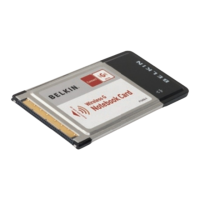
Verify that the Card is plugged firmly into the CardBus slot
of your computer. Check to see that the drivers for the Card
have been installed. Right-click on the “My Computer” icon on
your desktop. Choose “Properties” and navigate to the “Device
Manager” and see if your CardBus Card is listed without any
errors. If an error is indicated, contact Belkin Technical Support.








 To Next Page