EasyManua.ls Logo

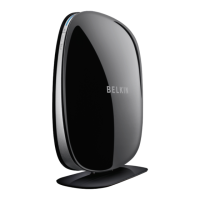
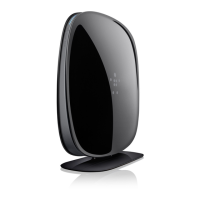
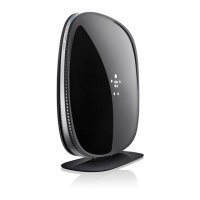
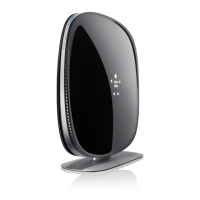
Belkin N600 DB - User Manual

Belkin N600 DB
60 pages
Print Icon
To Next Page IconTo Next Page
Loading...
User Manual
F9K1102V3 8820xx01233xx Rev. A00
Wireless N
+
rOUTer
N600 DB
English

Other manuals for Belkin N600 DB

Questions and Answers

  • W
    williethomasAug 14, 2025
    What to do if network clients can't connect to Belkin N600 DB?
    • L
      Lisa JohnsonAug 14, 2025
      If some of your network clients are unable to connect to the Belkin Wireless Router, ensure that all clients are using the correct network name and password to connect wirelessly. Locate the network settings on each client, select the network name displayed on the card from the available networks, and enter the password when prompted.
  • T
    Timothy BryantAug 18, 2025
    What to do if Belkin Wireless Router network name is not listed?
    • J
      Julie OneillAug 18, 2025
      If you can't connect to the internet wirelessly and your Belkin Wireless Router network name isn't listed, first verify that your Router is powered on and the front-panel light is solid blue. If you are far from the Router, move closer to ensure you are within range. If the issue persists, connect a computer to the Router via a network cable, go to http://router/ and ensure that “Broadcast SSID” is turned ON.
  • J
    James HorneAug 21, 2025
    Why is my printer not showing up when plugged into Belkin N600 DB?
    • S
      Sharon TrujilloAug 21, 2025
      If a printer plugged into the USB port of your Belkin Wireless Router is not showing up on your computer, try unplugging and re-plugging the printer to ensure the USB connector is firmly connected. Also, ensure that the printer's driver is installed on your computer. Via the Belkin Router Manager, open the USB Print and Storage Center and check that the printer appears in the list of available devices. View the printer's properties and ensure that “auto-connect” is selected.
  • S
    scottcoffeyAug 25, 2025
    How to set up WPA security on Belkin N600 DB?
    • J
      Jason MontesAug 25, 2025
      To set up WPA security on your Belkin Wireless Router, log in to your Router by visiting http://router/ in your web browser. Click “Wireless” in the left-hand menu, then click “Security”. Select the “WPA/WPA2” option. Enter a password (8–63 characters, including spaces and punctuation, or a 64-digit hexadecimal number). Click “Apply Changes” to finish. If configuring over wireless, reconnect after changing security settings. If older computers can't connect, try 128-bit or 64-bit WEP, or seek software updates from their manufacturers.
  • R
    rmillerAug 28, 2025
    What to do if USB device is not showing up on Belkin Wireless Router?
    • M
      Mr. Michael BauerAug 28, 2025
      If a USB device (other than disks and printers) plugged into your Belkin Wireless Router is not showing up on your computer, it must be accessed via the USB Print and Storage Center. Check if the light is on over the USB port; if not, try unplugging and re-plugging the device. Via the Belkin Router Manager, open the USB Print and Storage Center, check that the device appears in the list of available devices, select the device, and click the “Use” button.
  • C
    Christopher GilbertAug 31, 2025
    How to set up WEP security on Belkin N600 DB?
    • M
      Michael MckinneyAug 31, 2025
      To set up WEP security on your Belkin Wireless Router, log in to your Router by visiting http://router/ using your web browser. Click “Wireless” in the left-hand menu and then click “Security.” Select the “128-bit WEP” option. You can type in a WEP key manually or generate one from a passphrase. Click “Apply Changes” to finish. If configuring the Router over a wireless connection, you will have to reconnect to the Router after changing any security settings. If your older computers cannot connect to your network, try 64-bit WEP.
  • J
    Jessica BrownSep 3, 2025
    Why is disk not showing up on Belkin Wireless Router?
    • M
      matthewhowellSep 3, 2025
      If a disk you plugged into the USB port of your Belkin Wireless Router is not showing up on your computer or in Memory Safe, and the light on over the USB port is off, try unplugging and re-plugging the disk, ensuring the USB connector is firmly plugged into the Router. If your disk has an optional power supply, use it while the disk is attached to your Router. The Router supports FAT16, FAT32-, or NTFS-formatted disks; disks in other formats will not appear.
  • S
    Shelly LeeSep 7, 2025
    What to do if disk plugged into Belkin N600 DB Wireless Router is not coming on?
    • T
      tyleracostaSep 7, 2025
      If a disk plugged into the USB port of your Belkin Wireless Router is not coming on or remains on only for a short time, it might require more power than the router’s USB port provides. If your disk has an optional power supply, please use it while the disk is attached to your Router.
  • J
    Justin MccarthySep 10, 2025
    Why is my Belkin Wireless Router performance slow?
    • B
      Beverly DownsSep 10, 2025
      Slow or inconsistent wireless network performance, weak signal, or difficulty maintaining a VPN connection on your Belkin Wireless Router can occur because the distance between devices increases. Try temporarily moving the computer within 10 feet of the Router, if possible. You may also improve performance and reliability by changing the wireless channel, depending on local wireless traffic and interference.

Summary

GETTING STARTED

Whats in the Box

Lists the items included in the router package.

Initial Setup and Placement

Covers initial setup and optimal router placement for signal strength.

Router and Internet Connection Setup

Details steps to set up the router and configure internet connection types.

Connecting Devices to the Network

Guides on connecting wireless devices using WPS or manual methods.

ADDITIONAL CAPABILITIES

USB Device Sharing and Software

Covers adding USB devices, sharing them, and bundled software.

Network Features

Details Guest Access, Media Server, Website Filters, and Intellistream QoS.

IPv6 Configuration

Information on IPv6 configuration and Pass-Through feature.

GETTING TO KNOW YOUR ROUTER

Front and Back Panel Overview

Describes the lights, buttons, and connectors on the router's front and back panels.

TECHNICAL DETAILS

Technical Features

Lists and explains the router's technical features.

System Requirements

Outlines the hardware and software requirements for the router.

USING YOUR ROUTER

Firmware Management

Covers enabling auto-updates and updating firmware via the web interface.

Router Reset and Defaults

Explains how to reset the router and restore factory defaults.

TROUBLESHOOTING, SUPPORT, AND WARRANTY

Connectivity and Performance Issues

Troubleshoots internet connection, wireless performance, and client connection problems.

Security and USB Device Issues

Addresses setting up WPA/WEP security and troubleshooting USB device detection.

Support, Warranty, and Service

Provides information on technical support, warranty terms, and service procedures.

REGULATORY AND SAFETY INFORMATION

Compliance and Interference Notices

Covers EMC compliance, RF exposure, and CISPR 22 interference notices.

EU Declaration and Safety Guidelines

Details the EU Declaration of Conformity and general safety information.

Belkin N600 DB Specifications

General IconGeneral
Frequency Bands2.4 GHz, 5 GHz
Ports4x 10/100 Ethernet LAN, 1x 10/100 Ethernet WAN
USB Ports1x USB 2.0
SecurityWPA, WPA2, WEP
AntennasInternal
Wireless Standard802.11a/b/g/n
Max Data Rate300 Mbps (2.4 GHz), 300 Mbps (5 GHz)

Related product manuals