Wireless G
Universal Range
Extender
Wireless G
Notebook Card
Wired Router
Wireless G
Desktop Card
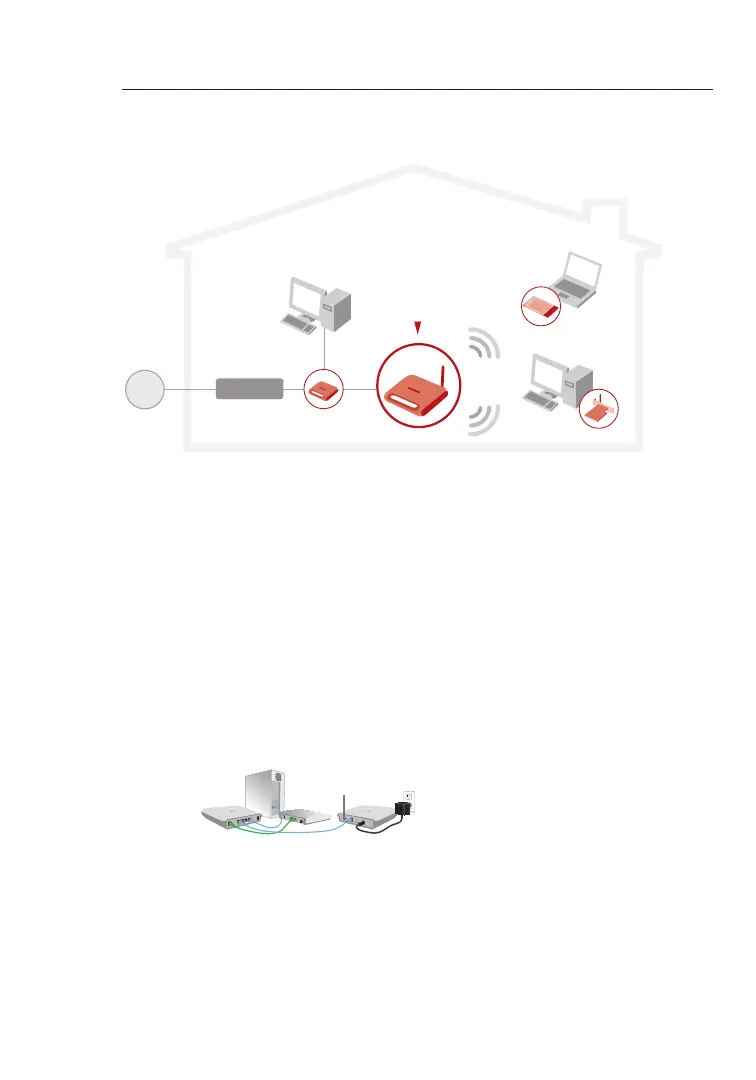
Configuring as a Wireless Access Point
1. Connect
Connecting as a Wireless Access Point
The WURE can add wireless-enabled computers to an existing wired
network. The access point acts as a bridge between your existing
wired network and your wireless-equipped computers. Please be sure
to follow the steps below carefully.
1.1 Select a suitable place for your WURE.
1.2 Connect a CAT5 cable between the WURE and your router’s
LAN port, or an Ethernet switch or hub.
1.3 Connect the power supply to the WURE by plugging the
round DC connector into the DC jack on the WURE. Plug the
power supply into the wall. Verify that the “Power” LED and
the “LAN” LED are illuminated. If both LEDs are illuminated,
the WURE is connected properly.


 To Next Page