25
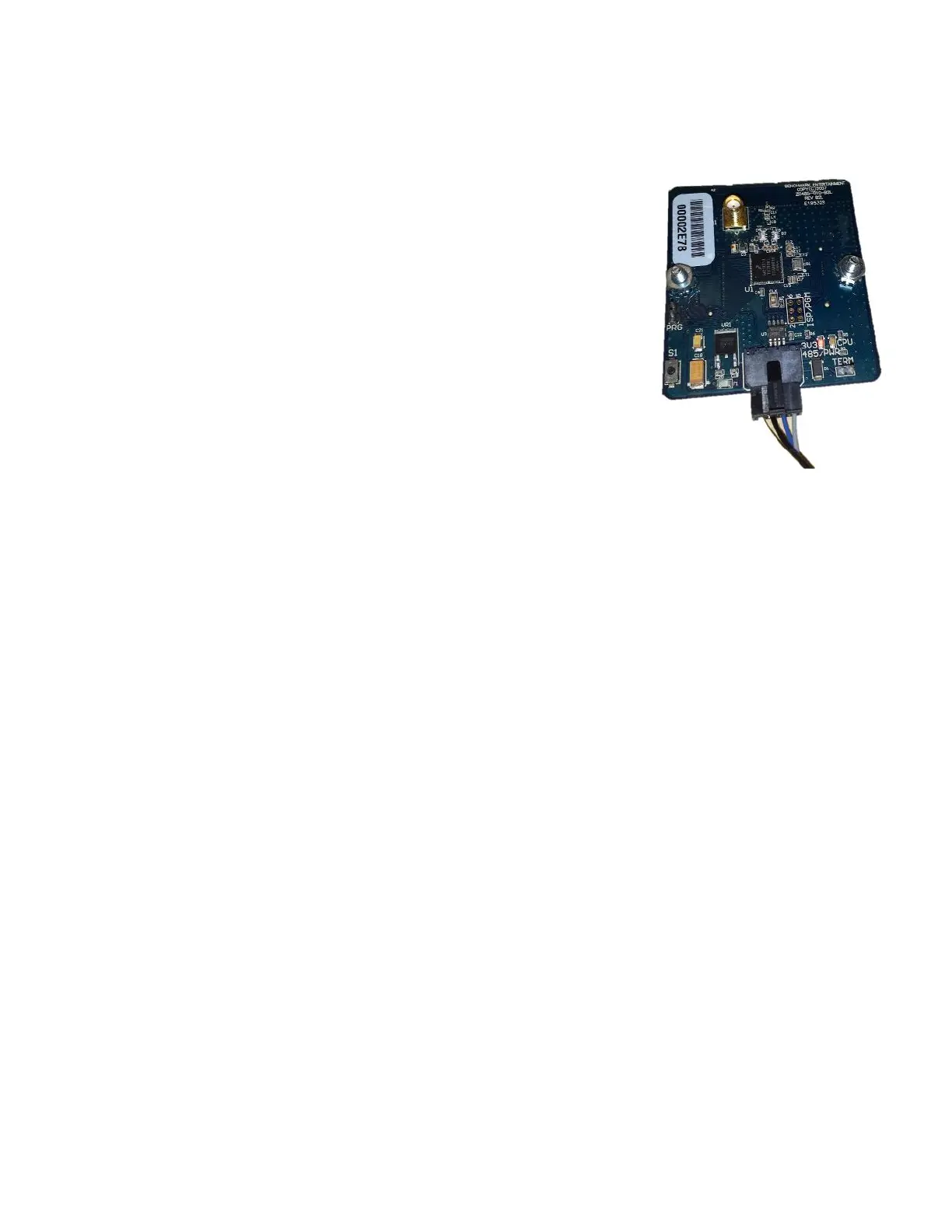
Zigbee Board
Part#500PCB049
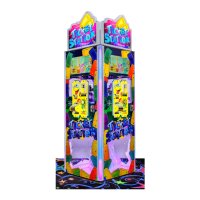
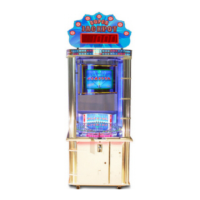
Location: One in lower cabinet, one on top marquee
Qty: 2
Act as a wireless 485 connection. The Zigbee board in the lower cabinet is
directly connected to the Main CPU by a 485 connection. The Zigbee board
then transmits the signal to the Zigbee board located on the top of Blaster,
thus sending signals to the IO expanders through wiring and controlling
the LED lights of the upper cabinet and the marquee.
ZigBee Board Trouble shooting
Note: Changing the channel of the Zigbee boards will create a connection between the two Zigbee
boards of the same game (if you have more than one game that uses Zigbee boards).
How to change the channel of each Zigbee board:
Before boards can be game-synched, they need to be on the same frequency channel (1 to 16).
Note: However, the default channel is #15 for all boards upon initial programming.
- put a jumper on PRG terminal, at this point the LED light will flicker quickly and you will have 2
seconds to start pressing the button slowly, counting up to the channel number desired for the
board (1 to 16). Each press will give you additional time to continue.
- When finished pressing, the board will continue flickering for a couple of seconds, then it will
start flashing slowly, it will flash thru to the number of the channel (i.e. channel 15 ->15 flashes).
- A couple of seconds after the last flash is done, normal heartbeat flashing will resume, done.
- Now remove the jumper from the PRG terminal.
- Please Label the board with the channel number.
- Do the same for the second Zigbee board.


 To Next Page