Page22
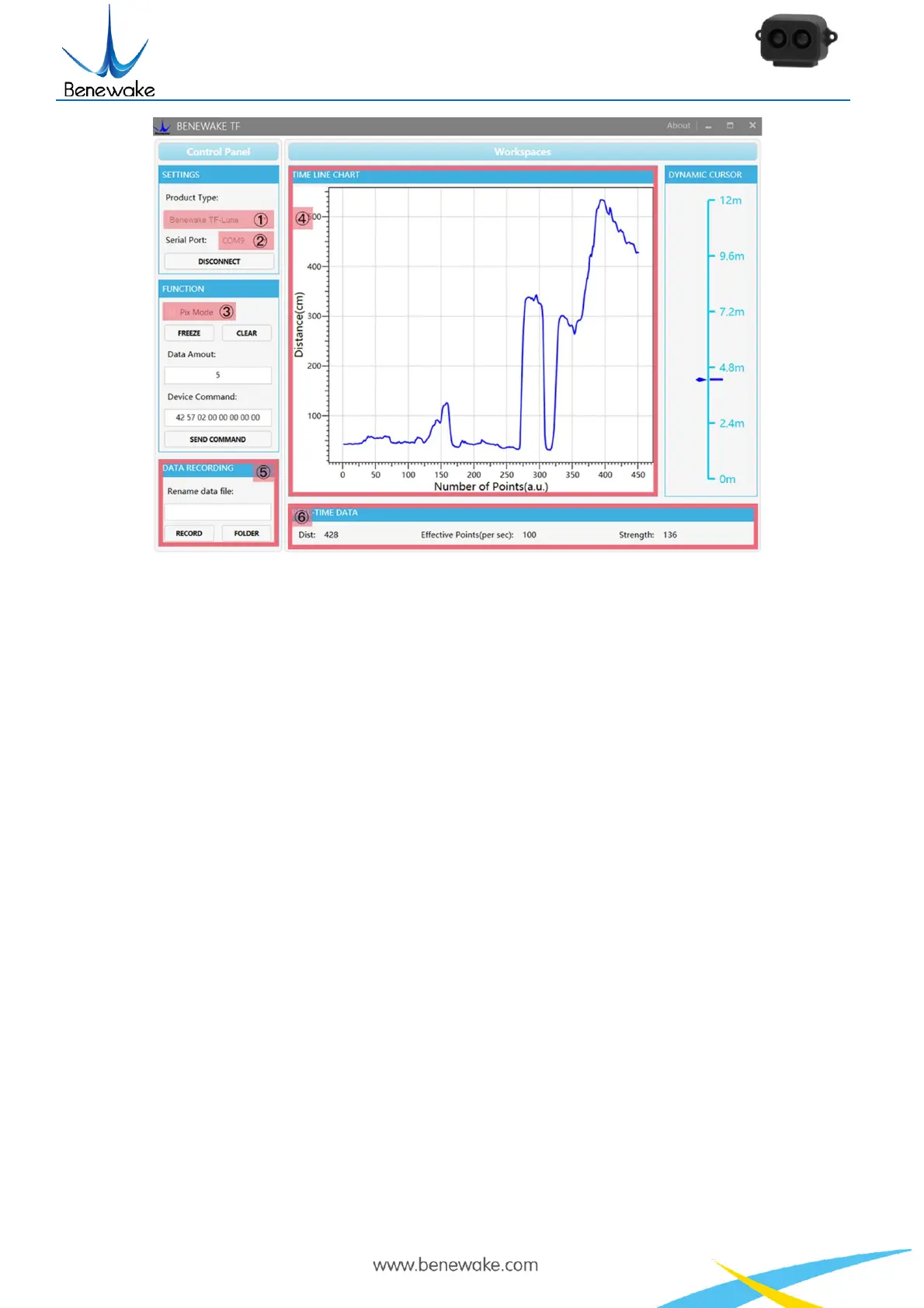
Figure 10 PC software Interface and Display
Now click the “CONNECT” button, and a continuous images of the output data will be displayed in area
“④ TIME LINE CHART” on the right if everything is connected successfully. The real-time data of the
Current measure distance (Dist), effective data points per second (Effective Points) and signal strength
(Strength) will be displayed in area “⑥ REAL TIME DATA” below as well.
Notes:
a) If nothing is displayed in area “④TIME LINE CHART”, please check the wire connection
and sequence. A red LED indicator inside the transmitting lens at front will light up when
TF-Luna is power-on.
b) Please select “③Pix Mode” before switching TF-Luna’s outputs to Pixhawk format to avoid
abnormal data display in the “④TIME LINE CHART” area. Note that selecting Pix Mode will
automatically set the unit of distance to meters.
c) Since TF-Luna does not pass unit information and the software always uses centimeters as
distance unit, the distance unit displayed in the chart remains the same as centimeter even if
TF-Luna output in millimeter. For instance, suppose the actual measurement is one meter and
the distance value from TF-Luna is 1000 mm, then the value read by the PC software is 1000.
Thus, the software will display 1000 with unit cm.


 To Next Page