34
Adjustment / Alignment Procedure
GL2040
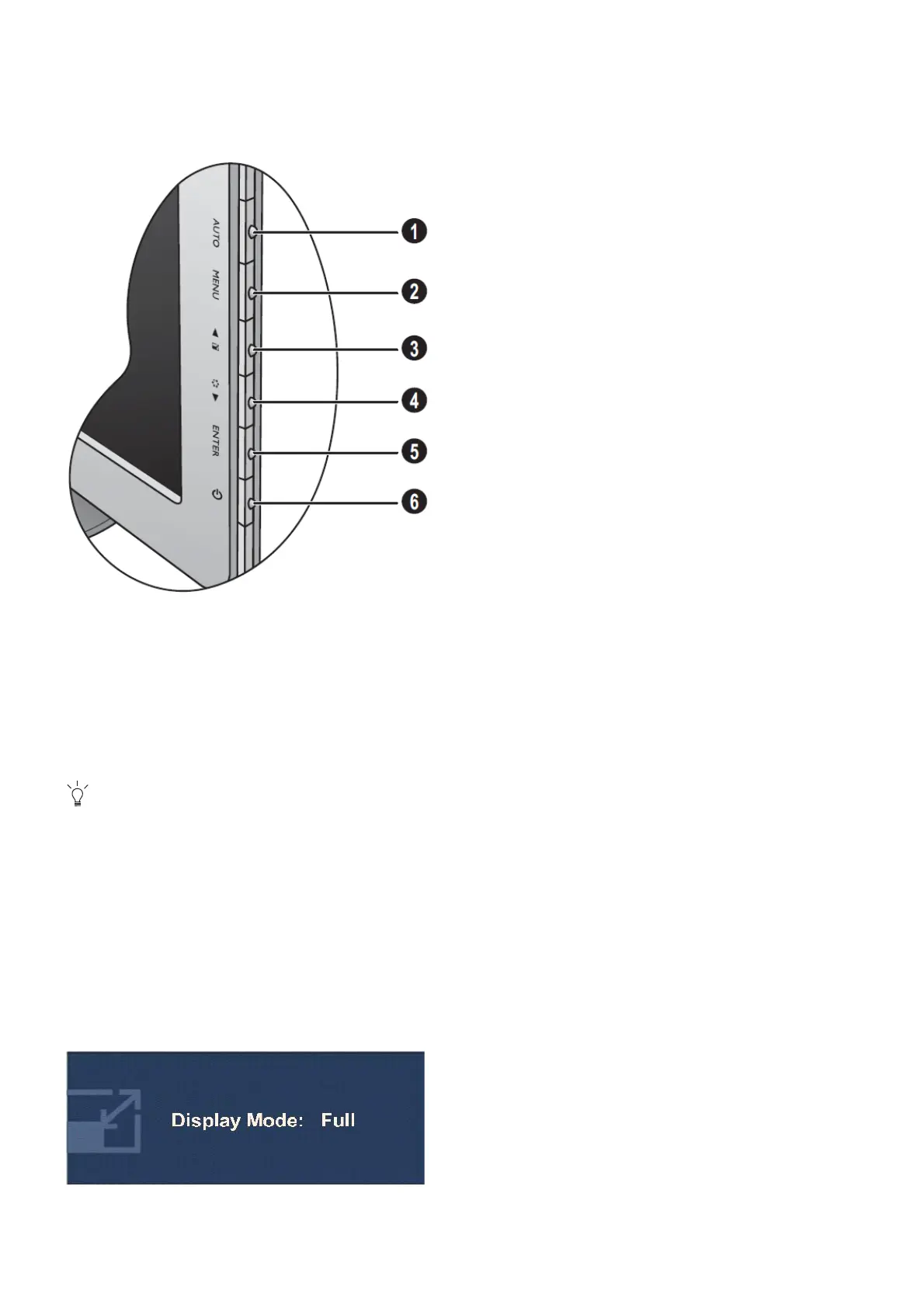
The Control Panel
1. AUTO: Adjusts vertical position, phase, horizontal position and pixel clock automatically.
2. MENU key: Activates OSD main menu and return to the previous menu or exit OSD.
3.▲ /Display Mode key: For Up/Increase adjustment. The key is the hot key for Display Mode.
4.▼ /Mode key: For Down/Decrease adjustment. The key is the hot key for Mode.
5. ENTER key: Enters sub menus and select items. For models with DVI inputs, this key is also the hot key for Input.
6. Power: Turns the power on or off.
OSD = On Screen Display.
The hot keys will display a graduated scale for adjusting the value of that setting, and will only operate while the
OSD menu is not currently displaying. Hot key displays will disappear after a few seconds of no key activity.
Hot key mode
The monitor keys perform as hot keys to provide direct access to particular functions whenever the menu isn't
currently displaying on-screen.
Display Mode hot key
Press the ▲ key continually to switch between Full and Aspect. The setting will take effect immediately.


 To Next Page