EasyManua.ls Logo

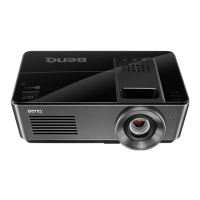
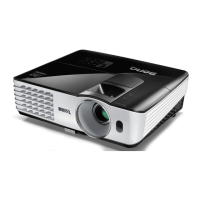
BenQ MH760 - User Manual

BenQ MH760
72 pages
Print Icon
To Next Page IconTo Next Page
Loading...
MH760
Digital Projector
User Manual
V 1.00

Table of Contents

Other manuals for BenQ MH760

Questions and Answers

  • D
    Donna WebsterJul 28, 2025
    How to fix a BenQ MH760 that does not turn on?
    • W
      Wesley JonesJul 28, 2025
      If your BenQ Projector doesn't turn on, first, ensure the power cable is securely plugged into both the AC inlet on the projector's rear and a functioning power outlet, verifying the outlet switch is on. Second, if you've recently tried turning it on, wait for the cooling process to complete. Lastly, check that the lamp cover is correctly and securely attached.
  • V
    vincenthuntAug 1, 2025
    What to do if the BenQ MH760 Projector remote control does not work?
    • J
      Jaime JonesAug 1, 2025
      If your BenQ Projector remote control isn't working correctly, start by replacing both batteries with new ones. If that doesn't work, check for any obstacles between the remote and the projector and remove them. Finally, make sure you are within 8 meters (26.2 feet) of the projector.
  • D
    David TaylorAug 7, 2025
    Why is there no picture on my BenQ Projector?
    • B
      Belinda CampbellAug 7, 2025
      If there is no picture on your BenQ Projector, the video source might not be turned on or connected correctly. Ensure the video source is on and the signal cable is properly connected. Another potential cause is an incorrect connection between the projector and the input source device; double-check this connection. Finally, the input source may not be correctly selected; use the Source keys on the remote or the SOURCE button on the projector to select the correct input.
  • J
    Jennifer WilliamsAug 12, 2025
    How to fix a blurred picture on a BenQ MH760?
    • L
      Lindsey BurkeAug 12, 2025
      If the picture on your BenQ Projector is blurred, try adjusting the focus of the lens using the focus ring. If the issue persists, check the alignment between the projector and the screen; adjust the projection angle, direction, and height as needed.
  • E
    Emma JonesAug 17, 2025
    Why is 3D content not displaying correctly on my BenQ Projector?
    • J
      jamesjoshuaAug 17, 2025
      If 3D content isn't displaying correctly on your BenQ Projector, the 3D glasses might be out of battery and need to be recharged. Also, the settings in the 3D menu might not be correctly configured, so ensure they are properly set. Another potential issue is using a non-3D Blu-ray Disc; use a 3D Blu-ray Disc instead. Finally, the input source may not be correctly selected; choose the correct source using the SOURCE key on the projector or remote control.
  • R
    Ryan HowellAug 22, 2025
    What causes an unstable image on a BenQ MH760?
    • K
      Katherine RodriguezAug 22, 2025
      An unstable image on your BenQ Projector is often caused by connection cables that are not securely connected to the projector or the signal source. Ensure that all cables are correctly connected to the appropriate terminals.

Summary

Important Safety Instructions

Overview

Remote Control Operations

Instructions for battery installation and remote control usage.

Projector Features

Controls and Functions

Remote Control Guide

Positioning Your Projector

Choosing an Installation Location

Outlines four possible installation locations for the projector.

Image Size Optimization

Lens Shifting for Placement

Connecting to Video Equipment

Connecting HDMI Devices

Instructions for connecting HDMI devices for high-quality video.

Connecting MHL Devices

Instructions for connecting MHL-compatible mobile devices.

Connecting a Computer

Instructions for connecting a computer via VGA cable.

Using the Projector

Turning the Projector On

Step-by-step guide to powering on the projector and initial startup.

Selecting Input Sources

Navigating OSD Menus

Securing the Projector

Utilizing Password Protection

How to enable and use the projector's password security feature.

Password Management

Password Recall Procedure

Steps to follow if the projector password is forgotten.

Changing Projector Password

Adjusting the Projected Image

Fine-Tuning Image Size and Clarity

Adjusting image size with zoom and focus controls.

Correcting Picture Distortion

Using 2 D Keystone Correction

Correcting trapezoidal distortion using the 2D Keystone feature.

Using Corner Fit Function

Preset and User Modes

Fine-Tuning Picture Modes

Adjusting pre-defined picture settings for optimal quality.

Customizing User Modes

Fine-Tuning Picture Quality

Advanced Picture Quality Controls

Selecting Aspect Ratio

Adjusting Sound Settings

Setting the Lamp Mode

Wired LAN Control Setup

Remote Control via Web Browser

Turning the Projector Off

On-Screen Display (OSD) Menus

Display Menu Options

Display Menu Functions

Functions and descriptions for display settings like Overscan and Teaching Templates.

Source Menu Options

Source Menu Functions

Functions and descriptions for input sources, HDMI, and audio adjustments.

System Setup: Basic Menu

System Setup: Basic Menu Functions

Functions and descriptions for basic system setup options.

System Setup: Advanced Menu

System Setup: Advanced Menu Functions

Functions and descriptions for advanced system setup options.

Picture Menu Details

Picture Menu Details

Detailed explanations of picture settings and adjustments available in the menu.

Lamp Information

Extending Lamp Life

Methods to prolong the projector lamp's lifespan, like using Economic mode.

Timing of Lamp Replacement

Lamp Replacement Procedure

Indicator Light Meanings

Troubleshooting Common Problems

Projector Specifications

BenQ MH760 Specifications

General IconGeneral
Typelamp
Colorblack/white, multi
Displaydlp
TV Tunerno
Noise Level36 decibels
White Brightness5000 lumens
Resolutionfull hd (1080p)
Native Resolution1920 x 1080
Contrast Ratio3000:1
Aspect Ratio16:9
Throw Ratio Range1.15 - 1.5:1
HDRno
3 Chip Technologyno
Keystone Effectyes
3Dyes
Minimum Screen Size59.8 inches
Maximum Screen Size180 inches
Minimum Aperturef/2.59
Maximum Aperturef/2.87
Optical Zoom1.3x
Digital Zoomno
Minimum Distance5 feet
Maximum Distance25.05 feet
HDMI Ports2
HDMI 2.2 Ports0
HDMI ARC Portsno
Wireless HDMIoptional
RS-232 Port1
Video Inputvga, component video, hdmi, composite video, s-video
Inputsmini-usb, usb type a, vga, component video, composite video, s-video, rca, din, 3.5mm audio
Bluetoothno
Sound Modestereo
Built In Speakersyes
Speakers Output10 watts
Voice Assistantno
Remote Controlyes
OS Compatibilitynone
Smart Functionsno
Weight and Dimensions IconWeight and Dimensions
Depth10.5 inches
Height4.7 inches
Width16.2 inches
Net Weight10.8 pounds

Related product manuals