EN-42
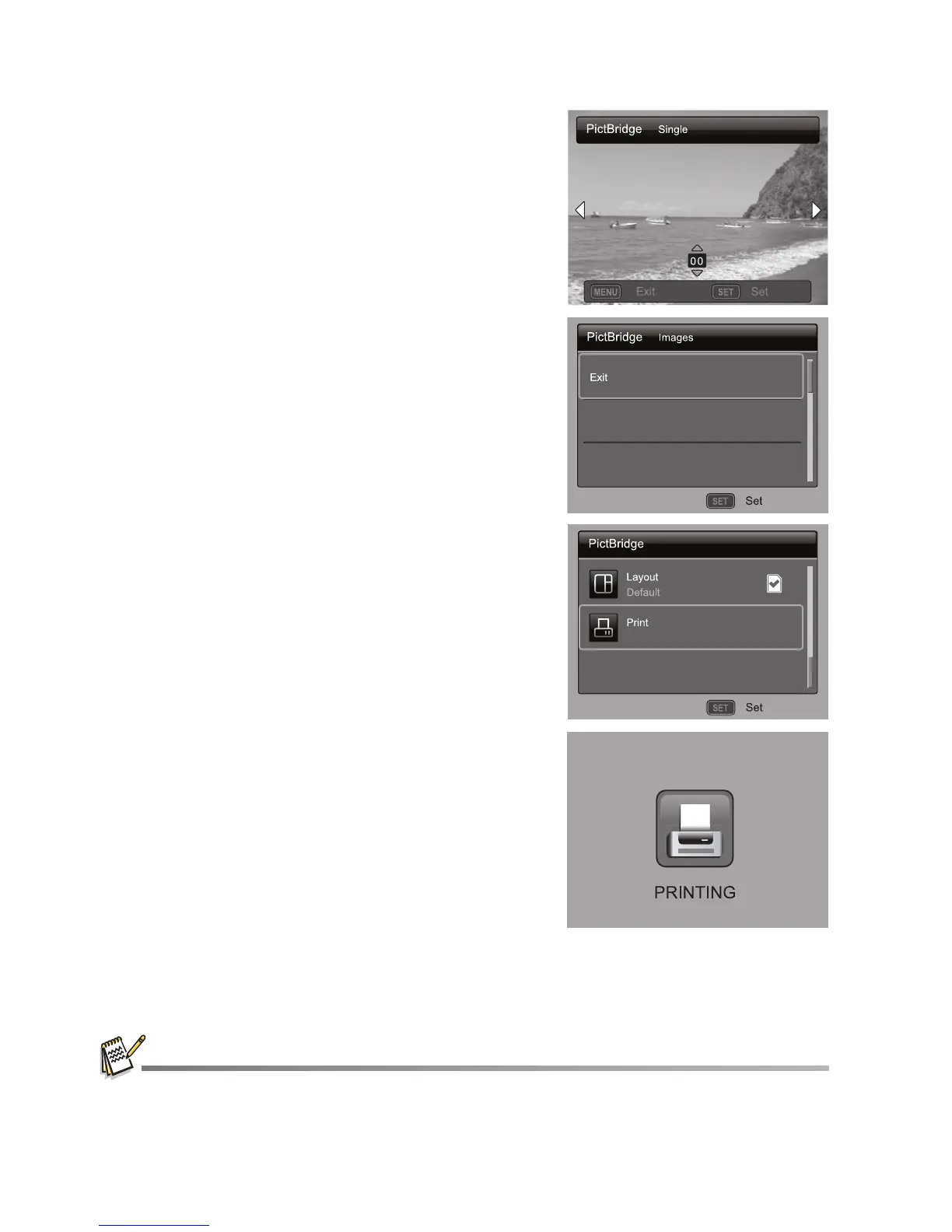
3. If you select [Single] in the previous step, the
figure shown on the right hand side will appear.
Select the image that you want to print with the
e / f buttons.
Select the print number (up to 99) with the c /
d buttons.
After selecting the desired image and printing
number, press the
SET
button to confirm.
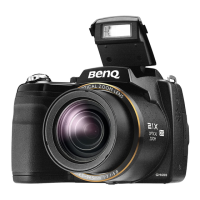
4. Select [Exit] with the c / d buttons, and press the
SET
button.
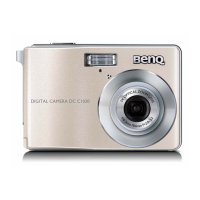
5. Select [Print] with the c / d buttons, and press
the
SET
button to start printing.
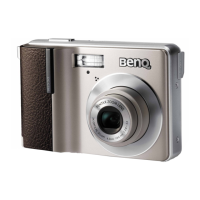
6. The printing starts and the figure shown on the
right hand side appears.
[COMPLETE] will be displayed temporarily,
reminding you that the printing procedure is
finished.
If an error is detected during the connection
(i.e. a printer hardware problem) between
camera and printer, [PRINT ERROR] will be
displayed.
If an error is detected during the
communication (i.e. wrong setting on the camera) between camera and printer,
[ERROR] will be displayed.
The image printing may fail if the power to the camera is cut off.
;;
Η
;
Η
;



 To Next Page