Parts and Functions 15
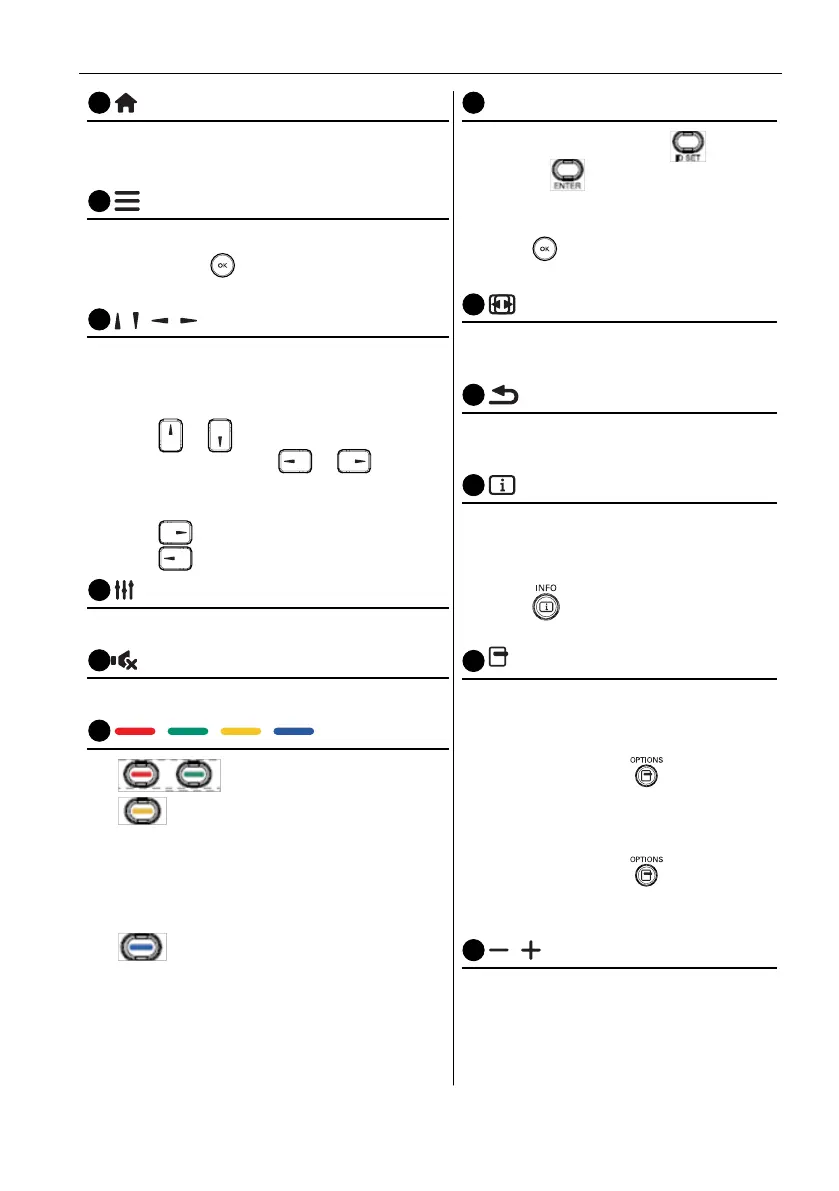
HOME button
Root Menu: Go to Main Menu OSD.
Others: Exit OSD.
LIST button
In PDF Player, zoom-in your PDF content.
When you Press
button, the PDF content will
go back to the original size.
6
/ / / NAVIGATION buttons
1. Navigate through menus and choose items.
2. In the content of the web page, these buttons
are to control the scroll bar of the screen.
Press
or is for moving vertical scroll
bar up or down. Press or is for
moving horizontal scroll bar left or right.
3. For PDF les,
Press
to go to the next page.
Press to go to the previous page.
7
OK button
Conrm, submit or select.
MUTE button
Toggle Audio Mute/Unmute.
/ / / COLOR buttons
1. : No function in Android.
2.
1) In the content of the web page, move the
focus up to the next clickable items.
2) Move the focus up to the next control or
widget such as buttons.
3.
1) In the content of the web page, move the
focus down to the next clickable items.
2) Move the focus down to the next control
or widget such as buttons.
Number / ID SET / ENTER button
1. No functions for ID SET and
ENTER
on Android source.
2. For PDF le, enter the page number by
pressing number buttons and then
press
button to jump to the specic
page.
FORMAT button
Change Image Zoom Mode Full, 4:3, 1:1,
16:9, 21:9, Custom.
BACK button
Return to the previous page or exit from
the previous function.
INFO button
1. Show Information OSD.
2. Media Player > Compose > edit or new
add playlist > choose any media les >
press
to show the information of
the chosen media le.
OPTIONS button
Open toolbox in Media Player or PDF
Player.
1. Media Player >Compose > Edit or new
add playlist > press
to open
toolbox. Toolbox will be slide from the
left side of the screen.
2. PDF Player >Compose > Edit or new
add playlist > press
to open
toolbox. Toolbox will be slide from the
left side of the screen.
15
/ VOLUME button
Adjust volume.



 To Next Page