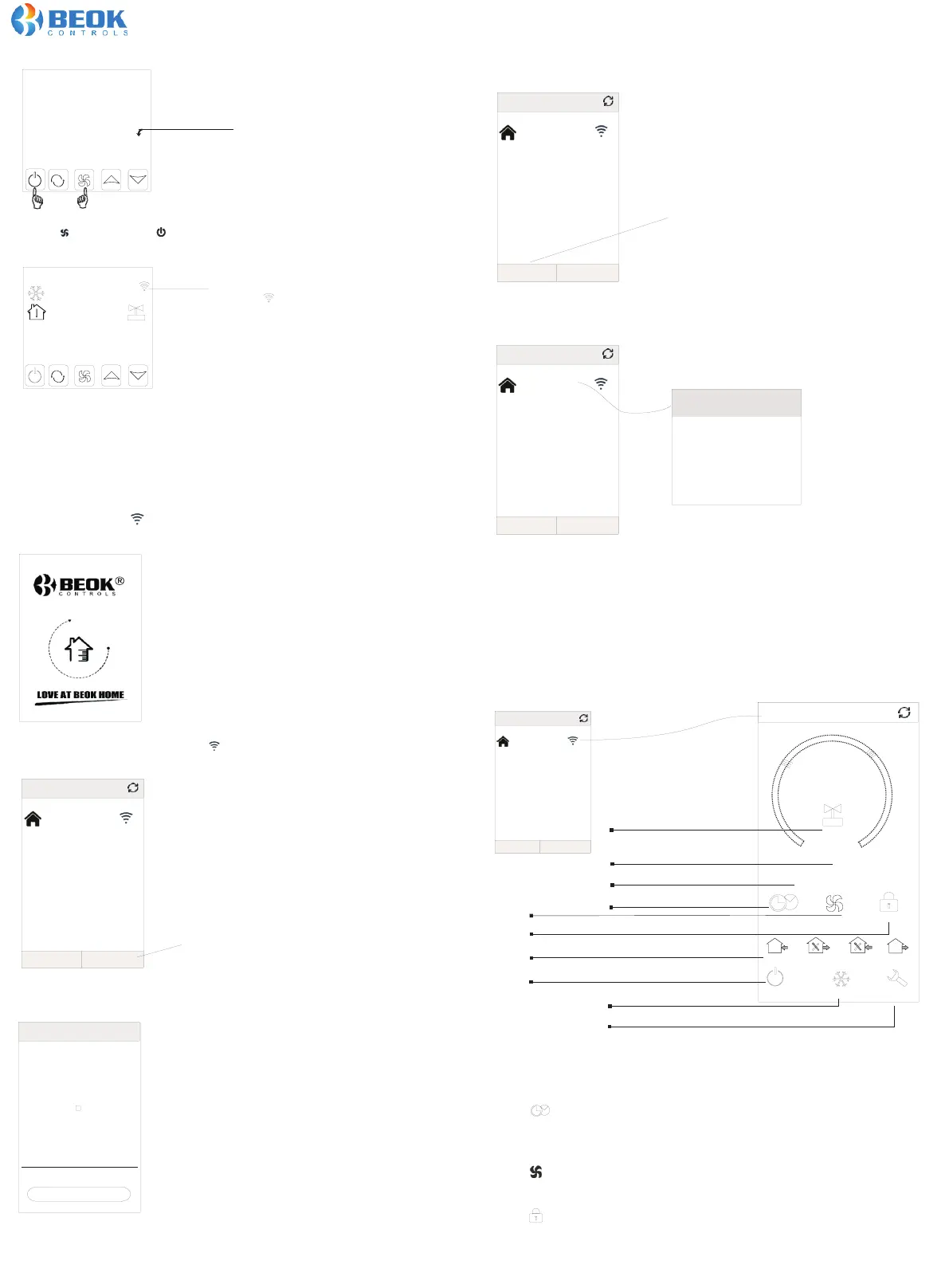
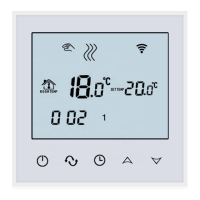
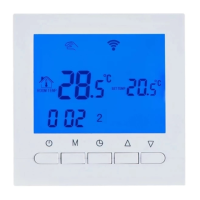
1.When the thermostat Wifi Symbol twinkling fast and continuely,
you can start the configure on your Phone App.
Press Configure key
2.Enter your wifi name and password, then press start connection at below.
When connection successfully, it will appear “Connection Success”.
3.After connection success, you need press “Search “ key.
a. Long press HVAC for 5 seconds, it will appear Edit Thermostat page.
Press Search key
4.Then it will appear your wifi thermostat HVAC. HVAC is the factory setting name,
when you have more than 2 thermostats, you can change it to any name you want.
Phone part setting
During the WIFI symbol twinkling,
Open “Beok AC” APP on your phone, you can see APP welcome page.
HVAC-A
WIFI Name:________
Display pa ss wo rd
Add a new device to WIFI network
< Add a new device
WIFI Password:_____
<<Possible cause of wif i co nn ection faliure>>
Start Connection
Edit
My Thermostat
34:ea:34:c8:84:7a
Search Configure
HVAC-A
Edit
My Thermostat
34:ea:34:c8:84:7a
Search Configure
HVAC-A
Edit
My Thermostat
34:ea:34:c8:84:7a
Search Configure
Press Search key
Edit Thermostat
34:ea:34:c8:84:7a
Modify current thermostat
Lock current thermostat
Delet current thermostat
b. Press Modify Current Thermostat.
c. For examples:.
You can change HVAC to room 1, Bedroom Bath room, or anything you like.
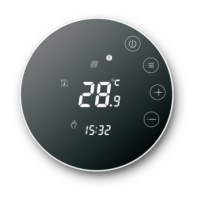
Hold on button, then press again for 2 seconds, then you can find the WIFI symbol twinkling.
At this time, wifi symbol will be twinkling quickly and frequently.
It means, you can connect thermostat with phone now.
When wifi symbol stop twinkling, it means thermostat is successfully connected with
your phone.
When the wifi symbol twinkling quickly and frequently:
Connection can start
When wifi symbol twinkling slowly: It means Off Line
When twinkling Stops: Connection succesfully.
Step 5
POWER OFF STATE
0:01
SET TEMP
28
ROOM
TEMP
22
℃
℃
APP Interface on the Phone
<
My Thermostat
HVAC-A
Edit
My Thermostat
34:ea:34:c8:84:7a
Search Configure
TEMP.SET.TO
28
14:03 Monday
Power
Mode
Senior
19
Valve On
Clock/Current Time
Increase or decrease temp.
Time synchronous with phone
Fan speed
Key Lock
“<”, back to the device opens
and configure panel
8:00
11:31
12:32
17:03
Time on/off setting
Power on/off
Working mode
Advanced setting
<
<
Thermostat Setting through Phone Operation
1. Clock
Press to make the thermostat time synchronize with the current time
(your phone time). You will see the words”Time sync success”
2. Fan Speed Setting
Press to select the fan speed(Low speed, Medium speed, High speed, Auto)
3. Key Lock
Press in the App interface, to lock the button of thermostat.
Unlock; Lock all button except power button; Lock all button)
(Go into Advanced setting, you will find 3 locking way.
3
Attention: Only when the WIFI symbol twinkling continuely, thermostat connection
with phone will be succefully. If wifi twinkling stops but connection didn’t finish,
enter into Advanced setting to adjust wifi symbol again.
(IOS phone: slide to left, to edit.)



 To Next Page