5.2 Using the APP
5.2.1 Bluetooth
Make sure Bluetooth is connected to your Smartphone. After the phone and lock are connected,
click " " to unlock (phone must be within 2 meters from the lock)
5.2.2 Remote control (Optional via Gateway)
The lock is directly connected via Bluetooth and is not connected to the network itself, it is therefore not
vulnerable to network attacks. Gateway is an option for Smart Lock. It is the bridge that connects the
lock to your network. Through Gateway, users can, from a distance, calibrate the lock's clock, read the
history of codes, cards, ngerprints etc. It is also possible to send, delete and modify codes and e-keys.
When phone and lock are connected, click " " which can be seen in Figure 2-1 to unlock. You can
unlock anywhere you are connected to a network. (To add Gateway, see step 5.3) To activate this
function: In the respective lock - press "Settings" and then "Unlock remotely"
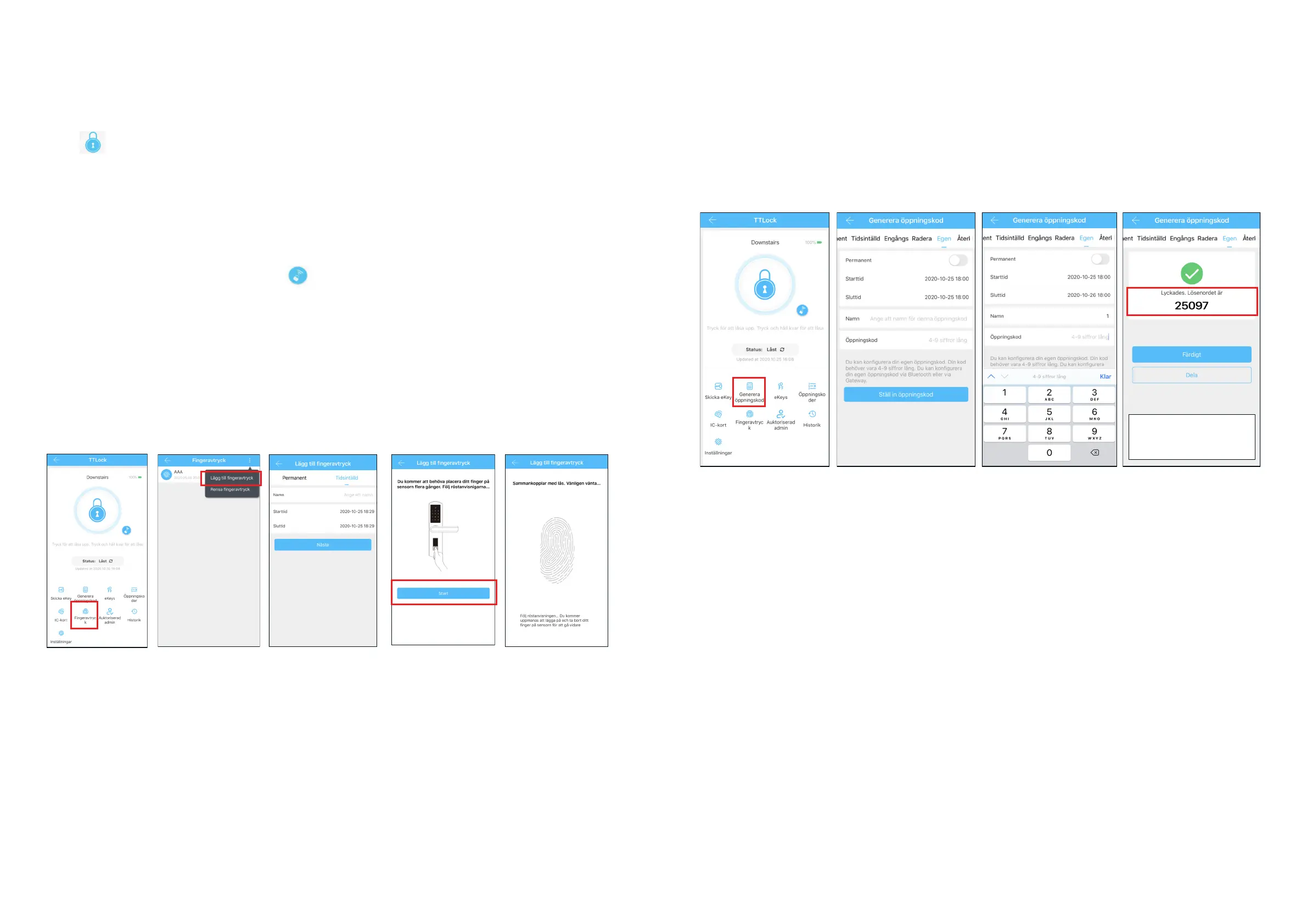
5.2.2.1 Adding Fingerprints
To be able to unlock with ngerprints, it must rst be added. For this to work, the phone and lock need
to be next to each other and the APP started. Fingerprints can be set to apply permanently, or under
restriction. After it is added, the validity period can be changed.
8 9
5.2.2.2 Passcode management
Code is another way to unlock. After entering the code on the display, press "#" at the bottom right to
unlock. Codes are available as permanent, time-limited, one-time, recurring, custom and delete.
Up to 4 optional digits can be used before and after code, to make reading dicult.
Du kan dela öppningskoden med
andra via WeChat/SMS/Email/
Messenger/WhatsApp


 To Next Page
 Loading...