5.2.3 Admin passcode management
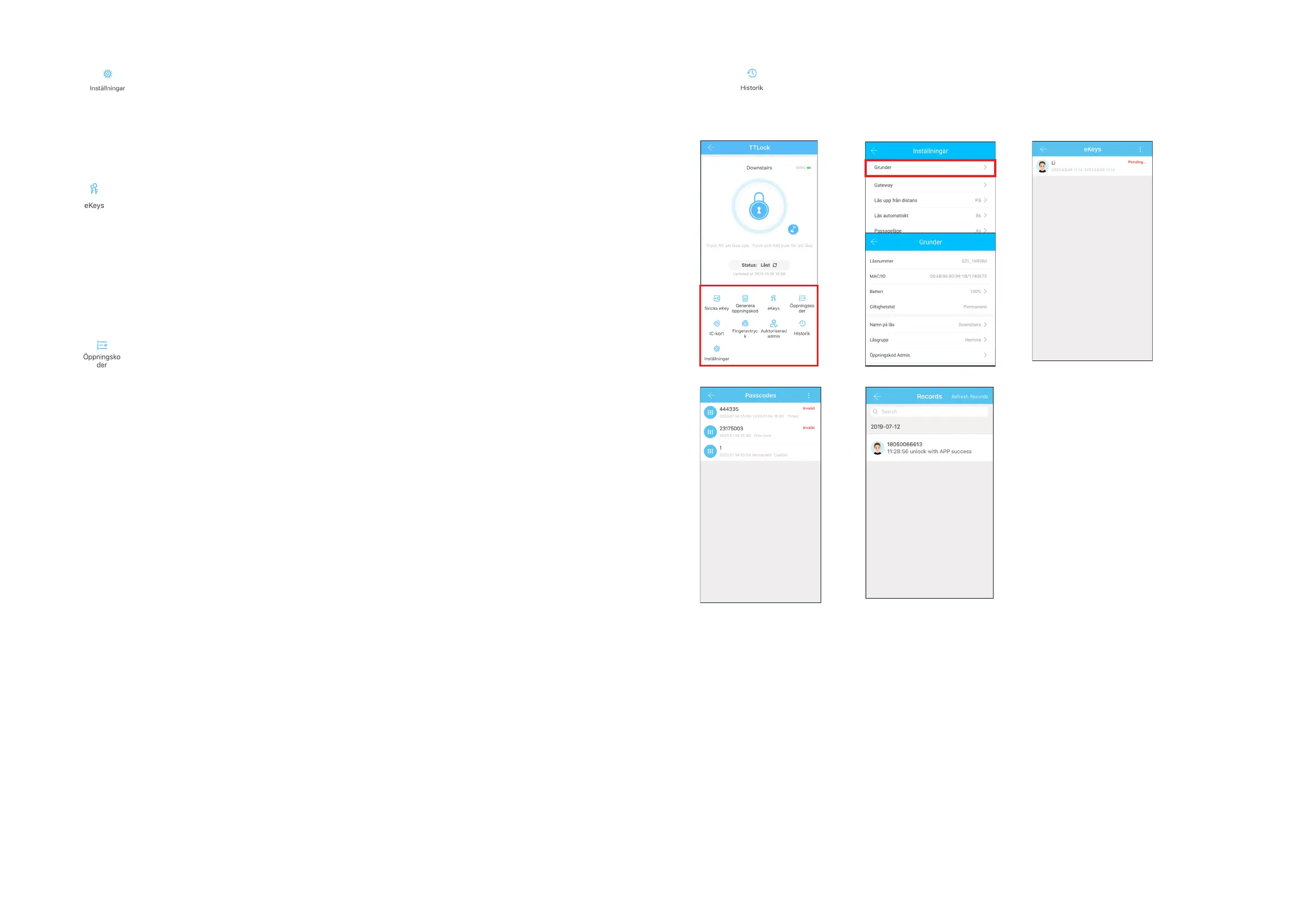
Click " " (settings)
→ Basics
→ Click Admin passcode
→ Enter this code on the lock display, followed by
→“#” to unlock.
5.2.4 e-Key management
Click “ “
After the Owner has added the lock to the APP, the Owner will have the highest authority in the lock.
The owner can send eKeys to other users of TTLock, set time limits, permanent or one-time Bluetooth
eKey rights. An Admin can handle all their own exhibited eKeys, including removing these, restoring,
sending, changing the validity period and viewing the history of these. For eKeys whose validity is about
to expire, the number of remaining days is displayed in yellow and a reminder in red.
5.2.5 Passcode management
Click " "
→ gure 2-4. All generated Passcodes can be viewed and managed here. This includes code change,
deletion, restore and history.
5.2.5.1 Passage mode (Under settings)
Activate Passage mode in the APP by dragging the slider to the right.
Set the desired day / days.
If all hours are desired, this is activated by dragging the slider to the right.
If start and end time are desired, this is stated.
Do not forget to tap "Save" at the top right of the screen.
Enter Passage mode by making one valid opening via app or other method.
To temporarily cancel the passage position, press and hold "#" on lock display until the lock locks.
The next time you open with permission, the lock enters Passage mode (if the Passage mode is still set
to active).
When the lock is programmed for Passage mode, the color of the lock name changes in the main
menu. This is to remind that the lock is programmed for Passage mode.
12 13
5.2.6 Unlock records
Click " "as shown on 2-1
→g 2-5 You can query your unlock records as shown.
2-1 2-2 2-3
2-4 2-5


 To Next Page
 Loading...