6
SETUP
PARAMETRIC EQ SCREEN
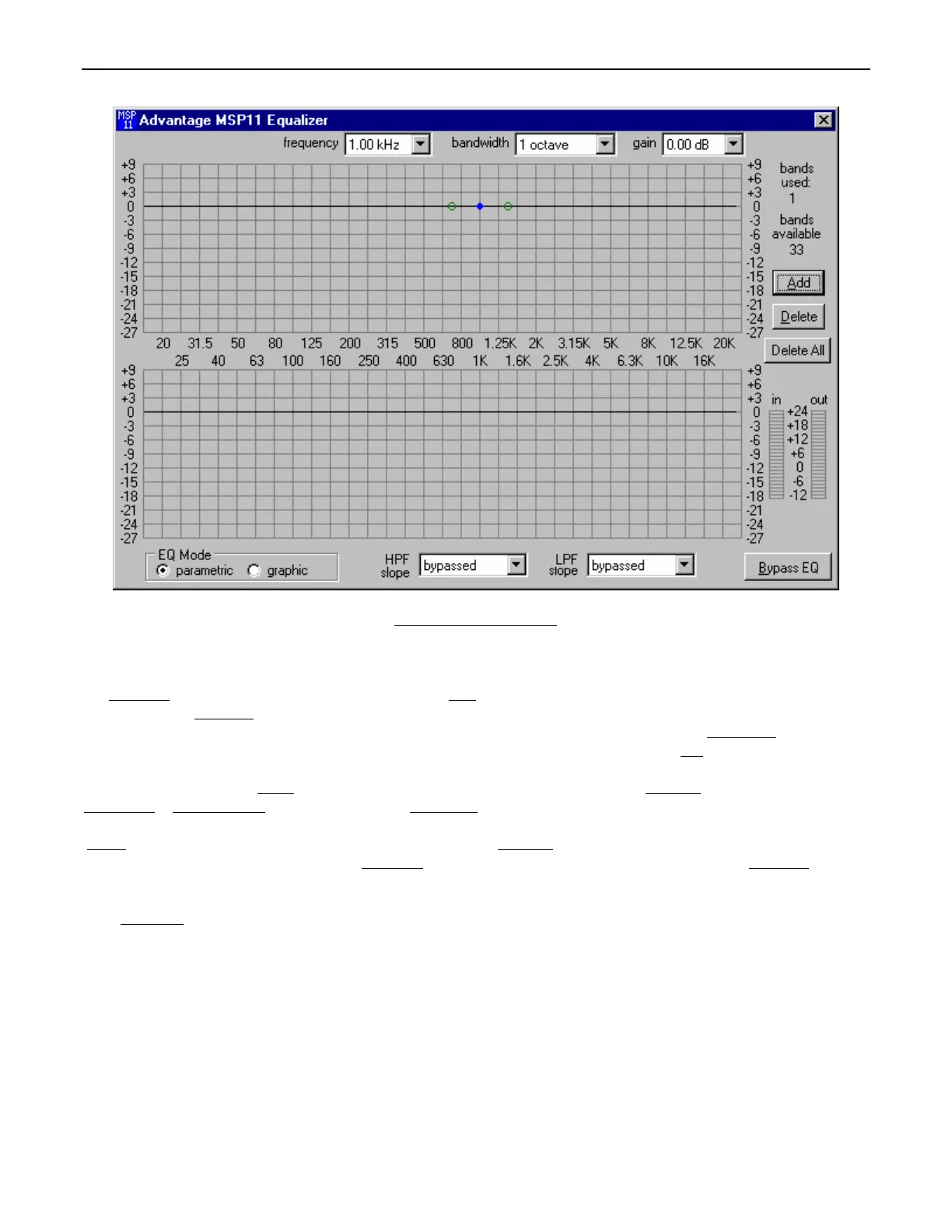
The Parametric EQ screen is used to adjust equalization. Up to 34 bands of equalization, plus high-pass & low-pass filters, are available.
NOTE: Parametric & Graphic equalization techniques may be used simultaneously, as long as the total number of bands does not exceed
34. Frequency
selects a center frequency for the current band. Gain selects the amount of cut or boost applied at the center frequency for
the current band. Bandwidth
selects the range of frequencies, above & below the center frequency, which will also be affected by the
current band. Frequency, Gain, & Bandwidth may also be adjusted by dragging the cursors shown inside the upper graph
area. Dragging
the solid dot affects both Frequency & Gain. Dragging either of the open circles will affect Bandwidth. Add
advances to a new band (at
1kHz), leaving place-mark cursors for any previous bands. NOTE: Initially, there are no parametric filter bands available for adjustment,
until Add has been selected. Delete
erases the current band, and returns to the previous band. Delete All erases all parametric bands.
Bands Used
& Bands Available are shown above. The lower graph area shows the cumulative effect of all equalization. Right-clicking
provides a menu of copy/paste functions, which allows settings of the 34 bands of equalization to be copied from one unit to another.
‘Meters
’ are provided to display input/output levels at the EQ section. EQ Mode selects the Parametric EQ Screen or the Graphic EQ
Screen (see Graphic EQ Screen on next page). HPF Slope
enables a High-Pass Filter by selecting a desired slope. LPF Slope enables a
Low-Pass Filter by selecting a desired slope. Once the High-Pass Filter or Low-Pass Filter is enabled, a square cursor appears in the
upper graph area to allow frequency adjustment for that filter. The effect of High-Pass & Low-Pass Filters is also shown in the lower graph
area. Bypass EQ
defeats all parametric & graphic equalization filters (not HPF & LPF), without changing actual settings.


 To Next Page
 Loading...