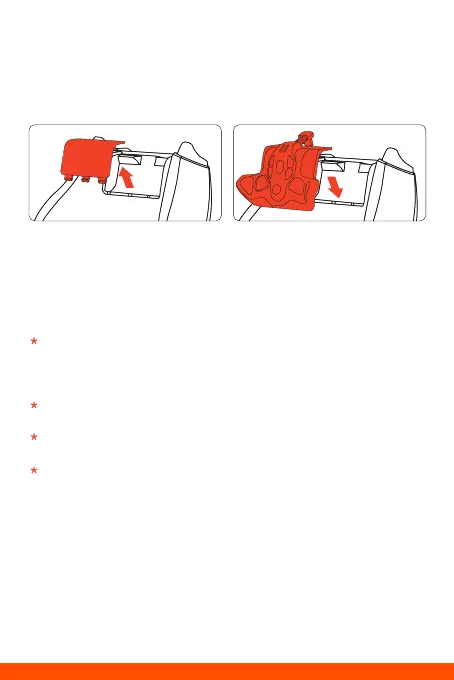
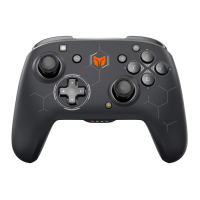
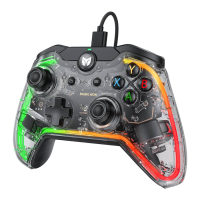
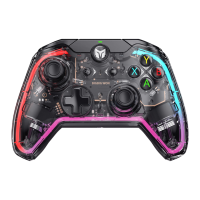
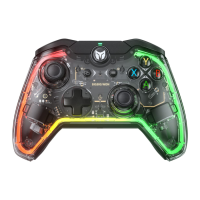
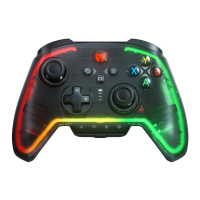
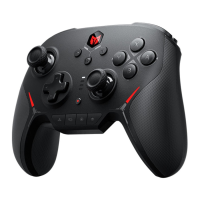
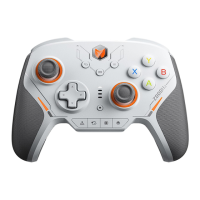
1. Removethebatterycompartmentcoveroffthe Controller and attachthe
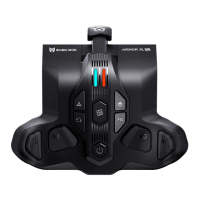
ARMORX Protothebatterycompartment.
2. PlugtheUSB-CflexiblecableofARMORX ProintotheUSBportofthe Xbox
SeriesController.
NOTICE:Forbestperformance,pleasefullychargetheARMORX Probeforeusingitforthefirsttime.
Ittakesabout2.5hourstofullychargeadepletedbattery.
ATTACHTHEARMORX PRO
The Xbox Series controller with ARMORX Pro can support Xbox/ PC/ Switch originally.
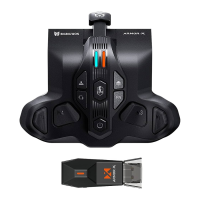
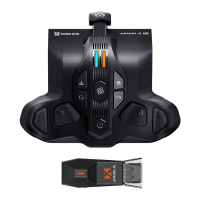
Hold the power button to turn on the ARMORX Pro and plug the USBwirelessadapter
into the console’s USB port. The ARMORX Pro will detect the platform automatically.
LED1 slowly flashes mean that the ARMORX Pro is connecting with the adapter.
And the fast flashes mean that the ARMORX Pro is paring with the adapter. After
the connection is successful the LED1 will become always on (The adapter
indicator is same).
After the connection is successful the LED1 and adapter indicator will become
always on and switch to the corresponding platform color.
LED2 flashes mean the connection between ARMORX Pro and controller is
unsuccessful and always on means connection success.
Connect with Switch console need to set: System Settings> Controllers and
Sensors> Pro Controller Wired Communication On.
WIRELESS CONNECTION
1. After attaching the ARMORX Pro to the Xbox Series controller, hold the power
button to turn it on.
2. Connect the Type-C port of ARMORX Pro to the console with a Type-C cable.
3. Check the indicator lights of the ARMORX Pro until both indicators are always on,
which means the wired connection is successful.
Note: 3.5mm audio jack is only available under wired connection, wireless connection
does not support 3.5mm audio.
WIRED CONNECTION


 To Next Page