Need help?
Do you have a question about the BIGBIG WON GALE and is the answer not in the manual?
Customize controller parameters, upgrade firmware, and download the PC Tool.
Instructions for powering the controller on/off and connecting via 2.4G, Bluetooth, or wired.
Switch between Xinput and Switch modes for optimal compatibility.
Configure custom button mappings and enable/disable turbo functionality.
Calibrate joystick dead zones and trigger responsiveness for accuracy.
Adjust gyroscope, vibration intensity, and PC volume settings.
Capture screenshots and monitor battery levels and charging status.
Utilize the charging stand and perform a controller reset.
Review the 12-month limited warranty terms.
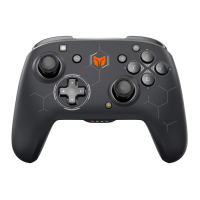
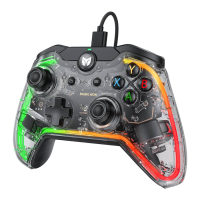
This document describes the BIGBIG WON GALE Wireless Game Controller, a versatile gaming peripheral designed for a range of platforms including Switch, Windows 10/11, Android, and iOS. The controller offers multiple connection methods, customizable settings, and various features to enhance the gaming experience.
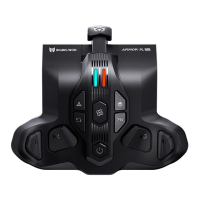
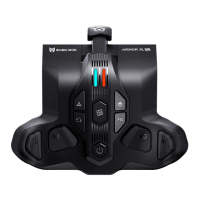
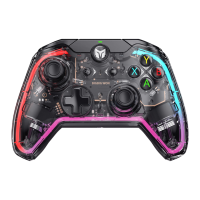
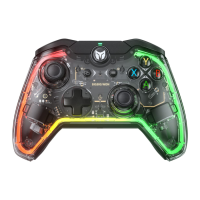
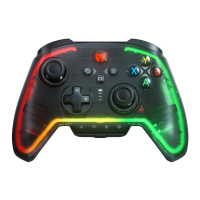
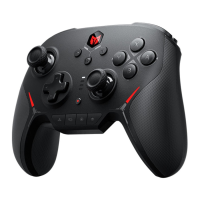
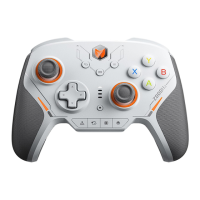
The GALE Wireless Game Controller serves as a primary input device for gaming across supported platforms. It features a standard gamepad layout with two joysticks (LS and RS), a D-pad, action buttons (A, B, X, Y), shoulder buttons (LB, RB), triggers (LT, RT), and additional function buttons such as View, Screenshot, Menu, and HOME. For advanced customization and control, the controller is equipped with four remappable additional buttons (M1, M2, M3, M4) located on the back. These buttons can be assigned to various functions, allowing users to tailor the controller to their specific gaming needs.
The controller supports two primary modes: Xinput and Switch. Xinput is the default mode and is generally used for PC (Windows) and Android/iOS platforms, while Switch mode is specifically for Nintendo Switch consoles. Switching between these modes is a simple process, ensuring compatibility across different gaming environments.
A key feature of the GALE controller is its integration with the PC Tool. This software allows users to customize a wide array of parameters in real-time, upgrade firmware, and unlock advanced functionalities. Through the PC Tool, users can adjust joystick dead zones, visually edit macros, fine-tune parameters for motion control simulation, toggle the rate of return, and adjust vibration settings. This level of customization provides a highly personalized gaming experience, catering to individual preferences and game requirements.
The controller also includes a Turbo function, which allows users to set rapid-fire capabilities for specific buttons (A, B, X, Y, LT, RT, LB, RB). This feature can be particularly useful in games requiring quick, repetitive button presses. The turbo frequency can be adjusted, offering flexibility in how this function is utilized.
Turning On/Off: The controller can be turned on or off by pressing and holding the HOME button for 2 seconds.
Connection Methods: The GALE controller offers three distinct connection methods:
Mode Switching: To ensure proper functionality across different platforms, the controller's mode must be set accordingly:
Mapping: The four remappable buttons (M1, M2, M3, M4) on the back of the controller can be configured directly on the device or through the PC Tool.
Deadzone of Joystick: The controller has a default joystick dead zone. Users who prefer a 0 dead zone can press FN + press down left OR right joysticks (LS/RS) to switch between 0/10 dead zone for the respective joysticks. A 0 dead zone offers higher control precision but may lead to joystick drift in games without a built-in dead zone. The PC Tool provides advanced settings for joystick dead zones, including joystick curve and dead zone compensation.
Vibration Control: The vibration motor can be toggled on or off by pressing FN + →. The PC Tool allows for more granular control over vibration, enabling users to adjust the start and maximum intensity of the vibration.
Volume Adjustment: In Xinput mode, the PC volume can be adjusted by pressing FN + ↑ / ↓. This feature is exclusive to Xinput mode.
Joystick Trigger Calibration: If the joystick experiences severe drift, fails to reach maximum values, triggers automatically, or doesn't reach maximum linear value, calibration can be performed:
Joystick Dynamic Calibration (via PC Tools): This feature, which can be enabled or disabled in the PC Tool, calibrates the joystick in real-time by comparing the center point of each joystick's return. This helps achieve a relatively equal amount of drift in all directions (up, down, left, right). It's important to note that joysticks with 0 dead zone may still experience unavoidable physical drift.
Gyroscope Calibration: If the controller's gyroscope drifts, it can be calibrated:
Reset: If the controller is misconfigured or functions abnormally, a reset can be performed by long pressing the HOME button for 10 seconds until the controller vibrates, indicating that the reset is complete.
Warranty: The GALE Wireless Game Controller comes with a 12-month limited warranty from the date of purchase.
 General
| Battery Life | 20 hours |
|---|---|
| Charging Time | 2-3 hours |
| Connectivity | Wireless, Wired |
| Compatibility | PC, Android |
| Features | Turbo function |
| Buttons | A, B, X, Y, D-pad, Home |
| Vibration | Dual motors |
| Grip | Textured grip |
| Software Support | Yes, with customization options |
| Battery | Built-in rechargeable lithium battery |


 To Next Page