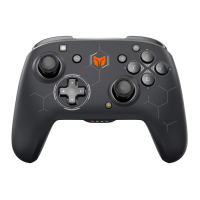
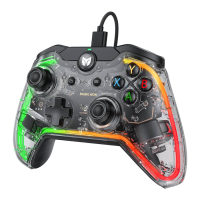
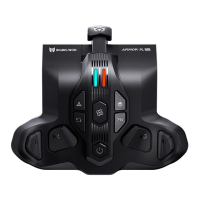
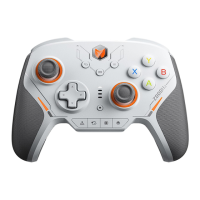
The controller supports two modes: Xinput and Switch. Before connecting, you need to switch to the
corresponding mode in order to use it.
1. Press and hold the B+HOME button for 2 seconds until the HOME indicator turns green to switch to Xinput
mode.
2. Press and hold the A+HOME button for 2 seconds until the HOME light turns red to switch to Switch mode.
Note: Bluetooth connection between iOS and Android platforms must be switched to Xinput mode first.
MODE SWITCH
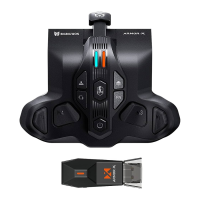
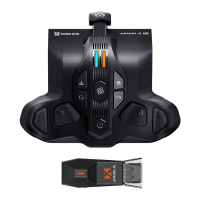
2. Plug the adapter into your computer and press and hold the pairing button on the adapter for 3 seconds; the
adapter light will flash rapidly to indicate that it is in pairing mode.
3. After waiting for a few seconds, the controller HOME button indicator and the adapter's indicator light will be
always on, which indicates successful pairing.
Bluetooth connection:
1. With the controller turned on, press and hold the pairing button on the back of the controller for 3 seconds; the
HOME button's indicator light will flash rapidly to indicate that the controller is in pairing mode.
2. Search for the controller's signal on the computer side and click Connect (Bluetooth name is Xbox Wireless
Controller when the controller is in xinput mode, or Pro Controller when the controller is in Switch mode).
3. When the indicator light of the controller's HOME button is always on, it indicates that pairing is complete.
Wired connection: With the controller turned on, use the Type-C cable to connect the controller to the console.
Note: The controller is compatible with Switch and Xinput modes. Xinput is the default mode. If you have a wired
connection to the Switch, turn on “Settings-Controllers & Sensors -Pro Controller wired communication”



 To Next Page