24
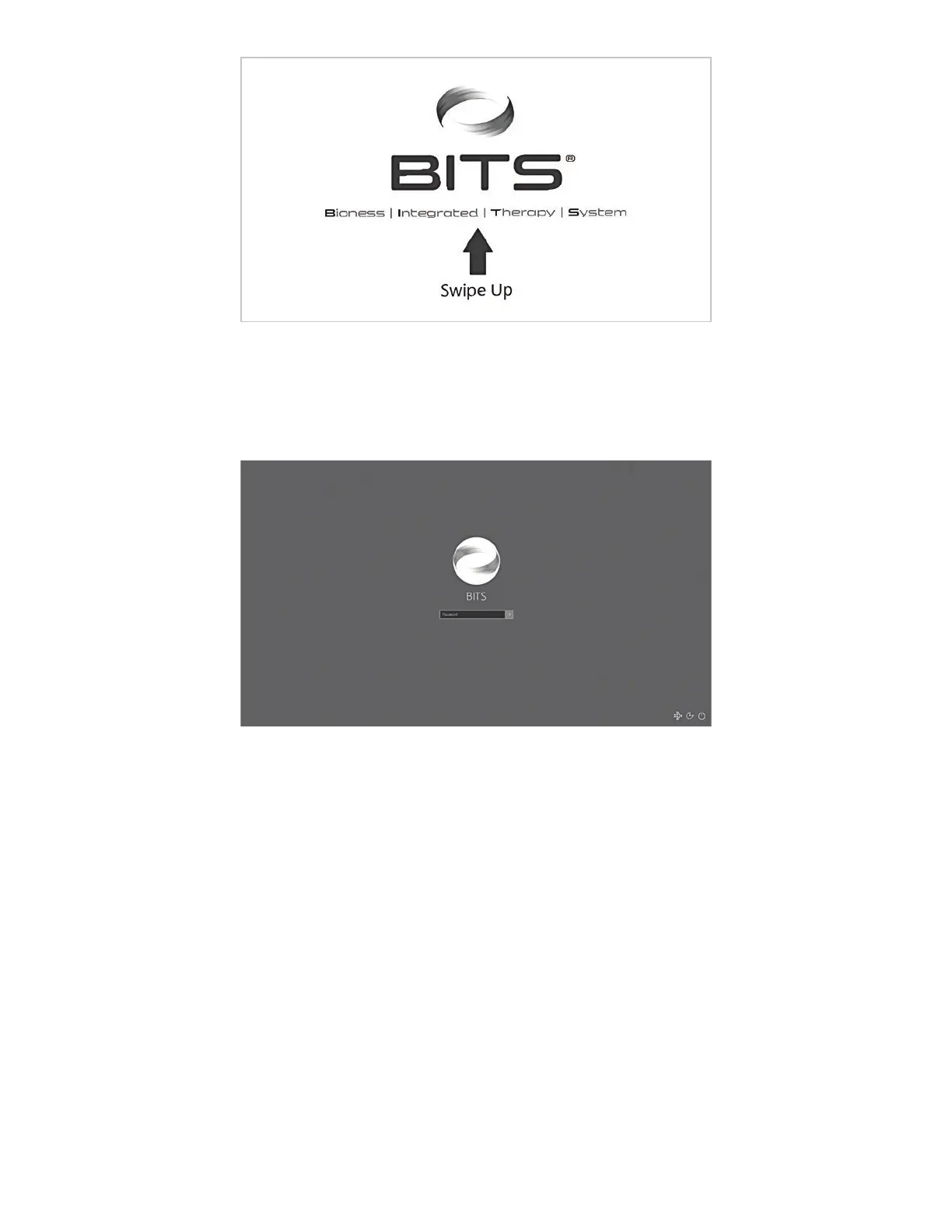
Figure 29: Windows Lock Screen
4. Click inside the Password Box, and enter the password. See Figure 30.
Figure 30: Windows Password Screen
Printer Setup
Only USB connected printers should be connected to the BITS Computer.
1. Follow the setup instructions specific to the printer being attached to the BITS Computer.
2. Connect the USB printer cable to an empty USB port on the back of the PC.
3. Many printers will upload the required printer drivers automatically. Follow the on-screen instructions to
install the drivers, or continue to steps 4 & 5.
4. Upload the necessary printer drivers onto a USB memory device.
5. Insert the USB memory device into an available USB port, and install the necessary printer drivers onto the
BITS Computer.
Note: Connecting the BITS Computer to the Internet will void the warranty.



 To Next Page