2. How to Use the Monitor
2.1 Install the software
Install EasyABPM software to your PC from the installation CD. If the CD does not automatically start, run the
start.exe program.
Hardware & Software requirements
Minimum: CPU: 800MHz, RAM: 256 MB, VGA: 1024*768, free disk space:
10MB + 30MB for 1000 studies, USB connection port
Operating system: Windows XP SP2.
Suggested: CPU: 2 GHz, RAM: 512 MB, VGA: 1280*1024, free disk space:
10MB + 30MB for 1000 studies, USB connection port
Operating system: Windows7
2.2. Setup the monitor
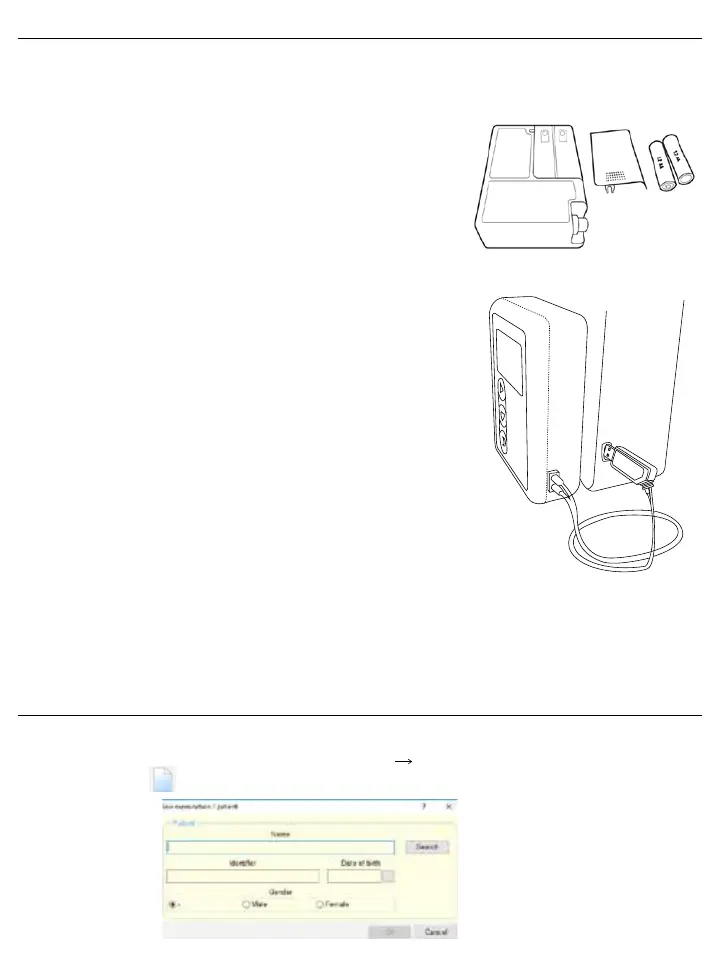
Install 2 x AA batteries into the monitor.
Accumulator voltage should be over 2.5V. To check: press the START button
for at least 5 seconds.
Setup communication between the monitor and the PC
ABP-01 works with a special USB optical cable, which connects the monitor
to your PC. Always install the software before connecting the USB optical
cable to the PC! (The USB driver is installed together with the software, in the
absence of which the PC will not recognize the interface.)
Locate a USB port on your computer and connect the USB driver. Then
connect the USB optical cable into the USB driver.
IMPORTANT: It is very important to always plug the USB driver into
the computer first, and then plug the USB optical cable into the USB
driver otherwise a malfunction can occur.
The twin optical cable transfers optical signals between the interface unit and the monitor. The cable is flexible, but it is
sensitive to overfolding and to cutting forces. If you fold the optical cable in too small of a radius, or if a strong cutting
force (e.g. by the edge of a drawer) is applied to it, the optical cable may become optically distorted, which might result
in communication errors.
3. Programming the Monitor
1. Open the EasyABPM software.
2. Start a new examination/patient profile by clicking on Device New Examination or by clicking on the “New
Examination” icon .


 To Next Page