EasyManua.ls Logo

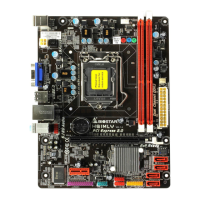
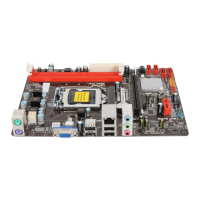
Biostar H61MGC - User Manual

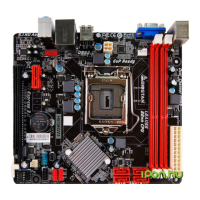
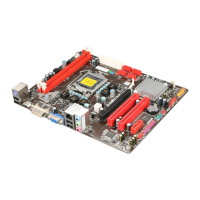
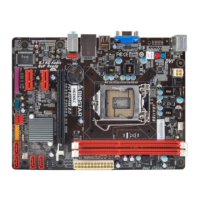
Biostar H61MGC
45 pages
Go to English
Print Icon
To Next Page IconTo Next Page
Loading...
H61MGC / H61MLC Setup Manual
FCC Information and Copyright
This equipment has been tested and found to comply with the limits of a Class
B digital device, pursuant to Part 15 of the FCC Rules. These limits are designed
to provide reasonable protection against harmful interference in a residential
installation. This equipment generates, uses, and can radiate radio frequency
energy and, if not installed and used in accordance with the instructions, may
cause harmful interference to radio communications. There is no guarantee
that interference will not occur in a particular installation.
The vendor makes no representations or warranties with respect to the
contents here and specially disclaims any implied warranties of merchantability
or fitness for any purpose. Further the vendor reserves the right to revise this
publication and to make changes to the contents here without obligation to
notify any party beforehand.
Duplication of this publication, in part or in whole, is not allowed without first
obtaining the vendor’s approval in writing.
The content of this user’s manual is subject to be changed without notice and
we will not be responsible for any mistakes found in this user’s manual. All the
brand and product names are trademarks of their respective companies.
Dichiarazione di conformità
sintetica
Ai sensi dell’art. 2 comma 3 del D.M.
275 del 30/10/2002
Si dichiara che questo prodotto è
conforme alle normative vigenti e
soddisfa i requisiti essenziali richiesti
dalle direttive
2004/108/CE, 2006/95/CE e
1999/05/CE
quando ad esso applicabili
Short Declaration of conf ormity
We declare this product is complying
with the laws in force and meeting all
the essential requirements as specified
by the directives
2004/108/CE, 2006/95/CE and
1999/05/CE
whenever these laws may be applied

Questions and Answers

  • M
    Mrs. Pamela FosterJul 27, 2025
    What to do if my Biostar H61MGC does not boot from hard disk drive?
    • C
      Calvin OlsenJul 27, 2025
      If your Biostar Motherboard system isn't booting from the hard disk drive but works fine with the optical drive, first check the cable that connects the disk to the disk controller board. Ensure both ends are securely plugged in. Also, verify the drive type in the standard CMOS setup. It's also important to remember to back up your hard drive, as hard disks can fail at any time.
  • K
    kimberlyvelezAug 2, 2025
    How to troubleshoot a Biostar Motherboard with no power?
    • D
      Destiny HendersonAug 2, 2025
      If your Biostar Motherboard system has no power, and the power LED isn't lit while the power supply fan isn't working, ensure the power cable is securely plugged in. If it still doesn't work, try replacing the cable. If problems persist, contact technical support.
  • J
    Jody Foster MDAug 10, 2025
    What to do if Biostar Motherboard only boots from optical drive?
    • N
      Nicholas KelleyAug 10, 2025
      If your Biostar Motherboard system only boots from the optical drive, and you can read hard disks and use applications but the system fails to boot from the hard disk, back up your data and application files. Then, reformat the hard drive and reinstall applications and data using backup disks.
  • L
    lyonstroyAug 17, 2025
    What to do if Biostar H61MGC Motherboard is inoperative but lights are on?
    • J
      Joseph PhillipsAug 17, 2025
      If your Biostar Motherboard system is inoperative but the keyboard lights are on, the power indicator lights are lit, and the hard drives are running, apply even pressure on both ends of the DIMM until the module snaps into place.

Summary

Chapter 1: Introduction

Before You Start

Essential preparation and safety precautions before installing the motherboard to ensure a smooth and safe setup process.

Motherboard Features

Rear Panel Connectors

Motherboard Layout

Chapter 2: Hardware Installation

Installing Central Processing Unit (CPU)

Step-by-step guide on how to properly install the CPU onto the motherboard socket, including handling pin caps and levers.

Installing System Memory

Memory Modules Installation

Instructions on how to unlock DIMM slots and align memory modules correctly for proper installation into the motherboard.

Connectors and Slots

Chapter 3: Headers & Jumpers Setup

AMI BIOS Beep Codes

Troubleshooting POST Beep Codes

Provides actions and solutions for troubleshooting POST beep codes, including memory and expansion card related issues.

Troubleshooting Common Issues

No Power Issues

Addresses system power-on issues, including no power, off power LED, or non-functional power supply fan.

System Inoperative (Lights On)

Solutions for when the system is inoperative but indicators are lit, focusing on properly seating memory modules.

Boot Drive Issues

Troubleshooting steps for systems failing to boot from a hard disk but capable of booting from an optical drive.

Invalid Configuration; CMOS Failure

Guidance on resolving 'Invalid Configuration' or 'CMOS Failure' messages, typically related to BIOS setup data.

Second Hard Drive Installation Issues

Solutions for boot failures after installing a second hard drive, focusing on jumper settings and drive compatibility.

Biostar H61MGC Specifications

General IconGeneral
Form FactorMicro ATX
SocketLGA 1155
ChipsetIntel H61
Memory Slots2
Max Memory16 GB
Storage Interface4 x SATA 3Gb/s
USB Ports (Rear)4 x USB 2.0
AudioRealtek ALC662 6-Channel HD Audio
Memory StandardDDR3 1066/1333
Expansion Slots1 x PCI Express x16, 1 x PCI Express x1
USB Ports (Front)2
LANRealtek RTL8105E
Power Connector24-pin ATX
Video OutputsVGA, DVI

Related product manuals