Shenzhen Bigtree Technology Co.,Ltd
32
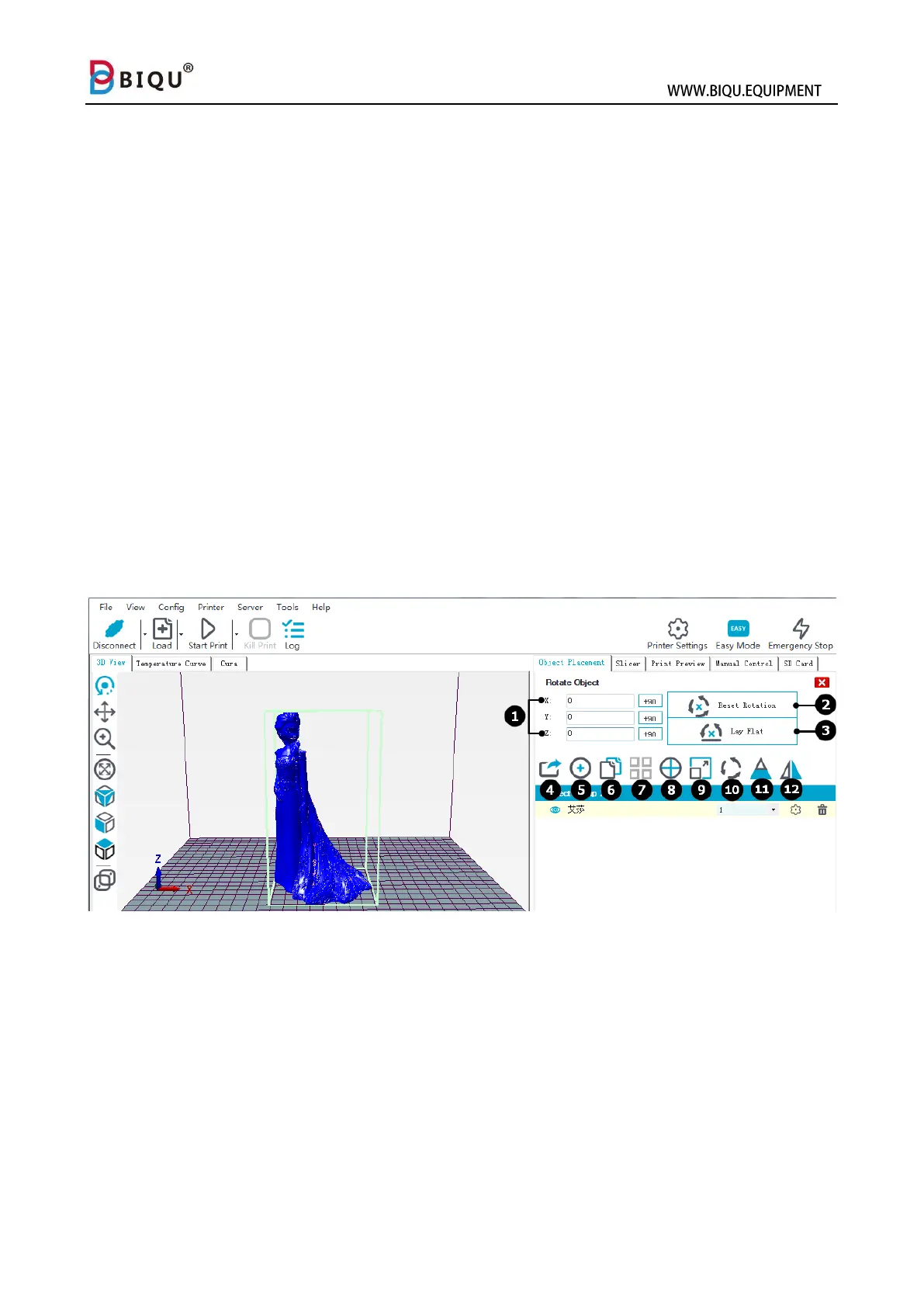
Step five: after loading the file, you can re-orientate your model in x y and
axis (1)
Reset rotation (2)
Lay flat (3)
Save as (4)
Add a model (5)
Copy a model (6)
When you are printing multiple models, use this feature to arrange your
models (7)
Center and arrange your models (8)
Adjust the size of your model when it exceeds print volume (9)
Slice the model. You can use this feature to control the slice surface and
angle to change the result. The portion that is removed is not going to be
printed. (11)
Change which way the model is facing (12)
Step six: After done adjusting the model, we can start slicing the model.
Choose Cura or Slic3r (1) and click configuration. Close the setting tab,
click “Slice” and wait for it to complete.


 To Next Page