This document serves as a comprehensive guide for pairing the G1 SCBA (Self-Contained Breathing Apparatus) with the BKR 5000 radio, specifically when the BKR0560 Bluetooth Option is installed. It outlines the necessary configuration settings, pairing procedures, usage instructions, and troubleshooting steps to ensure seamless voice communication for first responders.
Function Description
The primary function of this system is to enable wireless voice communication for users wearing the G1 SCBA through a paired BKR 5000 portable radio. This integration allows the SCBA user's voice to be transmitted via the radio, enhancing situational awareness and coordination in critical environments. The Bluetooth option facilitates this connection, eliminating the need for physical cables between the SCBA and the radio for audio transmission.
Important Technical Specifications
G1 SCBA:
- Bluetooth Capability: Requires configuration to enable its Bluetooth radio.
- Pair Save Preferences: Can be configured to either disable Bluetooth pair saving (requiring re-pairing upon each SCBA power-on) or enable it (retaining pairing information until explicitly cleared). This setting is crucial for departmental operating procedures.
- RFID Target: Equipped with an RFID target on the Power Module for applying configuration tags and radio pairing tags.
- Control Module Buttons: Green control module buttons are used to activate RFID mode for tag application. For iTIC Control modules, both green buttons must be pressed and held.
- Firmware: G1 SCBA firmware version SW 3.0 or higher is recommended for improved audio quality and the ability to retain pairing information across battery removals.
BKR 5000 Radio:
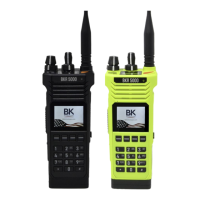
- Bluetooth Option (BKR0560): Essential hardware for wireless communication with the G1 SCBA. If not present, the radio needs to be upgraded by a dealer.
- Radio Editor Software (RES) (BKR0733): Used for configuring the BKR 5000 radio, including enabling its Bluetooth functionality and setting menu options.
- Bluetooth Status Indicator: A white Bluetooth icon on the radio's display indicates Bluetooth is "ON." The presence of a slash "/" or connection dots "..." indicates a disabled or unestablished connection.
- Menu Navigation: The radio's menu allows users to access and manage Bluetooth settings, including enabling/disabling Bluetooth and clearing paired devices.
A2 Software (MSA A2 Software):
- G1 Tags Tile: Used for creating and managing various G1 SCBA configuration tags, including "G1 Configurations" and "Bluetooth Audio Pairing Tags."
- RFID Reader/Writer: Required to apply configuration and pairing tags to the G1 SCBA's RFID target.
- Bluetooth Adapter: The PC running A2 software needs a functional Bluetooth adapter to discover and select the BKR 5000 radio for pairing tag creation.
- Device Discovery: The software can discover available BKR 5000 radios by their friendly name (e.g., "MSA-KW-R1") and Bluetooth address.
Usage Features
G1 SCBA Configuration:
- Enabling Bluetooth: The G1 SCBA's Bluetooth radio is enabled using a "G1 Configurations" tag created in the A2 software.
- Bluetooth Pair Save Preference: This tag also sets whether the G1 SCBA retains pairing information after being turned off or if it needs to be re-paired. "Disabled" means re-pairing every time, while "Enabled" retains the pairing.
- Applying Configuration Tag: The tag is applied by placing it on an RFID Reader/Writer connected to a PC running A2 software, then selecting "Write G1 Tag." Subsequently, the tag is applied to the G1 SCBA by powering on the SCBA, activating RFID mode (pressing and holding green control module buttons), and placing the tag over the G1 Power Module RFID Target.
BKR 5000 Radio Configuration:
- Enabling Bluetooth: Bluetooth is enabled on the BKR 5000 radio using the RES software. This involves navigating to "Hardware Options" and ensuring "Bluetooth Enabled" is checked.
- Menu Access to Bluetooth: The radio's menu can be configured via RES to include "Bluetooth" as a menu item, allowing users to turn Bluetooth "ON" or "OFF" directly from the radio.
Radio Pairing Tag Creation:
- "Bluetooth Audio Pairing Tag": This tag is created in the A2 software under the "G1 Tags" tile. It contains the Bluetooth address of the specific BKR 5000 radio to be paired.
- Discovering the Radio: The A2 software discovers the BKR 5000 radio via the PC's Bluetooth adapter.
- Writing the Tag: Once the radio is selected in A2, the "Bluetooth Audio Pairing Tag" is written to an RFID tag using the RFID Reader/Writer.
- Verifying the Tag: The created tag can be read back in A2 to confirm that the correct Bluetooth address of the radio is stored on it.
Pairing Process (G1 SCBA and BKR 5000 Radio):
- Radio On: Turn on the BKR 5000 radio and ensure Bluetooth is "ON."
- SCBA On and RFID Mode: Power on the G1 SCBA and activate RFID mode by pressing and holding the green control module buttons.
- Apply Pairing Tag: Place the "Radio Pairing Tag" (created earlier) over the G1 Power Module RFID Target.
- Confirmation: The SCBA will chirp, and the Bluetooth will disconnect, indicating successful pairing.
Using the Paired System:
- Radio On First: It is recommended to turn on the BKR 5000 radio before the G1 SCBA.
- Donning SCBA: Don the G1 SCBA and facepiece.
- SCBA Pressurization: Turn on the G1 SCBA via pressurization. The SCBA will attempt to establish a Bluetooth connection for up to 8 minutes.
- Automatic Connection: Once the user begins breathing (with the regulator attached), the radio and SCBA will automatically connect within approximately 20 seconds.
- Voice Communication: All SCBA voice communication will then be routed through the portable radio.
- Regulator Shut-off: If the regulator is shut off, the G1 SCBA will disconnect from the radio, making the radio available for non-Bluetooth use. Re-connection occurs automatically when the regulator is turned on and the user breathes.
- Audio Verification: Verify both incoming and outgoing audio functionality after the Bluetooth connection is established.
Maintenance Features
Clearing Radio Pair Info from the G1 SCBA:
- Purpose: To prevent the G1 SCBA from connecting to a previously paired Bluetooth radio during the next start-up.
- Method 1: Battery Removal (Only if "Bluetooth Pair Save" is "Disabled"): Removing the G1 SCBA battery clears the audio pair information.
- Method 2: Pair New Radio: Pairing the G1 SCBA with a different BKR 5000 radio using a new "Bluetooth Audio Pairing Tag" overwrites the previous pairing information.
- Method 3: "Reset Bluetooth Pairing" Tag: A dedicated "Reset Bluetooth Pairing" tag can be created in the A2 software ("Special G1 Tags" -> "Reset Bluetooth Pairing"). This tag is applied to the G1 SCBA (similar to configuration tags) to clear its audio pair information.
Clearing SCBA Pairing Info from the BKR 5000 Radio:
- Purpose: To clear the G1 SCBA's pairing history from the radio.
- Procedure: On the BKR 5000 radio, navigate to "Menu" -> "Bluetooth" -> "Bluetooth Devices" -> "Forget All Devices," and press "ENT." This clears the Bluetooth audio pair information from the radio.
Troubleshooting:
The document provides a detailed troubleshooting table covering various issues:
- Intermittent Audio: Check facepiece seal, power cycle radio.
- Incoming/Outgoing Audio Not Working: Clear G1 & Radio pairing history, re-pair.
- Poor Audio Quality: Update G1 firmware to SW 3.0 or higher.
- Bluetooth Pairing Info Lost: Review G1 SCBA Configuration Tag and Bluetooth Pair Save settings (requires G1 firmware SW 3.0+).
- Bluetooth Icon Not Visible on Radio: Turn Bluetooth on, power cycle radio, clear G1 & Radio pairing history, re-pair.
- Radio Will Not Pair: Ensure Bluetooth is "ON" and "Discoverable" on the radio, re-apply Pairing Tag.
- G1 Not Bluetooth Enabled: Enable Bluetooth on G1 using a G1 Configuration tag.
- Radio Not BKR 5000 with Bluetooth Option: Contact radio dealer for upgrade.
- Radio Paired to Incorrect G1: Clear pairing info on both G1 and Radio, then re-pair desired devices.
This comprehensive approach ensures that users can effectively set up, utilize, and maintain the G1 SCBA and BKR 5000 radio communication system, contributing to safer and more efficient operations.


 To Next Page
 General