G1 SCBA Radio Pairing Guide | BK Technologies
Rev. 12-3-2021
Page 2 of 10
BKR 5000 Configuration Settings
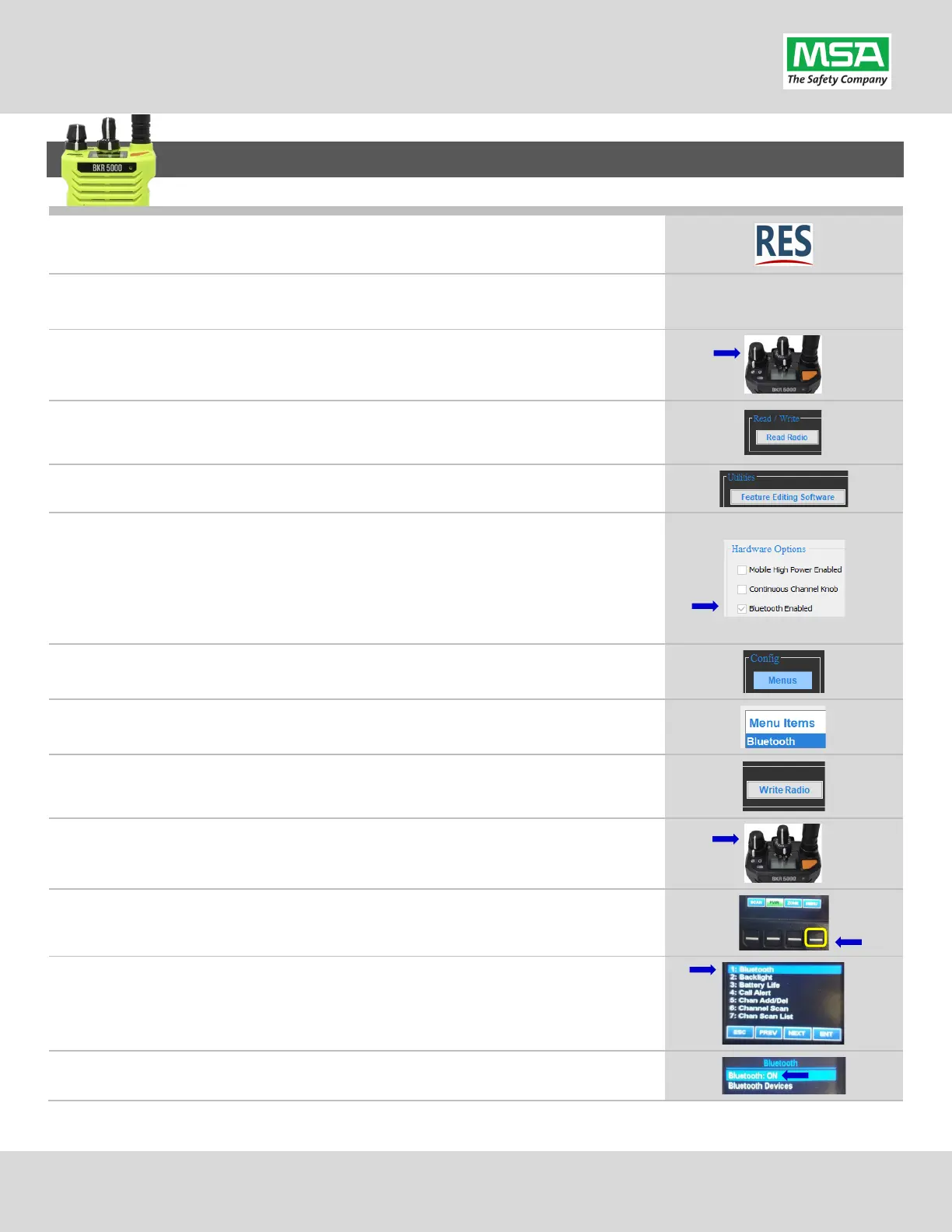
Download, install, and open the latest version of RES (Radio Editor
Software)
(BKR0733). Contact your radio dealer for instructions and Serial Key
Connect the programming cable to the BKR 5000 Radio and the computer.
Turn on the BKR 5000 Radio using the volume knob.
Wait RES sees the Radio: “Read Radio” will become available under the
“Read / Write” section
, then click the “Read Radio” button.
Under the “Utilities” section, click the “Feature Editing Software” button.
Verify the BKR 5000 is equipped with the Bluetooth Option (BKR0560).
(A) Under the “Hardware Options” section, there should be a check
next to “Bluetooth Enabled”.
(B) If the radio does not have the Bluetooth Option available, contact
your radio dealer to upgrade the radio.
Under the “Config” section, click the “Menus” button.
Under “Menu Items”, highlight “Bluetooth”.
Under the “Read / Write” section, click the “Write Radio” button.
The Radio is now able to control
Bluetooth from the menu.
Turn the radio off, then back on using the volume knob.
Select “Bluetooth” from the menu.
If “Bluetooth” is set to “OFF”, set it to “ON”.


 To Next Page