G1 SCBA Radio Pairing Guide | BK Technologies
Rev. 12-3-2021
Page 3 of 10
Creating a G1 SCBA Configuration Tag (for Bluetooth Pair Save Preferences)
The purpose of this section is to: (1) enable the Bluetooth radio on the G1 SCBA and
(2) to set Bluetooth Pair Save behavior based on the department’s preference.
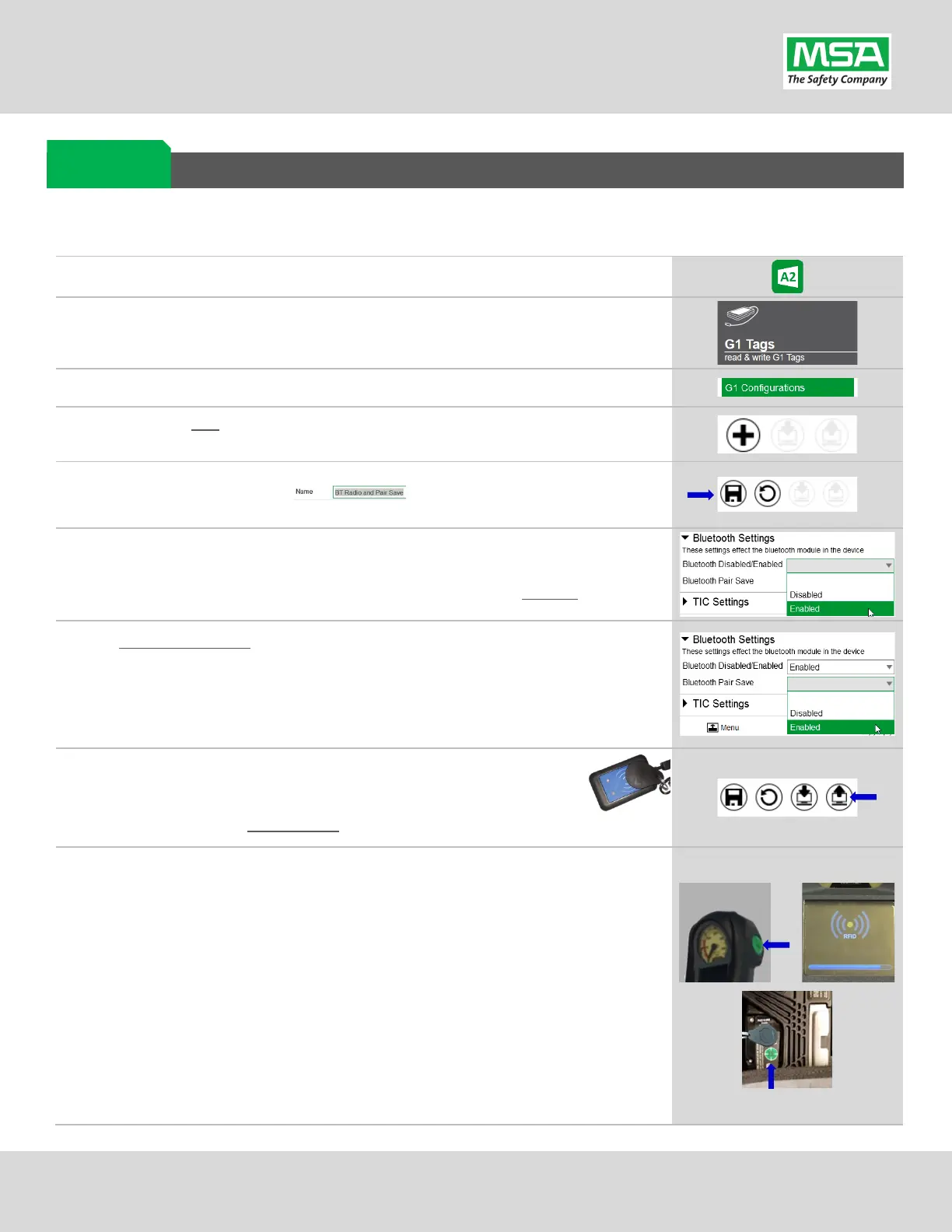
Launch the MSA A2 Software.
Select the “G1 Tags” Tile on the A2 Dashboard (Under the “G1 Devices”
column).
Select tag type: “G1 Configurations”
Select the Add (+) icon (top-right hand side of A2 application) to create the
configuration template,
which will be used to change these 2 settings.
Tag can be written without saving the template, but the template can be saved for
future use if given a name:
The Save Icon (top-right) is enabled
when the Name is filled in.
Enabling the G1 SCBA’s Bluetooth Radio:
(A) Expand the “Bluetooth Settings” section.
(B) Change “Bluetooth Disabled/Enabled” setting to “Enabled”.
“Bluetooth Pair Save” setting options:
Generally, a department’s operating procedures will determine its preference)
(A) To apply a Radio Pairing Tag every time SCBA is turned on, choose “Disabled”
(B) To retain the Radio Pairing on the SCBA until it’s cleared *, choose “Enabled”
- See “Clearing Radio Pairing Info from the G1 SCBA” page.
Writing the G1 Configuration Tag:
(A) Place RFID Tag on the RFID Reader / Writer
(B) Select the Write G1 Tag icon (top-right hand side of A2 application)
the G1 Configuration Tag to the G1 SCBA(s):
(A) Power on the G1 SCBA
(B) Press & hold either of the green Control Module buttons to activate
the RFID mode.
For iTIC Control modules: Press & Hold Both Green Buttons.
(C) Place Bluetooth Pairing Save Tag over G1 Power Module RFID Target.
The G1 SCBA is now configured with the settings:
- G1 Bluetooth is now enabled - G1 Bluetooth Pair Save (as chosen).
The G1 SCBA is now ready to accept a Radio Pairing tag.
Repeat this “Step 8” for each SCBA to apply these 2 settings.
G1 Bluetooth
Settings Tag


 To Next Page