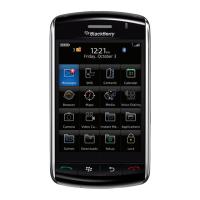
1. On the Home screen, click the Media icon > Video Camera icon.
2. To start recording, click the record icon.
3. To pause recording, click the pause icon.
Note: The approximate amount of storage space available for saving videos appears on the lower part of the screen when
video recording is paused.
Related topics
Take a picture, 127
Turn on video lighting
In low lighting conditions, the video light can improve the quality of videos that you record.
1. On the Home screen, click the Media icon > Video Camera icon.
2.
Press the
key > Options.
3. Change the Video Light field to On.
4.
Press the key > Save.
Change the video size and format
The larger the video, the more storage space the video requires.
1. On the Home screen, click the Media icon > Video Camera icon.
2.
Press the
key > Options.
3. Change the Video Format field.
4.
Press the key > Save.
Related topics
View properties for a media file, 122
Change the location for storing videos that you take
1. On the Home screen, click the Media icon > Video Camera icon.
2.
Press the key > Options.
3. Change the Folder field.
4.
Press the key > Save.
Camera
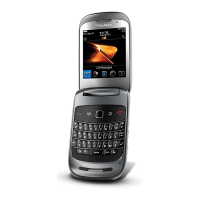
Depending on your BlackBerry® device model, the camera or video camera might not be supported or some camera or video
camera features might not be available.
User Guide
Media
126




 To Next Page