
 Need help?
Do you have a question about the Blaupunkt Jamaica 970 and is the answer not in the manual?
Highlights that using apps while driving is a safety violation and requires the vehicle to be parked.
Provides essential safety guidelines for device operation, modification, and usage.
Details precautions to ensure safe driving and prevent distractions while using the device.
Guides on operating the radio, setting reception areas, and tuning into stations.
Covers adjusting equalizer presets and balancing audio for front/rear and left/right speakers.
Details how to open the navigation interface and enter destinations.
Covers 'Take me home', 'Route', 'Favourites', and 'History' for navigation.
Guides on pairing the phone via Bluetooth and making calls.
Provides initial steps for setting up PhoneLINK.
Details the process for connecting and using an iPhone with PhoneLINK.
Step-by-step guide to enable USB debugging on your phone, essential for some features.
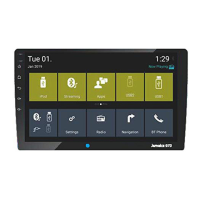
This document describes the Blaupunkt Jamaica 970 Car Multimedia system, a device designed to enhance the in-car entertainment and navigation experience. It features a 10.1-inch capacitive display and runs on Android OS Version 6.0, offering a high-end tuner and a range of functionalities.
The Jamaica 970 serves as a central hub for car multimedia, offering radio, navigation, phone connectivity, and various app functionalities. It integrates with the vehicle's electrical system and provides a user-friendly interface through its touchscreen display. The device is designed to be operated safely while the vehicle is stationary, with specific warnings against using video playback or certain apps while driving.
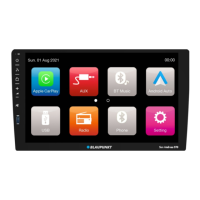
The device can be powered on/off using a dedicated touch button. A light touch on this button mutes audio output, while a long press powers the device off. It also supports ignition-based power control, turning on when the ignition is in the ACC ON position. The main menu, or "Home" screen, provides access to different sources and operating modes through touch buttons. The system defaults to Radio mode upon startup.
Volume can be adjusted from 0 (minimum) to 40 (maximum) using dedicated touch buttons for increasing (+) and decreasing (-) volume. A light touch on the mute icon allows for quick muting and unmuting of audio.
The radio function allows users to tune into stations across different regions and frequency ranges (FM1/FM2/FM3/AM1/AM2). The reception area can be set to "EUROPE" or "INDIA" depending on the operational region. Stations can be tuned point by point with a short press of the tune icon, or manually sought with a long press. The auto-seek and store function automatically finds and stores up to 18 FM stations (6 per memory bank) and 12 AM stations (6 per memory bank). Users can also manually store stations by setting the desired station and pressing a memory button for approximately 2 seconds. The scan function plays all receivable stations for a few seconds, allowing users to preview them.
The Jamaica 970 offers comprehensive sound customization through its Equalizer settings. A 10-band equalizer allows for fine-tuning of reproduced sound to individual taste. Preset EQ settings like Flat, Classical, Pop, Jazz, Rock, and Custom are available. Audio distribution (fader/balance) can be adjusted to prioritize sound in different areas of the vehicle (Left Front, Left Rear, Right Front, Right Rear) using a blue dot on a graphical interface or arrow keys.
Equipped with on-board navigation, the device requires an mSD card (sold separately) for map data. Users can input destinations and receive turn-by-turn voice-guided commands. The navigation system includes features like "Take me home" (to plan a route back to a set home address), "Route" (to view trip information), "Favourites" (to store frequently visited destinations), and "History" (to review past travel). Users are advised to follow actual road and traffic conditions over navigation recommendations if there is a discrepancy due to rapid urban development or road planning. The device also provides settings for speed alerts, safety camera alerts, and POI along the route.
The device supports hands-free calling via Bluetooth. To pair a mobile phone, users need to turn on Bluetooth on their phone, search for "Jamaica 970," and connect using the password "0000." Once paired, the system displays the phone interface. The device automatically connects to the last disconnected mobile phone when powered on. It is recommended to enable "Visible to all nearby Bluetooth devices" on the mobile phone for successful pairing. Users can make calls by dialling numbers on the touchscreen or directly from their mobile. The call history and phonebook can be accessed through dedicated icons, provided the mobile grants access to contacts and call history. Incoming calls automatically switch the system to the Bluetooth interface, allowing users to answer or refuse calls via the touchscreen or their mobile.
The Bluetooth music function allows direct streaming of music from paired mobile devices. Playback controls include previous/next song and pause/play. The Jamaica 970 features two rear USB ports (Type A). One port provides quick charging (up to 2A) for portable devices, and the other offers up to 1.5A via a patch harness. The device supports various music formats including MP3, M4A, WAV, AMR, WMA, OGG, AAC, and MID. Audio playback from USB is initiated by selecting the USB source from the main menu.
Video playback from USB is supported, but for safety reasons, it is only allowed when the vehicle is parked and the handbrake is applied. The BRAKE cable must be connected to the vehicle's handbrake connection. Movie playback on a Rear Seat Monitor is possible while driving.
The device allows users to view pictures saved on USB and other collaborative locations by accessing the "Pictures" icon.
The PhoneLINK feature mirrors the mobile phone screen (Android/iOS) onto the head unit display, enabling access to apps, emails, and messages. For Android phones, USB debugging needs to be enabled on the phone by tapping the "Build number" in "About Phone" settings multiple times, then switching on "USB Debugging" in "Developer options." For iPhones, users need to enable the hotspot, connect the unit's WiFi to the iPhone hotspot, and then use Airplay - EC - Mirror to connect.
The device supports up to 8 steering wheel control functions, allowing users to assign desired functions to existing steering wheel buttons. This involves selecting the SWC icon, assigning functions to placeholders, and then mapping these placeholders to the physical buttons.
The "File Explorer" allows users to browse content on the device, including Apk, Image, Video, and Music files. It also provides access to content on an inserted SD card.
The AUX-IN interface allows connection of external audio/video sources via RCA cables.
Various settings are available to customize the device, including:
The device should not be modified or opened by unauthorized personnel. In case of issues, users should visit the nearest service center. Only a dry or slightly moistened cloth should be used for cleaning the audio system's surface and screen. Solvents, cleaning agents, and dashboard sprays should be avoided as they can damage the surface.
The remote control uses a coin/button cell battery. Users are warned against ingesting the battery due to chemical burn hazards. New and used batteries should be kept away from children. If the battery compartment does not close securely, the product should not be used and kept away from children. Immediate medical attention should be sought if batteries are swallowed or placed inside any part of the body.
Installation should be performed by experienced individuals familiar with car audio systems and vehicle electrical systems. The device is intended for vehicles with a 12V (negative ground) system. The connection diagram at the end of the manual provides guidance for installation.
Users are advised to check device compatibility with their mobile phone before purchase. New phone software versions may not always be compatible, and in-warranty replacement will not be applicable for non-compatibility issues. The manual also notes that the navigation system may encounter issues (e.g., failing to enter the map interface, no image) due to large electromagnetic disturbances, which may require a restart.
The product comes with a 2-year manufacturer's warranty for devices purchased within India. Users are encouraged to register their warranty online within 15 days of purchase by sending an SMS with the serial number to a specified number and following a link to complete a registration form. For service or more information about authorized service centers, users can email support or call the customer support number.
 General
| Touchscreen | Yes |
|---|---|
| Apple CarPlay | Yes |
| Android Auto | Yes |
| Bluetooth | Yes |
| USB | Yes |
| Rear Camera Input | Yes |
| Equalizer | Yes |
| Resolution | 800 x 480 pixels |
| AUX Input | Yes |
| GPS Navigation | No |
| DVD Player | No |
| Supported Audio Formats | MP3, WMA, AAC, FLAC |
| Radio | AM/FM |
| Supported Video Formats | AVI |
| Power Output | 4 x 50 Watts |

 To Next Page