12
Overview
Audioblock Wireless Device Remote Control for
connected audio applications provides the most complete ,
versatile and easy to use media controller available for next - -
generation Internet connected audio systems .
Allowing users to navigate between music modes and to
browse content via an iPhone or iPod touch The application .
synchronises automatically with the radio so you can switch ,
easily between using the radio s controls and those of the ’
Wireless Device Remote Control .
Features supported
Automatically find compatible radios on your network ,
and switch between them
Change listening mode on the radio
Browse content ( , on the radio station list or media library
depending on listening mode )
Select preset stations , in Internet Radio DAB and FM
modes
See now playing information“ ” from the radio
Control playback : play/pause prev/next track etc, . .,
depending on listening mode
Listening modes
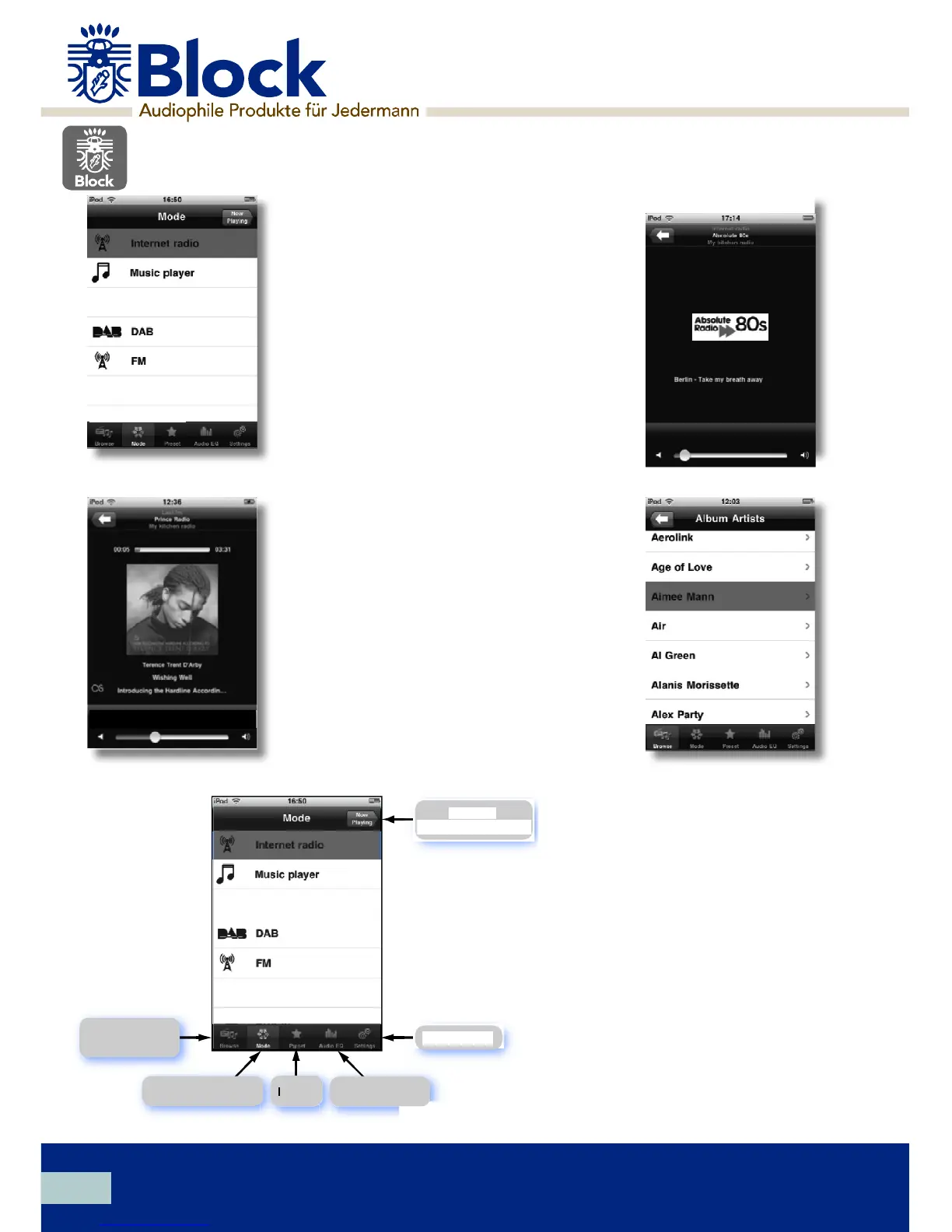
The Wireless Device Remote Control gives you control over
all the radio s listening modes’ :
Internet radio
DAB DAB digital radio/ +
Music player (USB device / Shared media)
FM with RDS ( )Radio Data System
•
•
•
•
•
•
•
•
•
•
Return to
“ ”now playing screen
Mode settings
Browse
available content
Audio EQ settingsPresetsReturn to Mode screen
Mode screens
Mode screen
The menu structure is straightforward ,
consistent between modes and fully flexible .
The application automatically queries the
radio for available services and filters its Mode
list accordingly services that not available for :
a particular radio or in a particular locale are
not shown.
Each mode has a:
Splash screen
“ ” Now playing screen
Mode menu
•
•
•
Standards and certification
The Wireless Device Remote Control has
been designed to operate seamlessly with
Audioblock s connected audio solutions’
and is compatible with iPhone iPod touch ,
and iPad Requires iOS 3 1 3 or later. . . .
Before use this function , you ha ve to download App to your smart phone For IOS or Android ,
the App name is “ Block Remote Control”. In IOS App store or Go ogle Play store , search for
“ audioblock” you can find this App.
And in the menu of CVR100 system setteings --Network settings, select keep network connected,
choice Yes to confirm th e selection.
Chapter 3 The device
Block Remote
Control
Audioblock GmbH


 To Next Page