45
NOTE:
When your app is not connected via Bluetooth, the Bluetooth logo in the app will be
white. When your app is connected via Bluetooth, the Bluetooth logo in the app will
turn blue.
Pulsing Light
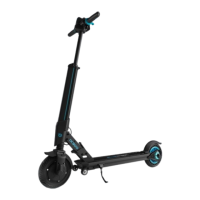
Once your E-Scooter is in motion, the pulsing light located
on the handlebar stem will automatically turn on. The throttle sensor on deck senses
when you step o - once you step o, the pulsing light will automatically shut o aer
60 seconds.
RearWheel
Rear wheel LED lights will change from color (matching your E-Scooter IX300 model)
when in motion, to red when braking.
HOW TO ATTACH AUXILIARY WHEELS
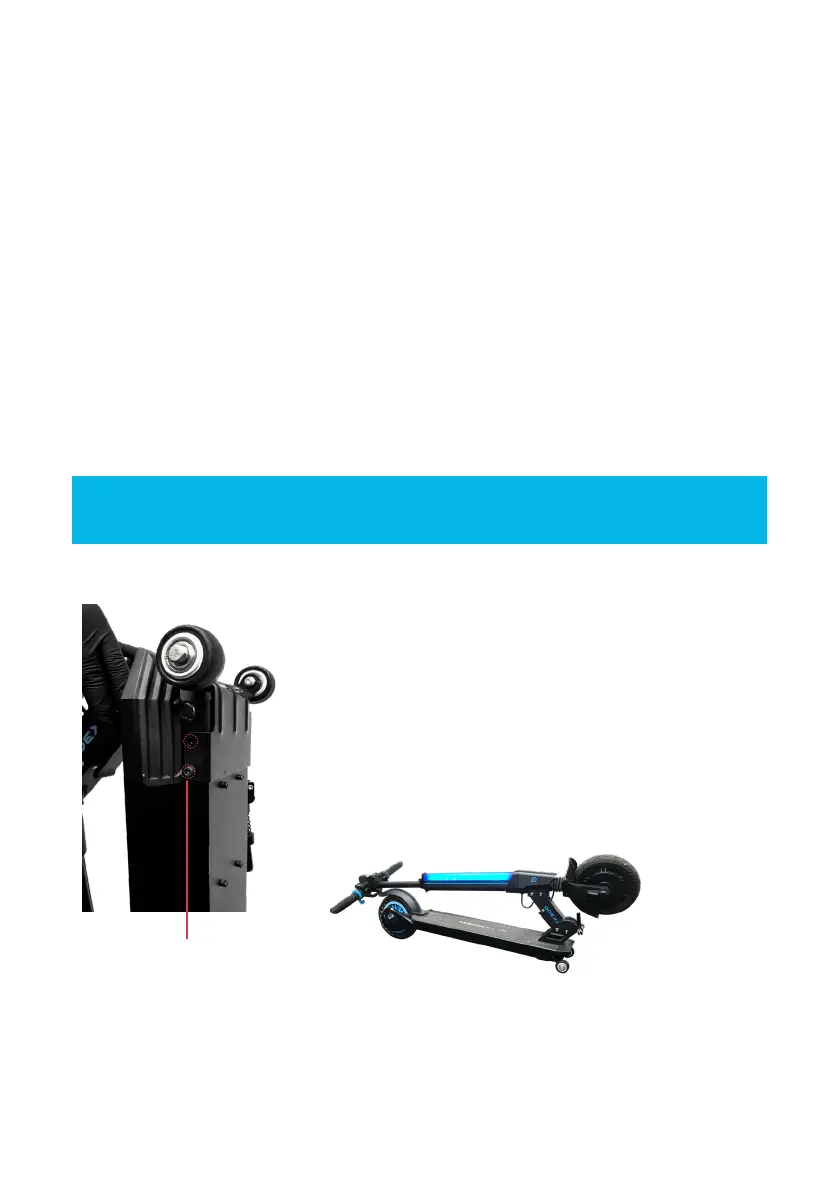
Your E-Scooter comes with auxiliary wheels that you can attach. They provide a more
practical and comfortable way of carrying your IX300. To attach:
1. Lay your E-Scooter on its side, and locate 4 screws (2
on each side) that are towards the front wheel, close
to the bottom of the deck
2. Unscrew the 4 screws.
3. Line up the holes on the platform attached to the
auxiliary wheels, with the hol es on the E-Scooter
where the screws were. Make sure the auxiliary
wheels are closest to the front end of your IX300.
4. Place a screw in each hole and tighten to secure the
auxiliary wheels to your E-Scooter.
Screws
Once properly attached, you can use the auxiliary wheels to roll your E-Scooter when
it's not in use. Simply fold it up and li it up by the handlebar (in a position where the
wheels are on the bottom and the handlebar is on top). The auxiliary wheels should be
the only wheels touching the ground. Pull it behind you for easy transporting. Adjust
the handlebar to a height that's comfortable for you.


 To Next Page