41
No Schedule
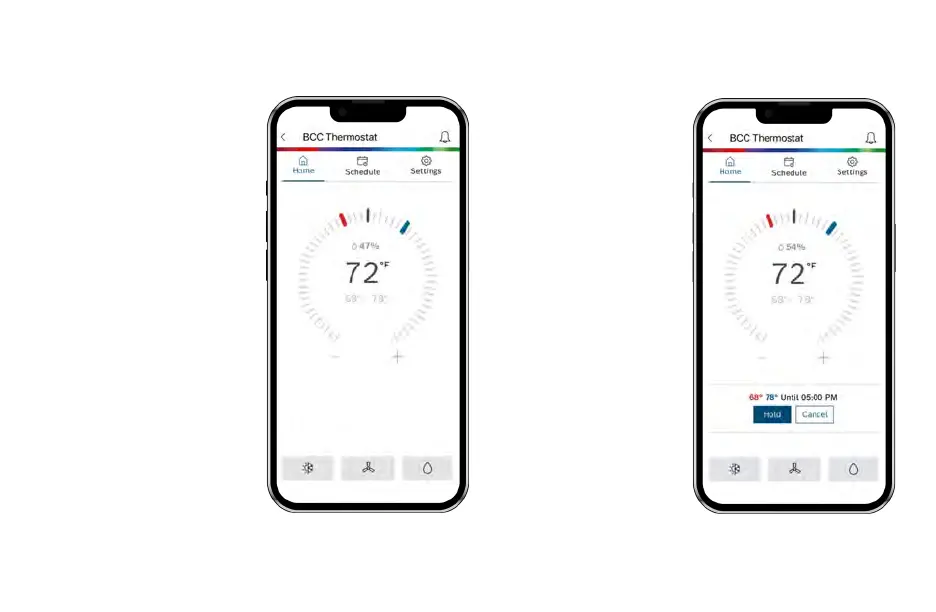
tap the current temperature
set point and use your finger
to drag it left or right to
change it. You can also use
the “+” and “-” buttons to
adjust the set point after
tapping it. Stop on the value
you want for your new
setpoint and wait a few
seconds for the setpoint to
update. You will see the
update reflected on the app
and on the thermostat.
Note: When the thermostat
is in Auto mode, you must
first select either heat or
cool, depending on which
setpoint you would like to
modify, and then follow the
steps above to change the
setpoint.
Adjusting Temperature Setpoint(s) on the App
Schedule
Follow the same process as
above to change the setpoint,
but be aware that you are
only changing the setpoint
temporarily, until the next
scheduled period listed on
the app. If you would like to
change the setpoints for the
schedule periods, please see
the section Schedule further
on in this Manual.
Note: Click Hold to override
the temperature setpoint
permanently. You can cancel
the temporary and
permanent overrides at any
time by clicking Cancel.


 To Next Page