1 689 989 355 2019-04-08| Bosch Automotive Service Solutions GmbH
14 | MTS 6534 / MTS 6535 | Troubleshootingenen
9.7 VCI Manager Displays the Yellow Icon
over the VCI after previous use
There may be instances when Windows does not recog-
nize the installation of the WLAN wireless adapter. In
these cases, Windows may create a new wireless profile
instead of using the existing one already stored on the
PC. The yellow icon displayed over your VCI instructs
you to plug in the USB cable between the VCI and the
PC.
Recommendations:
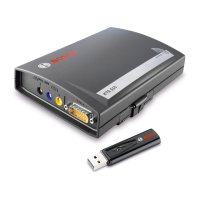
¶ Always use Windows to safely Eject the wireless
adapter before physically removing it from your PC.
¶ Unplug and then re-install your wireless adapter.
Windows will attempt to recognize the wireless
adapter. If successful, the yellow icon will disappear
and the VCI will be ready for wireless Point-to-Point
communication.
9.8 PC Application is Unable to Communi-
cate with the VCI over USB
VCI Manager Software must be installed on the PC, and
the VCI must be powered up before it will communicate.
The VCI must be configured through USB before it will
communicate using any other connection types.
Recommendations:
If other applications including the VCI Manager are able
to connect to the VCI then:
¶ Check the Windows Firewall settings to see if the
application is being blocked.
If all installed applications are unable to communicate
with the VCI then:
¶ Connect the VCI to the PC using USB but do not
connect it to the vehicle, Do not connect through a
USB Hub or a repeater cable.
¶ Verify that the USB cables are securely attached
and the VCI has completed its power up sequence
¶ Launch the VCI Manager Application
¶ Does VCI Manager detect the VCI?
If NO, then:
¶ Try a different USB Cable / Port on the PC
¶ Check the Windows Firewall to see if the VCI Man-
ager is Blocked. Check that the VCI USB connection
is detected by Windows:
¶ From the Windows Control Panel, open the Network
and Dial-up Connections window.
¶ Check for device name "VCI". If not running, then the
USB driver has not been loaded on the PC. Perform
the following troubleshooting steps.
1. Unplug the USB cable from the PC and plug it back
in to the same USB port on the PC. Continue if not
resolved.
2. Unplug the USB cable from the PC and plug it back
in to a different USB port on the PC. Continue if not
resolved.
3. With the VCI plugged into the PC with a USB cable,
open the device manager from the Windows control
panel. In device manager search for an unknown or
improperly configured device. The VCI will likely be
detected as one of the following:
$ Other device – RNDIS Gadget with a yellow excla-
mation icon
$ Universal serial bus controllers – Unknown USB
Device
i Right click on the device name in device manager
> Update Driver > Browse my computer for driver
software > Browse > C:\Program Files (x86)\Bosch
Software\USBDriver
4. Plug a different VCI device (VCI#2) into the PC
(PC#1). Continue if not resolved.
5. Plug the original VCI device (VCI#1) into a different
PC (PC#2) with VCI Manager software installed on
it.
6. Contact Technical Support.
If YES, then:
¶ Test if connection lost when the VCI is connected to
the Vehicle, then...
$ Check for Ground faults - (Battery Chargers,
Hoists…) This issue may be resolved by correct-
ing the ground fault or configuring the VCI to
connect wireless.
$ Check for an improperly wired DLC connector
i If the VCI Manager is still not able to communicate
with the VCI, perform the Recovery Procedure on
the VCI.



 To Next Page