Radio Operation
1. Enter/exit
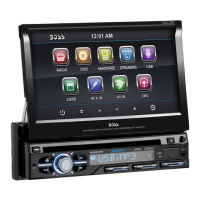
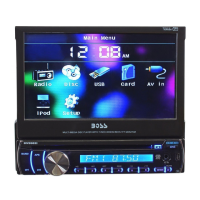
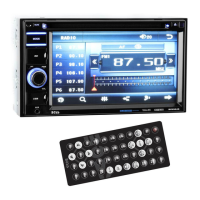
Touch [Radio] icon in the main interface to enter into the radio interface.
Touch icon to return to main interface, and then touch other function icons so as to
exit radio mode.
2. Band selection
Click icon so as to switch among FM1, FM2, FM3, AM1,
AM2 bands.
3. Search/Save radio stations
Short press icon to browse the stored radio stations.
FM band can save 18 radio stations (Six stations for
FM1/FM2/FM3), AM band can save 12 radio stations
(Six stations for AM1/AM2).
4. Sound setting
Click icon to access sound setting interface.
5. Turn on/off the Long/Short-range
Click icon, the search pattern in the local search (LOC) and remote search (DX)
switch between.
LOC feature is turned on after the signal is strong enough only to listen to those in good
condition and receiving radio station; DX enabled, you can receive remote weak radio
signals.
Note: This function is available only when FM band is selected.
6. Loudness on/off
Click icon so as to turn on/off loudness function.
7. Stereo on/off
When receiving stereo signals, click icon to turn on/off stereo.
8. TA (Receive traffic information)
ON: When the traffic station is turned on, the radio will automatically search for traffic
stations. After a station is searched, screen displays “TP”. Only when traffic information
is broadcasted can it be received, after traffic information is completed, the radio will
automatically switch to the previous mode.
OFF: Repress [TA] button to close TA function. In other modes, traffic announcement will
automatically switch to radio mode, after the traffic announcement is completed, it will
automatically switch to the previous mode.
9. AF
Touch the button to turn the AF function on/off. AF function is turned on, When the
received station signals become weak, the radio will automatically fine-tune to other
frequencies. When receiving an emergency announcing, the screen will display warning
message.
10. PTY
Touch the button the screen displays program types, users can search station according
to program type.
Note: If the unit does not have RDS function, it has no AF/TA/PTY function.
x
20
TT 1/1 CH 1/48
00: 09: 4300: 01: 44
1. Play/eject disc
Play disc
Insert the disc into the disc slot with the printing surface up, system will detect the disc
and automatically take it in to read and play.
Eject disc
(1) Click button on the panel to eject the disc.
(2) If a disc has not been took away 15 seconds after it is ejected, system will
automatically take in the disc but not play.
Do not insert two discs or more.
2. DVD/VCD disc playback
During playback of disc, touch the middle lower area of the screen to pop up the touch
menu, operate the touch menu to perform various playback controls. (PIC 1)
3. CD Disc Playback
After a CD is inserted, system shall access disk reading
state immediately.
When there is a disk in the device, click [Disk] at the main
interface so as to access disk reading state.
After the disk being read out, system shall automatically
play in sequence.
4. MP3/JPEG/MPEG4 disk playing
When the disk contains readable files, such as MP3/JPEG/MPEG4 files, it shall be
automatically read out and played after slipping into DVD player.
During playing, touch the screen area and the touch menu shall pop up. Operate the
touch menu for various playing.
5. Touch Menu Function Description
Play/pause
Touch the button to pause, retouch it to continue to play.
Stop
Touch the button to enter into pre stop status.
The previous/next song
Touch the button to select the previous/next song.
Fast forward/backward
Consecutively touch this button to select the speed of fast-forward/fast-backward.
Volume adjustment button
Touch this button and volume adjustment modulation shall pop up, touch button to
adjust the volume.
PIC 1
Disc Operation
x
20
TT 1/1 CH 1/48
00: 09: 4300: 01: 44
Access next menu
Touch it to access the next menu interface.


 To Next Page