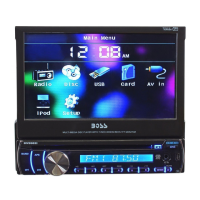
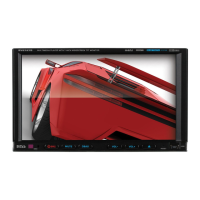
Access setup interface
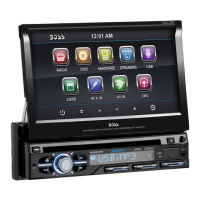
Click [Setting] icon on main interface to access setup interface.
General setting
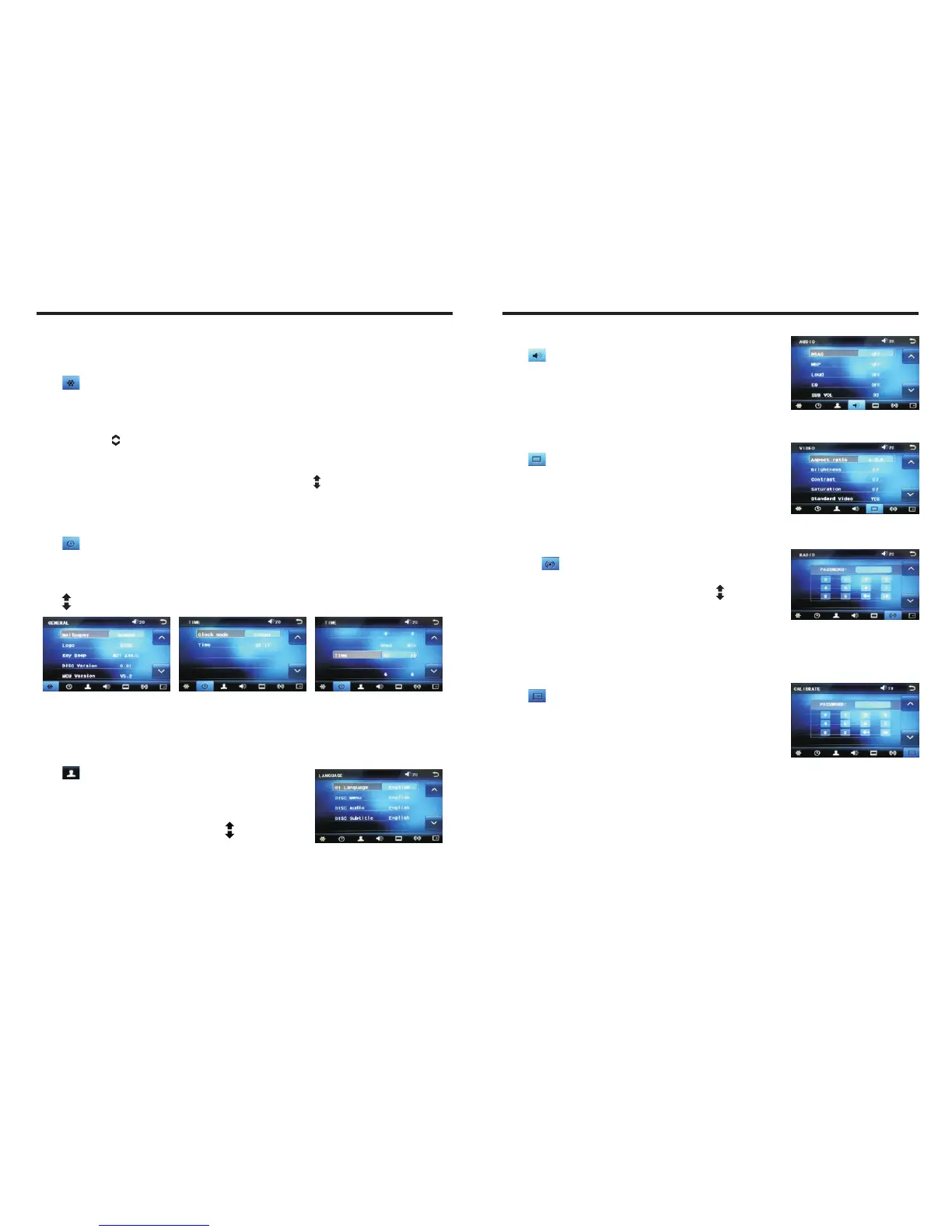
Click icon on setup interface to access general setting interface, as shown in below
PIC 1 diagram:
In general setting interface, you can select to turn on or turn off the existing functions.
You can set wallpaper and opening picture you like and check version number of DISC/
MCU/TFT, click icon to browse up/down.
Wallpaper selection
Click [scene1] icon on wallpaper bar [Wallpaper scene1 ], direction icon shall pop up,
click it to select wallpaper.
Time setting
Click icon on setup interface to access time setting interface, 12h/24h can
interchangeable, as shown in below PIC 2 diagram:
Click [00:11] icon on time bar [Time 00:11] time setting interface shall display, as shown
in below PIC 3 diagram:
Click icon beside hour and minute to separately set hour and minute.
Language setting
During use, you can select your familiar language to display menu by language setup.
Click icon on setup interface to access language
setting interface, as shown in right (PIC 4) diagram:
Click the corresponding [English] icon on the language
bar desired to be set so as to switch the language type,
when there are more than 3 languages, direction icon
shall pop up, click it to select your familiar language.
PIC 1 PIC 2
PIC 3
PIC 4
INSTRUCTIONS
Audio setting
Click icon on setup interface to access audio setting
interface, as shown in right (PIC 1) diagram:
You can turn on or turn off the existing functions on audio
setting interface and adjust the rearview volume.
Video setting
Click icon on setup interface to access video setting
interface, as shown in right (PIC 2) diagram:
At video setting interface, you can adjust brightness,
contrast, saturation and hue of the video.
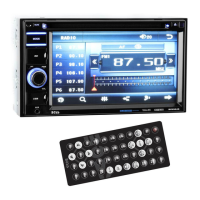
Radio setting
Click on in setting interface, input password [123456]
to enter as shown in right (PIC 3) diagram:
Touch [America 1] icon in the radio interface, icon will
popup, click on it to choose radio region
Touch calibration
If touch calibration error occurs, you can adjust the touch coordinate by “Touch
calibration”.
Click icon on setup interface, input password [888888]
to confirm to access touch calibration interface, as shown in
right (PIC 4) diagram:
Touching methods
Use touch pen to click the center of “+” icon, and move along with center of “+” icon so
as to calibrate the screen. It shall automatically save data and exit after screen calibration.
Please accurately click all positions on screen, or the accuracy of touch calibration shall
be affected.
PIC 1
PIC 2
PIC 3
PIC 4


 To Next Page