Creating a Patch
8
Changing the Eect Loop Settings
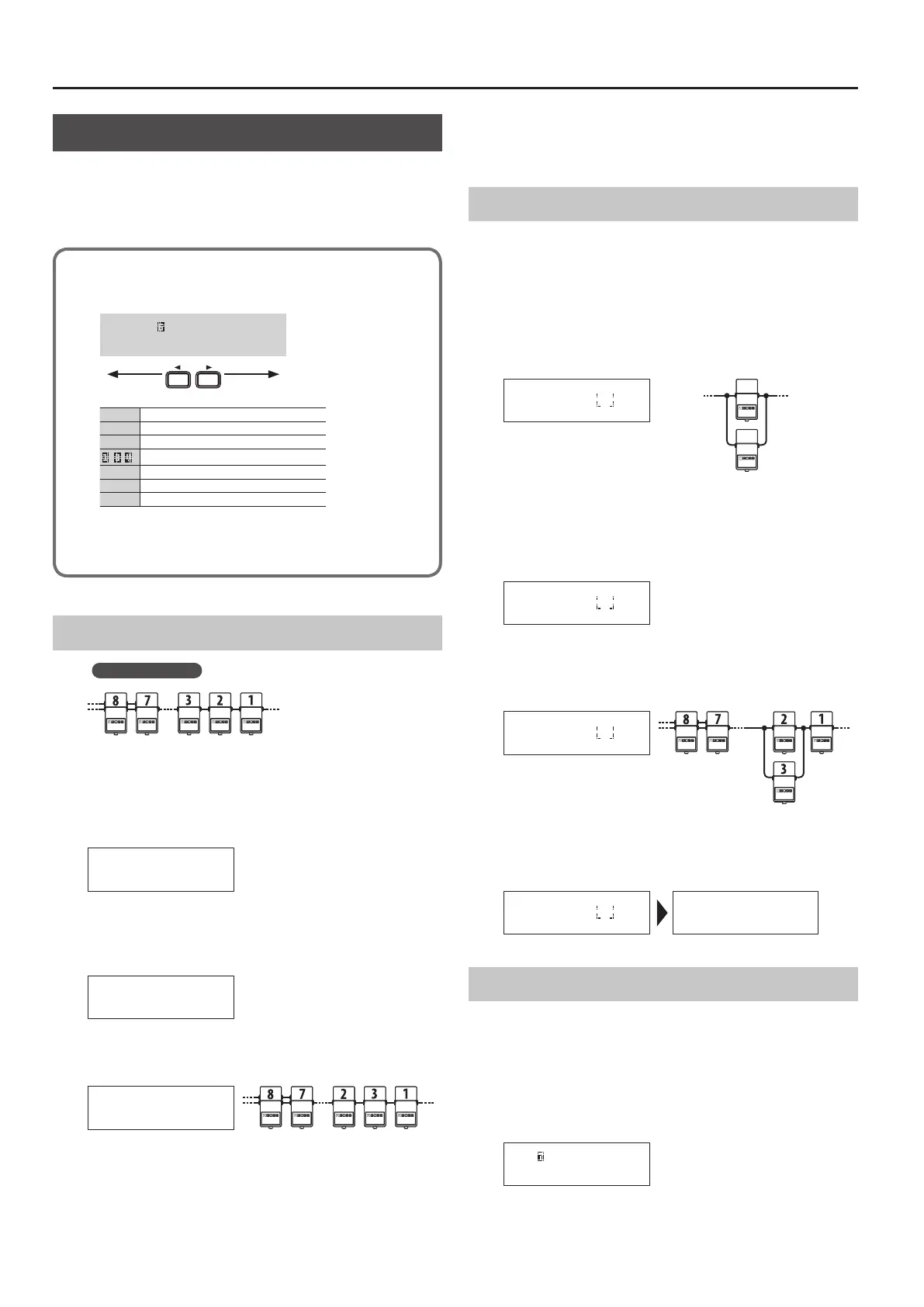
In the Loop Structure screen you can make the following settings.
5 Change the connection order of the eect loops
5 Create a parallel connection
5 Specify Carry Over
Loop Structure screen
The Loop Structure screen shows the following content.
O=8=7- -5-4-3-2-1-V-I _
I
IN
V
Volume loop
1
–
8
Loop number
– ,
A loop for which Carry Over is specied
-
Mono
=
Stereo
O
OUT
The screen is not able to show all the content simultaneously.
You can see the remaining content by using the [
K
] [
J
] buttons
to move the cursor.
Changing the Eect Loop Connection Order
Before the change
Example: Change the order of eect loops 2 and 3
1. In play mode, press the [DISPLAY/EXIT] button several
times to access the Loop Structure screen.
=8=7-6-5-4-3-2-1 _
2. Use the [
K
] [
J
] buttons to select the loop whose
connection you want to change.
Move the cursor to eect loop 2.
=8=7-6-5-4-3-2-1 _
3. Use the [–] [+] buttons to move the loop number.
When you press the [–] button, eect loops 2 and 3 change places.
=8=7-6-5-4-2-3-1 _
Changing the connection order of the volume loop
You can change the connection order of the volume pedal (
V
) in the
same way as for the eect loop.
Specifying mono/stereo return for eect loops 7 and 8
For the returns of eect loops 7 and 8, set the system setting
Preference to select mono-return or stereo-return (p. 12).
Making a Parallel Connection
Example: Connect eect loops 2 and 3 in parallel
4. Use the [
K
] [
J
] buttons to move the cursor to the merge
point of the parallel connection, and press the [ENTER]
button.
Move the cursor between eect loops 2 and 4, and press the [ENTER]
button; the parallel loop is created.
INOUT
Split pointMerge point
=8=7-6-5-4-2-3-1
-
_
* Depending on the settings, there might be cases in which parallel
connection is not possible (p. 7).
5. Use the [
J
] button to select the loop whose connection
you want to change.
Move the cursor to eect loop 3.
=8=7-6-5-4-2-3-1
-
_
6. Use the [–] button to move the loop number.
When you press the [–] button three times to move eect loop 3,
eect loops 2 and 3 are connected in parallel.
=8=7-6-5-4-2-1-V
3
_
Cancelling a Parallel Connection
Use the [
K
] [
J
] buttons to move the cursor to the merge point of
the parallel connection, and press the [ENTER] button; the parallel
connection is cancelled.
=8=7-6-5-4-2-1-V
3
_ =8=7-6-5-4-3-2-1 _
Specifying Carry Over
Example: You can specify Carry Over for eect loop 7
7. Use the [
K
] [
J
] buttons to select the loop for which you
want to specify Carry Over, and press the [ENTER] button.
Move the cursor to eect loop 7 and press the [ENTER] button; Carry
Over is specied.
=8= -6-5-4-3-2-1 _
* Depending on the settings, there are cases in which Carry Over
does not work (p. 7).


 To Next Page