EasyManua.ls Logo

Bredband2 Genexis Pulse EX600 - User Manual

Bredband2 Genexis Pulse EX600
6 pages
Print Icon
To Next Page IconTo Next Page
Loading...
1
Genexis Pulse EX600 www.bredband2.com
Genexis Pulse EX600
Installation guide
Question and Answer IconNeed help?

Do you have a question about the Bredband2 Genexis Pulse EX600 and is the answer not in the manual?

Summary

Installation Guide

Box Content

List of items included in the Genexis Pulse EX600 package.

Placement

Guidance on optimal positioning of the device for best performance and ventilation.

Router Installation

Step-by-step instructions for setting up the Genexis Pulse EX600 as a primary router.

Extender Setup

Extender Placement

Guidance on positioning the extender between the router and the problem area.

Wireless Extender Installation

Steps to configure the Pulse EX600 as a wireless extender.

Advanced Configuration

Wired Extender Setup

Instructions for connecting the Pulse EX600 as a wired extender.

WiFi ON;OFF Control

How to switch the WiFi functionality of the router on and off using the Mode button.

Wireless Network Pairing

Steps for connecting personal devices to the Pulse EX600 via manual pairing.

Device Overview

LED Status Indicators

Explanation of the different LED colors and their meanings for system status.

Mode Button Functions

Details on how to use the Mode button for WPS pairing and WiFi control.

Port Identification

Identification of LAN ports, WAN port, Power port, Reset button, and ON/OFF switch.

Troubleshooting and Support

Accessing Router Interface

Information on how to access the router's browser interface via IP address and credentials.

Status LED Troubleshooting

Solutions for common issues related to the Status LED not being lit, solid red, or blinking.

Router Reset Procedure

Instructions on how to reset the router to its factory default settings.

Contacting Bredband2

Contact information for phone, email, and website support from Bredband2.

Summary

Installation Guide

Box Content

List of items included in the Genexis Pulse EX600 package.

Placement

Guidance on optimal positioning of the device for best performance and ventilation.

Router Installation

Step-by-step instructions for setting up the Genexis Pulse EX600 as a primary router.

Extender Setup

Extender Placement

Guidance on positioning the extender between the router and the problem area.

Wireless Extender Installation

Steps to configure the Pulse EX600 as a wireless extender.

Advanced Configuration

Wired Extender Setup

Instructions for connecting the Pulse EX600 as a wired extender.

WiFi ON;OFF Control

How to switch the WiFi functionality of the router on and off using the Mode button.

Wireless Network Pairing

Steps for connecting personal devices to the Pulse EX600 via manual pairing.

Device Overview

LED Status Indicators

Explanation of the different LED colors and their meanings for system status.

Mode Button Functions

Details on how to use the Mode button for WPS pairing and WiFi control.

Port Identification

Identification of LAN ports, WAN port, Power port, Reset button, and ON/OFF switch.

Troubleshooting and Support

Accessing Router Interface

Information on how to access the router's browser interface via IP address and credentials.

Status LED Troubleshooting

Solutions for common issues related to the Status LED not being lit, solid red, or blinking.

Router Reset Procedure

Instructions on how to reset the router to its factory default settings.

Contacting Bredband2

Contact information for phone, email, and website support from Bredband2.

Overview

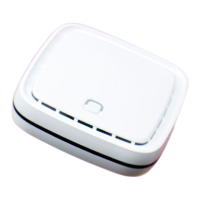
The Genexis Pulse EX600 is a versatile networking device designed to function as either a router or a wireless/wired extender, providing flexible solutions for home and office internet connectivity. It is marketed by Bredband2, a telecommunications provider.

Function Description:

The primary function of the Genexis Pulse EX600 is to establish and manage a local area network (LAN) by acting as a router, connecting to a broadband outlet and distributing internet access to connected devices. When configured as a router, it supports both wired and wireless connections, enabling devices like computers, smartphones, and smart home gadgets to access the internet. A key feature is its ability to extend network coverage. An additional Pulse EX600 unit can be set up as a wireless extender (Mesh device) to expand the Wi-Fi signal to areas with poor coverage, or as a wired extender to provide a stable, cabled connection to a remote part of the network. This mesh capability allows for a seamless and expanded Wi-Fi experience throughout a larger area. The device also includes a Wi-Fi ON/OFF function, allowing users to easily enable or disable the wireless signal for security or power-saving purposes when the device is operating as a router.

Important Technical Specifications:

While specific detailed technical specifications like processor speed, RAM, or Wi-Fi standards (e.g., Wi-Fi 6) are not explicitly listed in the provided manual, the document highlights several operational aspects. The device features a WAN port (red connector) for incoming internet connection and LAN ports (yellow connectors) for wired device connections. It includes a power port and an ON/OFF switch (marked I/O). The status of the device is indicated by an LED light, which changes color and blinking pattern to communicate different states:

  • Green solid: Connected to the network.
  • Green blinking: Connection lost.
  • Yellow solid: Device starting up or Wi-Fi is off.
  • Yellow blinking: System is not ready.
  • Blue solid: WPS pairing successful.
  • Blue blinking: WPS pairing in progress.
  • Red: System booting failure (requires contacting Bredband2).
  • Off: Power off.

The device supports WPS (Wi-Fi Protected Setup) for easy pairing with other devices. The default IP address for accessing the router's browser interface is 192.168.1.1, with "Bredband2" as the default username and the "WiFi-Key" printed on the bottom sticker as the password.

Usage Features:

The Genexis Pulse EX600 is designed for user-friendly setup and operation.

  • Placement: For optimal Wi-Fi signal, it is recommended to place the device horizontally on a flat surface, as high and central as possible, avoiding enclosed spaces that could degrade the signal. Adequate ventilation is crucial to prevent overheating. When used as an extender, it should be placed halfway between the main router and the problem area, within the router's Wi-Fi range.
  • Router Installation:
    1. Place the Pulse EX600 near the broadband outlet.
    2. Connect a network cable from the broadband outlet to the red WAN port.
    3. Plug in the power adapter and turn on the device using the ON/OFF switch.
    4. Wait for the Status LED to turn solid green, indicating readiness.
  • Wireless Extender (Mesh) Installation:
    1. Place the extender within 1 meter of the main router.
    2. Connect power and turn on the extender.
    3. Wait for the Status LED to blink green.
    4. Press the Mode button on the extender for one second (LED blinks blue).
    5. Within 2 minutes, press the Mode button on the main router.
    6. The extender's Status LED will turn solid blue, then solid green when ready. If blinking persists, a reset is recommended.
    7. Relocate the extender to its optimal position.
  • Wired Extender Installation:
    1. Connect a network cable between a LAN port (yellow) of the router and the WAN port (red) of the extender. (Note: The yellow lid covering the LAN port needs to be removed).
    2. Connect power and turn on the extender.
    3. Wait for the Status LED to turn solid green.
  • Wi-Fi ON/OFF: Press and hold the Mode button for at least 3 seconds. The Status LED turns solid yellow for OFF and solid green for ON. This feature is only available when the device acts as a router.
  • Connecting to Wireless Network: Devices can connect manually by searching for the Wi-Fi network name (SSID) and entering the Wi-Fi key, both found on the label at the bottom of the Pulse EX600. QR code scanning is also supported for easy connection.

Maintenance Features:

The Genexis Pulse EX600 includes basic troubleshooting and maintenance options.

  • Troubleshooting LED Indicators: The LED color and blinking patterns serve as a primary diagnostic tool for identifying connection issues, system readiness, or booting failures.
  • Reset Function: If the device encounters persistent issues, a reset button is located on the back. This can be pressed with a small pin or paper clip to restore the device to its factory settings. This is particularly useful if the Status LED continues to blink after an extender setup attempt.
  • Contact Support: For issues like a solid red Status LED (system booting failure) or persistent problems after a reset, users are advised to contact Bredband2 customer support via phone or email. The manual also promotes scanning a QR code to download an app for installation assistance, suggesting an app-based management or troubleshooting interface might be available.
  • Ventilation: Ensuring adequate ventilation and avoiding covering the router are crucial maintenance practices to prevent overheating and ensure long-term performance.

Bredband2 Genexis Pulse EX600 Specifications

General IconGeneral
BrandBredband2
ModelGenexis Pulse EX600
CategoryNetwork Router
LanguageEnglish