EasyManua.ls Logo

Bresser 4Cast XL WIFI - User Manual

Bresser 4Cast XL WIFI
84 pages
Print Icon
To Next Page IconTo Next Page
Loading...
DE
BEDIENUNGSANLEITUNG
EN
INSTRUCTION MANUAL
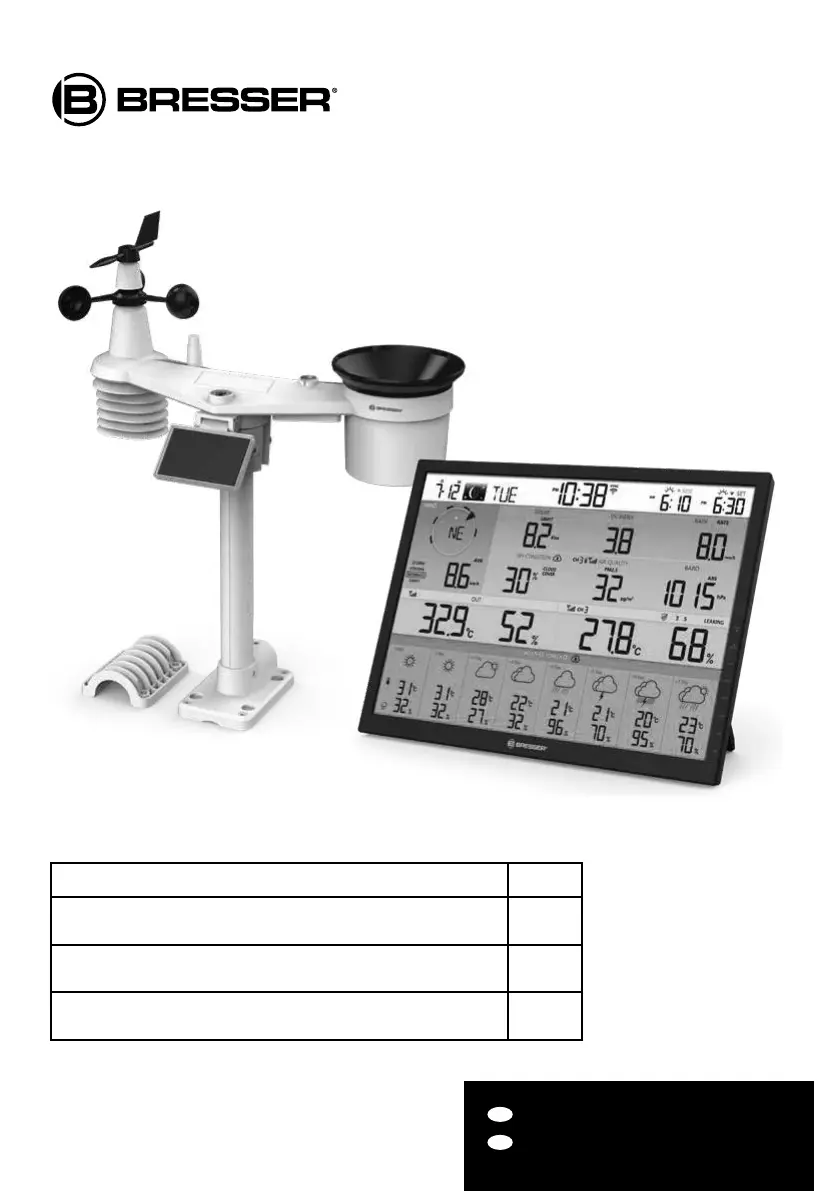
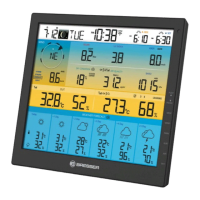
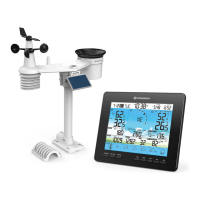
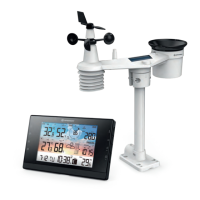
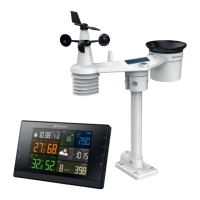
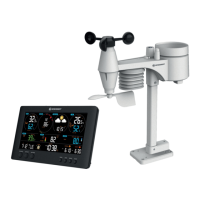
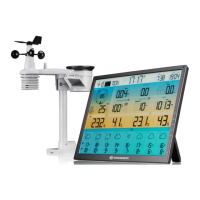
4Cast XL WIFI Weather Center
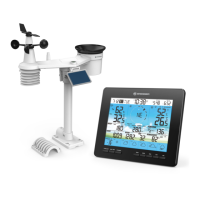
with wireless 7-in-1 sensor
mit 7in1 Funksensor
Art. No. 7003230
7803230
7903230
Product/Produkt Art.No.
Base station + wireless 7-in-1 sensor (basic set)
Basisstation + 7in1 Funksensor (Basis-Set)
7003230
Single wireless 7-in-1 Sensor (aditional device for 7003230)
Einzelner 7in1 Funksensor (Zusatzgerät für 7003230)
7803230
Single base station (aditional device for 7003230)
Einzelne Basisstation (Zusatzgerät für 7003230)
7903230

Table of Contents

Questions and Answers

  • J
    Jody GomezAug 12, 2025
    How to fix no WI-FI connection on Bresser Weather Station?
    • C
      Carol PeckAug 13, 2025
      If your Bresser Weather Station has no WI-FI connection, first check the WI-FI icon on the display to ensure it's on. Then, in the console SETUP page, verify that the WI-FI settings (router's name, security type, password) are correct. Also, ensure you are connecting to the 2.4G band of the WI-FI router, as 5G is not supported.
  • T
    travisalvarezAug 16, 2025
    What to do if additional wireless sensors have connection issues on Bresser Weather Station?
    • L
      Lisa WebbAug 16, 2025
      If additional wireless sensors on your Bresser Weather Station have an intermittent connection or no connection, make sure the sensors are within the transmission range. Also, ensure the channel displayed matches the channel selection on the sensor. If it still does not work, reset the sensor and resynchronize it with the console.
  • M
    Mary GoodAug 20, 2025
    How to solve high temperature readings on Bresser Weather Station?
    • S
      samueltannerAug 20, 2025
      If the temperature reading on your Bresser Weather Station is too high, place the sensor in an open area and at least 1.5m off the ground.
  • D
    Darren FreemanAug 25, 2025
    What to do if Bresser 4Cast XL WIFI Weather Station data is not reporting to ProWeatherLive?
    • J
      Jonathan SnyderAug 25, 2025
      If data from your Bresser Weather Station is not reporting to ProWeatherLive, go to the console SETUP page and ensure your Station ID and Station Key are correct. Also, in the 'Edit Devices' section of the console on PWL, verify that the Device Mac address is entered correctly.
  • D
    Debra MooreAug 28, 2025
    Why are multi-day forecast details inaccurate on my Bresser 4Cast XL WIFI Weather Station?
    • H
      Heather WalkerAug 28, 2025
      If the multi-day forecast, cloud cover, visibility, sunrise/sunset, and moon rise/moon set times are not accurate on your Bresser Weather Station, ensure your console is connected to PWL. Also, verify that the latitude, longitude, and time zone in the 'Edit Devices' section of the console on PWL are correct. You can also press the [ REFRESH ] key to update the data instantly.
  • N
    natalie90Aug 31, 2025
    How to fix intermittent connection of 7-in-1 wireless sensor on Bresser Weather Station?
    • A
      acostasusanAug 31, 2025
      If the 7-in-1 wireless sensor on your Bresser Weather Station has an intermittent connection or no connection, first make sure the sensor is within the transmission range. If the issue persists, reset the sensor and resynchronize it with the console.
  • J
    Jessica BeltranSep 4, 2025
    Why are sunrise/sunset times wrong on my Bresser 4Cast XL WIFI compared to PWL?
    • K
      Kathleen BennettSep 4, 2025
      If the sunrise/sunset and moon rise/moon set times on your Bresser Weather Station differ from those on PWL, ensure your console is connected to PWL. Also, make sure the console Time Sync is set to ON.
  • U
    uvargasSep 8, 2025
    Why is rainfall incorrect on my Bresser Weather Station?
    • S
      Steven MooreSep 8, 2025
      If the rainfall readings are not correct on your Bresser Weather Station: 1. Make sure the rain collector is clean, allowing the tipping bucket to tip smoothly. 2. Ensure the sensor has stable and level mounting to ensure correct tipping.

Summary

1. Introduction

1.1 Quick Start Guide

Provides essential steps for initial setup and operation of the weather station.

2. Pre Installation

2.1 Checkout

Recommended initial operation to familiarize with functions and calibration procedures before permanent installation.

2.2 Site Selection

Guidelines for choosing an optimal location for the sensor array to ensure accurate measurements and good reception.

3. Getting Started

3.1 Wireless 7-in-1 Sensor

Detailed instructions for installing and setting up the main outdoor 7-in-1 sensor array.

3.2 Synchronizing Additional Sensor(s) (Optional)

Guide for adding and pairing optional sensors to the console for expanded monitoring.

3.3 Recommendation for Best Wireless Communication

Tips to ensure effective and stable wireless data transmission between sensors and the display console.

3.4 Setup the Console

Steps to power up and configure the main display console for initial operation.

4. Display Console Functions and Operation

4.1 Screen Display

Overview of the main display screen layout, including data indicators and icons.

4.2 Display Console Keys

Explanation of the function of each button on the display console for navigation and control.

4.3 Console Features

Detailed description of the various weather data and forecast features available on the console.

4.3.1 Multi-Day Weather Forecast for Today & Next 7 Days

Displays weather forecasts for the current day and the next seven days with graphical icons.

4.3.4 Outdoor Temperature, Humidity & Temperature Index

Shows outdoor temperature, humidity, and related indices like Feels Like, Heat Index, and Dew Point.

4.3.8 Wind

Details wind speed, direction, gust, and Beaufort scale readings, including historical direction.

4.3.9 Barometric Pressure

Displays atmospheric pressure readings, allowing switching between Absolute and Relative modes.

4.3.10 Rain

Provides information on rainfall rate, hourly, daily, weekly, and total accumulated amounts.

4.3.11 Light Intensity, UV Index & Sunburn Time

Displays solar light intensity, UV index, and estimated sunburn time based on UV exposure.

4.3.17 Wireless Sensor Signal Receiving

Indicates signal strength for wireless sensors and provides troubleshooting steps for connection issues.

4.4 Other Setting

Configuration options for time, date, measurement units, and display settings.

4.4.1 Time, Date and General Setting

How to set the console's time, date, time zone, and other general preferences.

4.4.2 Unit Setting

Options for changing measurement units for temperature, rain, wind speed, and pressure.

5. Create PWL Account & Setup Wi-Fi Connection of Console

5.1 Create PWL Account and Add New Device in PWL

Steps to create an online ProWeatherLive account and register the weather station device.

6. Connect Console to Wi-Fi

6.1 Console in Access Point Mode

Instructions on how to put the console into Access Point (AP) mode for Wi-Fi network setup.

6.2 Connect to the Console

Steps for connecting a PC, smartphone, or tablet to the console's Wi-Fi network for configuration.

6.3 Setup the Weather Server Connection

Configuration details required to connect the console to the ProWeatherLive server.

6.4 Advance Setting in Web Interface

Accessing and configuring advanced settings, including calibration and firmware updates, via a web interface.

6.4.1 Calibration

Adjusting calibration offset and gain values for various sensor parameters to ensure accuracy.

Bresser 4Cast XL WIFI Specifications

General IconGeneral
BrandBresser
Model4Cast XL WIFI
CategoryWeather Station
LanguageEnglish

Related product manuals