24
Set Video Input Source
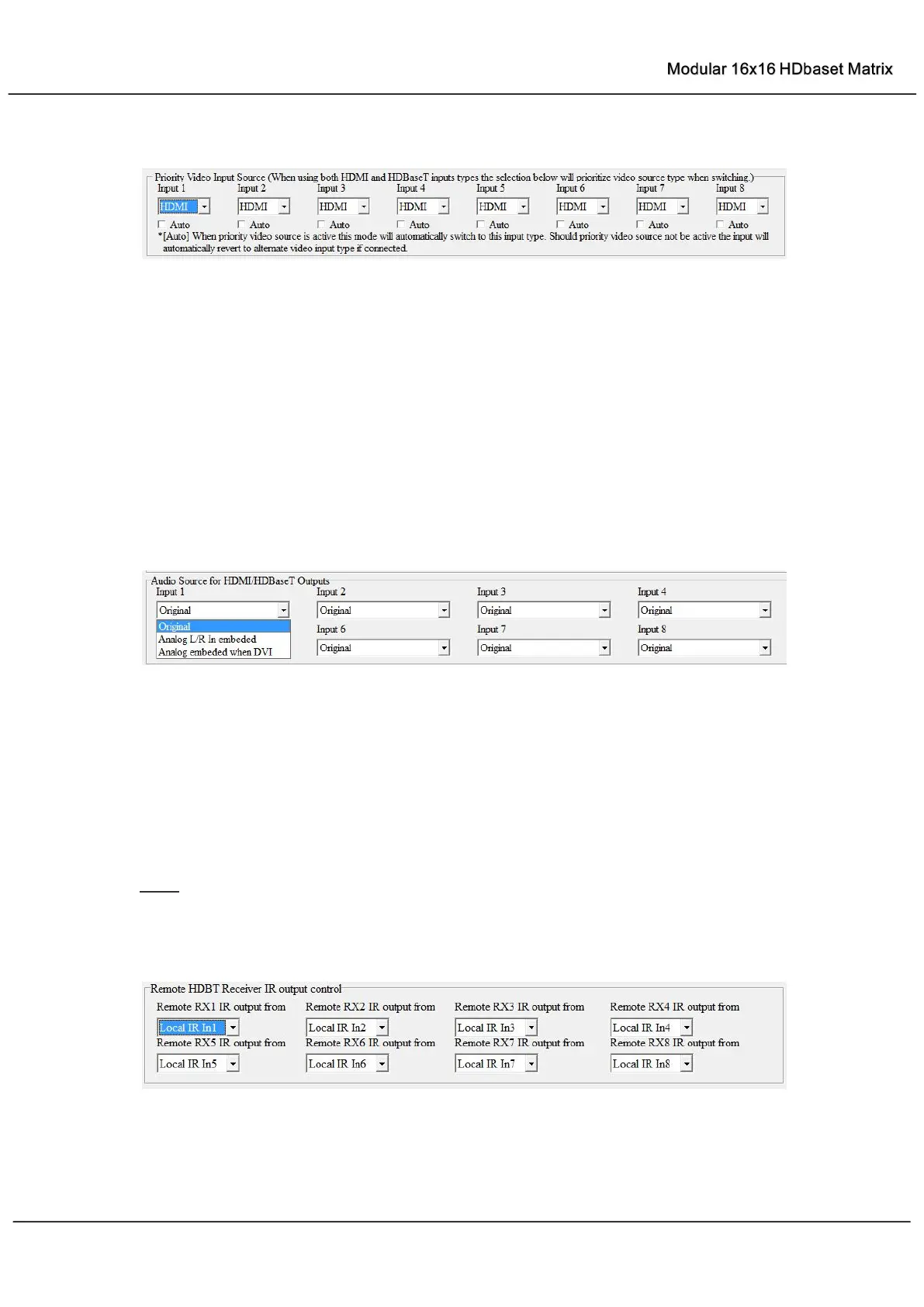
Each input can be from HDMI or HDBaseT chosen via the pop-up menu under each Input port.
1) Choose HDMI, then the HDMI input will be enabled; the HDBT input will be disabled.
2) Choose HDBT, then the HDBT input will be enabled; the HDMI input will be disabled.
3) Choose Auto, the input will auto-scan the inputs between HDMI and HDBT. For example, if
Input 1 chooses HDBT and Auto, the input 1 will auto-scan from HDBT to HDMI, if the
HDBT input has signal detected, input will stay to HDBT input, if not, it will scan the HDMI
input and stay there when signal detected.
Set Audio Source for Input
Each input audio source can be from the original HDMI/HDBT input, analog L/R embedded or
Analog embedded when DVI.
1) Choose original, the audio will be from the HDMI/HDBT input.
2) Choose Analog L/R In embedded, the local L/R In will remove the original audio from the
HDMI/HDBT input and be embedded.
3) Choose Analog embedded when DVI, when DVI signal is detected, it will embed the L/R
In.
Note: Only PCM audio can be converted to analog audio output.
Remote HDBT Receiver IR Output Control
It provides the flexibility to the IR path from local IR in to the IR output of each Remote HDBT
receiver. The default setting will be each local IR in to the IR output of corresponding remote



 To Next Page