5
Panel Descriptions
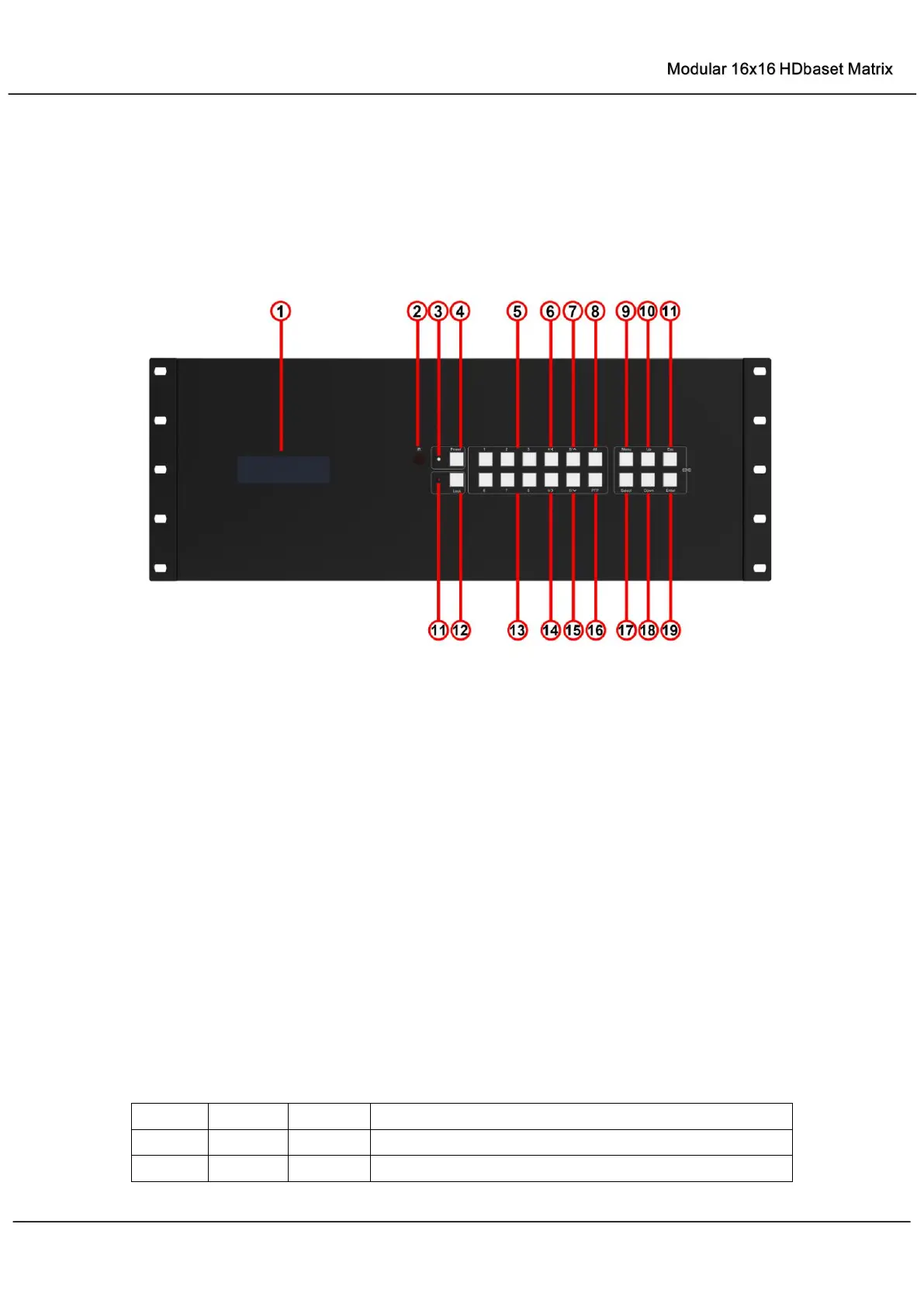
Front Panel
1. LCD Display -- Show the status of input-output selection, EDID info and so on.
2. IR Receiver Window -- Receive the IR from the remote control of matrix.
3. Power LED Indicator -- Indicate the status of the power for the matrix.
4. Power Button -- Press to power on/off the matrix.
5. HDMI Input/ Output composite button 1 to 3– Press to select Input 1 to 3 or Output 1 to 3.
Or combine with other button to select Input/ Output channel when Input/ Output is high
than 9.
6. HDMI Input/ Output multiple button 4 -- Press to select Input 4 or Output 4. Or combine
with other button to select Input/ Output channel when Input/ Output is high than 9. This
button also can be used to control cursor to Left under “MENU” editable status.
7. HDMI Input/ Output multiple button 5 -- Press to select Input 5 or Output 5. Or combine
with other button to select Input/ Output channel when Input/ Output is high than 9. This
button also can be used to control cursor to Up under “MENU” editable status.
8. All Button for HDMI Outputs – Press to select all of the outputs from 1 to 16
9. Menu Button –Press to enter EDID set mode. Three EDID segments will display on the
LCD panel formatted as: INPUT VIDEO AUDIO, for example: IN1 1080P 2.0CH, means to
set 1080P 2.0CH EDID to INPUT1. The blinking segment is the one can be changed
currently. Segment content items as below:



 To Next Page