CHECKING VOICEMAIL FROM ANY
PHONE OUTSIDE YOUR OFFICE
Call your own phone number and during your
voicemail greeting, press the Star (*) key and then
follow the prompts.
LISTENING TO VOICEMAIL
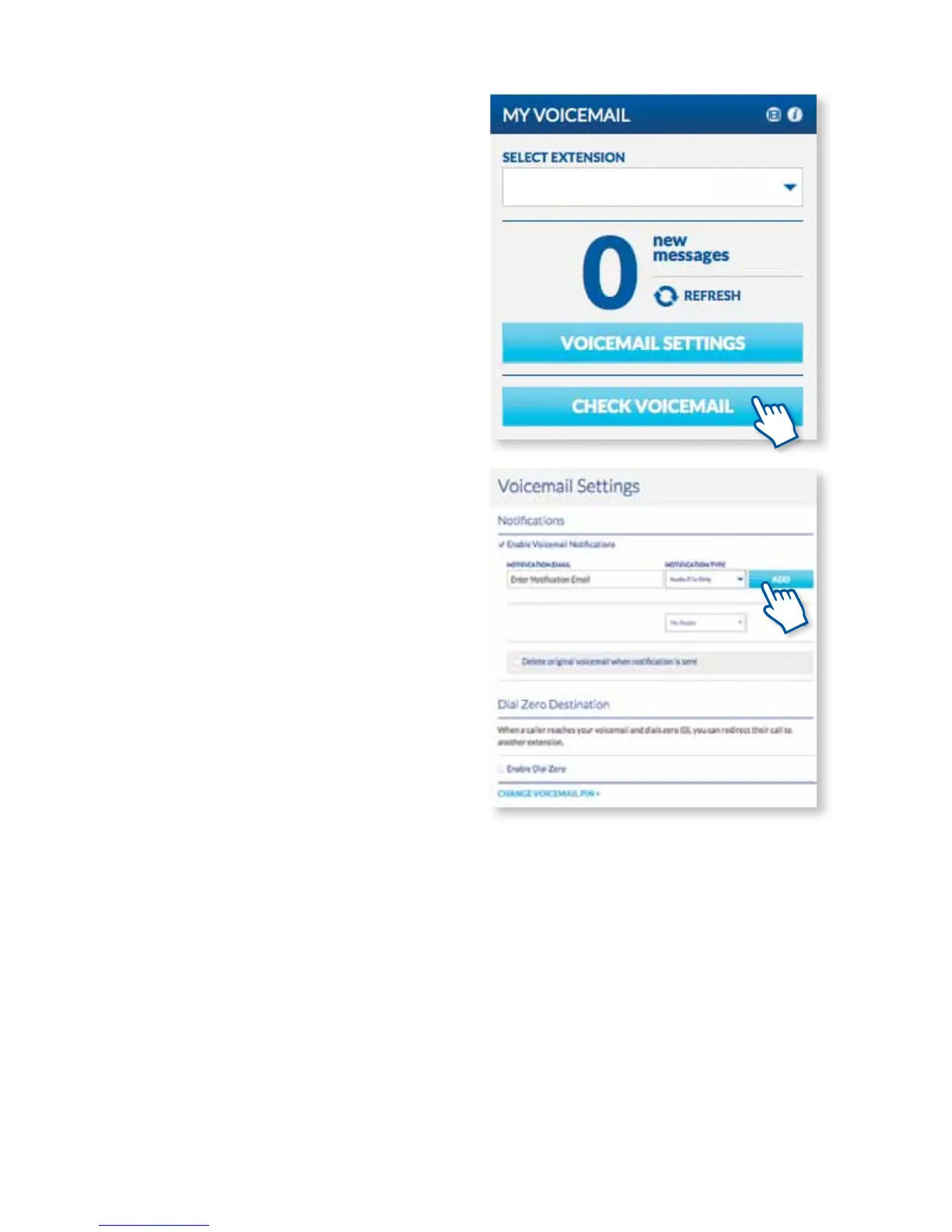
To listen to your messages online, simply click Check
Voicemail from the My Voicemail widget.
Now, choose any message you would like to listen
to and use the built-in controls to pause or stop the
message. From here, you can download messages or
delete them, ag messages for future use, or forward
them instantly right from the portal. You can even
nd important messages by ltering for specic
voicemails with just a few key strokes, just enter the
date, name or phone number and press enter.
SETTING UP HOW YOU RECEIVE
VOICEMAIL MESSAGES
Click on Voicemail Settings on the My Voicemail
widget and select how you would like to receive your
voicemail messages in the notication section.
GETTING VOICEMAIL MESSAGES VIA EMAIL
OceSuite® Phone can send your voicemail message
to any email address.
To enable this, click on Voicemail Settings on the
My Voicemail widget and check Enable Voicemail
Notications. Here, you can select to receive just
an audio le of the message or the audio le with
a transcript of the message. Then, enter the email
address you would like to receive messages at and
click Add and Save.
Using the System
15



 To Next Page