REPLACING DAMAGED ROTOR BLADES
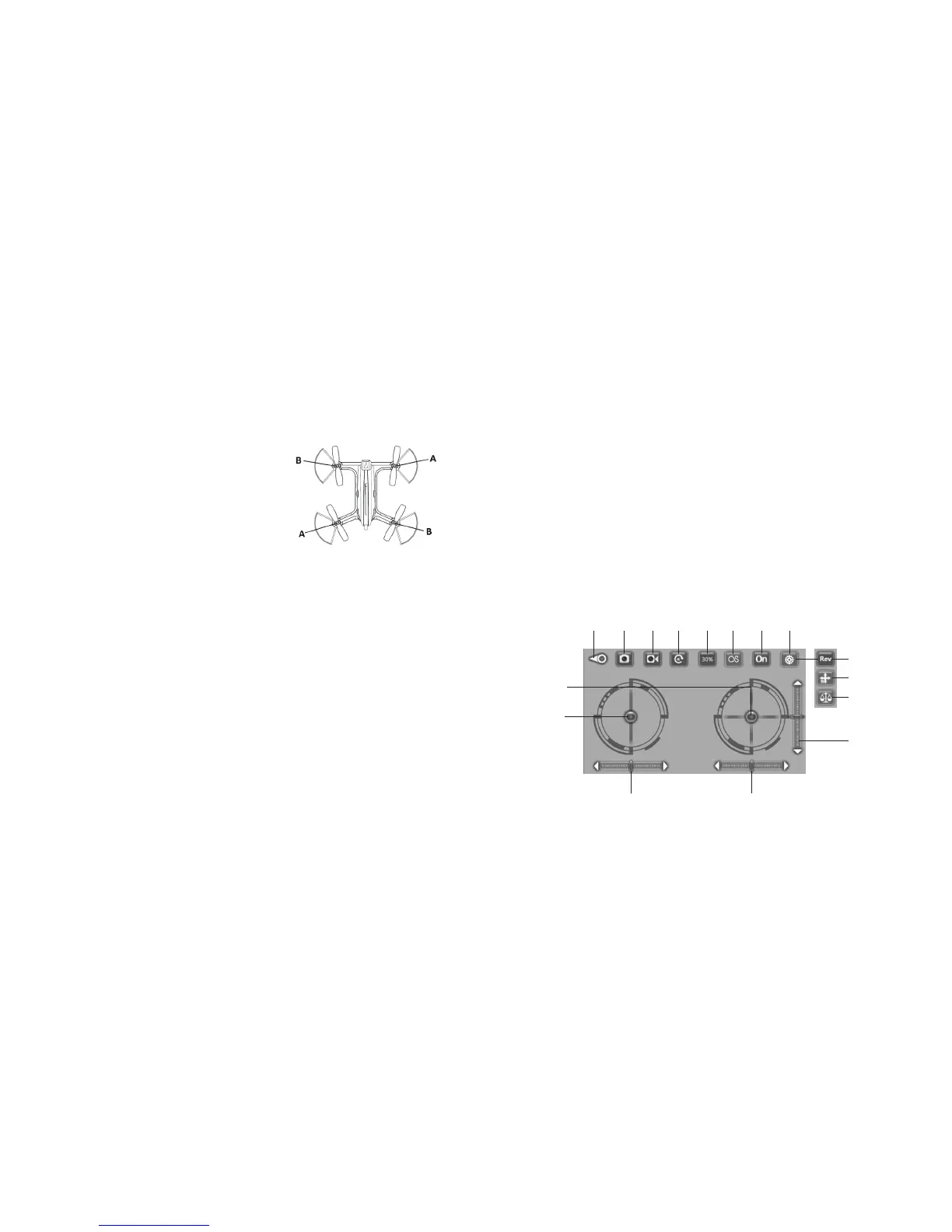
The drone has four rotors, two of which turn
clockwise (A) and two turn counterclockwise (B). Four
replacement rotor blades are included with your drone,
two type A and two type B.
If a rotor blade becomes damaged, replace it by
removing the damaged blade and replace it with a new
blade of the same type.
If you need additional replacement rotor blades, contact
Brookstone Customer Service at 800-292-9819.
REPLACING THE DRONE'S COVER
Your drone comes with a replacement drone cover in an alternate color. To change the
drone cover:
1. Remove the drone's battery.
2. Squeeze the cover's arms to remove them from the slots to release the cover.
3. Gently pull the cover off.
4. Attach the new cover, fitting the arms into the slots, and replace the battery.
USING THE WiFi RACER APP
Instead of controlling your drone with the controller, you can control your drone with your
smartphone or tablet using the WiFi Racer app.
Go to the App Store
SM
(for Apple devices) or Google Play
®
(for Android
®
devices) to
download the WiFi Racer app.
NOTE: If the app is not listed in the App Store
SM
on an iPad
®
, change filters to Supports
iPhone
®
Only.
18
App Store
SM
is a service mark of Apple Inc., registered in the U.S. and other countries.
iPad
®
and iPhone
®
are trademarks of Apple Inc., registered in the U.S. and other countries.
Android
®
and Google Play
®
are registered trademarks of Google, Inc.
To control your drone with the app:
1. Place the drone on a flat surface and connect the drone's battery. Ensure that the
camera is turned on.
2. From your device's WiFi list, select Racing Drone.
3. Start the app on your device and tap INSTRUCTIONS to learn how to control your
drone with the app.
4. After reviewing the instructions, tap CONTROLS on the Home screen. The control
panel will display, and you will see a live image broadcast from the drone's camera.
NOTE: To switch between Right Hand and Left Hand mode, tap SETTINGS on the Home
screen and turn on Right Hand Mode.
If you are not receiving a signal, disconnect the drone, restart your WiFi connection, and
repeat the previous steps.
19
Return to
Home screen
Take Photo Record Video
Access
Media
Speed
Track
Route
Show/Hide
Controls
Menu
Flip Camera
Headless Mode
Gyro Calibrate
Forward/Backward Trim


 To Next Page