EasyManua.ls Logo

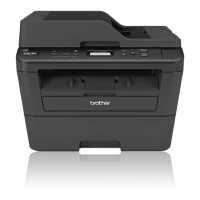
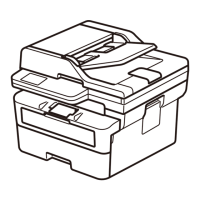
Brother DCP-L2520D - User Manual

Brother DCP-L2520D
77 pages
Print Icon
To Next Page IconTo Next Page
Loading...
Basic User's Guide
DCP-L2520D
DCP-L2540DW
DCP-L2541DW
MFC-L2700D
MFC-L2701D
MFC-L2700DW
MFC-L2701DW
MFC-L2703DW
Online User's Guide
This Basic User's Guide does not contain all
the information about the machine.
To learn detailed information, read the Online
User's Guide at
solutions.brother.com/manuals

Table of Contents

Other manuals for Brother DCP-L2520D

Questions and Answers

  • C
    Curtis JonesSep 23, 2025
    Why I cannot send a fax from my Brother printer?
    • A
      amy96Sep 23, 2025
      Check all line cord connections. Make sure the telephone line cord is plugged into the telephone wall socket and the LINE socket of the machine. If you subscribe to DSL or VoIP services, contact your service provider for connection instructions. Make sure you pressed Fax and the machine is in Fax mode. Print the Transmission Verification Report and check for an error. Contact your administrator to check your Secure Function Lock Settings. Ask the other party to check that the receiving machine has paper.
  • J
    Joseph HollandAug 25, 2025
    Why is 2-sided printing disabled on my Brother DCP-L2520D?
    • S
      Samantha HallAug 25, 2025
      2-sided printing is disabled on your Brother printer because the back cover of the machine is not closed completely. Close the back cover of the machine until it locks in the closed position.
  • C
    Cynthia WilliamsAug 25, 2025
    What to do if my Brother DCP-L2520D Printer says 'Jam Inside'?
    • S
      stephen10Aug 26, 2025
      If your Brother printer displays 'Jam Inside', open the front cover and remove the toner cartridge and drum unit assembly. Then, pull out the jammed paper. Close the front cover. If the error message remains, press Start.
  • L
    lyonsstephanieAug 27, 2025
    Why does my Brother Printer say 'No Paper'?
    • B
      Brittany ConnerAug 27, 2025
      The 'No Paper' message on your Brother printer indicates that the machine is out of paper, or the paper is not loaded correctly in the paper tray. Refill the paper in the paper tray, ensuring the paper guides are set to the correct size. Alternatively, remove the paper and load it again, making sure the paper guides are correctly adjusted, and avoid overfilling the paper tray.
  • C
    Chase GriffinAug 27, 2025
    How to fix 'Jam Tray' error on Brother Printer?
    • U
      umartinezAug 27, 2025
      If your Brother printer shows a 'Jam Tray' error, pull the paper tray out completely and remove the jammed paper. Then, put the paper tray firmly back into the machine.
  • B
    Bobby BarrySep 16, 2025
    How to improve fax sending quality on Brother DCP-L2520D Printer?
    • S
      Shannon TuckerSep 16, 2025
      Try changing your resolution to Fine or S.Fine. Make a copy to check your machine’s scanner operation. If the copy quality is not good, clean the scanner.
  • M
    mccannjosephSep 13, 2025
    What does 'Size Error DX' mean on my Brother DCP-L2520D?
    • W
      William HigginsSep 13, 2025
      If your Brother printer displays 'Size Error DX', the paper size specified in the printer driver and the machine's menu are not available for automatic 2-sided printing. Press Stop/Exit. Choose a paper size supported by 2-sided printing. Paper size available for automatic 2-sided printing is A4. (For Philippines: Letter, Legal and Folio)
  • M
    matthewsericSep 14, 2025
    Why does my Brother Printer say 'Scan Unable'?
    • N
      Nicholas ScottSep 15, 2025
      If your Brother printer displays 'Scan Unable', it means the document is too long for 2-sided scanning. Press Stop/Exit and use an appropriate size paper for 2-sided scanning.
  • J
    James HintonSep 5, 2025
    How to resolve 'Jam 2-sided' error on Brother DCP-L2520D?
    • P
      Pamela DavisSep 5, 2025
      If your Brother printer displays a 'Jam 2-sided' error, it means the paper is jammed underneath the paper tray or the fuser unit. Pull the paper tray and the 2-sided tray out completely, open the back cover and then remove the jammed paper. Close the back cover, and put the paper tray and the 2-sided tray firmly back in the machine.
  • L
    Lawrence ChavezSep 3, 2025
    What does 'Drum !' mean on my Brother Printer and how to fix it?
    • S
      Stephen FowlerSep 3, 2025
      The 'Drum !' message on your Brother printer indicates that the corona wire on the drum unit must be cleaned or the drum unit or the toner cartridge and drum unit assembly is not installed correctly. Clean the corona wire on the drum unit. Also put the toner cartridge in the drum unit. Then reinstall the toner cartridge and drum unit assembly in the machine.

Summary

General Information

Control Panel Overview

Details the functions and layout of the printer's control panel buttons and display.

Initial Setup

Guides users through the initial configuration steps for date, time, and volume settings.

Paper Handling

Load Paper

Instructions for loading paper into the machine's paper tray and ensuring correct placement.

Copy

Copy a Document

Step-by-step guide on how to copy a document using the machine's scanner or ADF.

Copy Both Sides of an ID Card onto One Page

How to use the 2-in-1 (ID) Copy feature to copy both sides of an ID onto one page.

Scan

Fax

Choose the Correct Receive Mode

A guide to selecting the appropriate fax receive mode based on line setup.

Send a Fax

Step-by-step guide on sending a fax from the Brother machine.

Troubleshooting

Identify the Problem

Initial checks and steps to identify common machine problems using status indicators.

Print or Scan Problems

Troubleshooting steps for issues related to printing or scanning documents.

Error and Maintenance Messages

Lists common error messages, their causes, and recommended actions.

Document and Paper Jams

Guidance on locating and clearing document and paper jams from various machine parts.

Supplies

Brother DCP-L2520D Specifications

General IconGeneral
Duplex printingYes
Print technologyLaser
Maximum resolution2400 x 600 DPI
Duplex printing modeAuto
Time to first page (black, normal)8.5 s
Print speed (black, normal quality, A4/US Letter)30 ppm
Copier resize25 - 400 %
Maximum copy resolution600 x 600 DPI
Maximum number of copies99 copies
N-in-1 copy function (N=)2, 4
Time to first copy (black, normal)10 s
Copy speed (black, normal quality, A4)30 cpm
Scan toE-mail, File, Image, OCR
Scan driversICA, TWAIN, WIA
Input color depth30 bit
Maximum scan areaA4 (210 x 297) mm
Output color depth24 bit
Maximum scan resolution19200 x 19200 DPI
Optical scanning resolution600 x 2400 DPI
FaxingNo
Printing colorsBlack
Maximum duty cycle- pages per month
Number of print cartridges1
Page description languagesGDI
Paper input typePaper tray
Total input capacity250 sheets
Total output capacity100 sheets
Multi-Purpose tray input capacity1 sheets
Custom media width76.2 - 215.9 mm
Custom media length127 - 355.6 mm
Paper tray media typesEnvelopes, Plain paper, Recycled paper, Thick paper, Thicker paper, Thin paper
Paper tray media weight60 - 105 g/m²
Non-ISO print media sizesExecutive (184 x 267mm), Folio (media size), Legal (media size)
ISO A-series sizes (A0...A9)A4, A5, A6
Maximum ISO A-series paper sizeA4
Multi-Purpose Tray media weight60 - 163 g/m²
DisplayLCD
Product colorBlack, Grey
Market positioningHome & office
Display number of lines2 lines
Display number of characters16
Wi-Fi-
Standard interfacesUSB 1.1, USB 2.0
USB 2.0 ports quantityUSB 2.0 ports have a data transmission speed of 480 Mbps, and are backwards compatible with USB 1.1 ports. You can connect all kinds of peripheral devices to them.
Sound power level (standby)33 dB
Sound pressure level (printing)50 dB
Sound pressure level (quiet mode)45 dB
AC input voltage220 - 240 V
AC input frequency50 - 60 Hz
Power consumption (max)1104 W
Power consumption (off)0.08 W
Power consumption (standby)60 W
Power consumption (PowerSave)1.1 W
Power consumption (average operating)510 W
Minimum storage drive space50 MB
Mac operating systems supportedMac OS X 10.7 Lion, Mac OS X 10.8 Mountain Lion, Mac OS X 10.9 Mavericks
Windows operating systems supportedWindows 2000 Professional, Windows 7 Home Basic, Windows 7 Home Basic x64, Windows 7 Home Premium, Windows 7 Home Premium x64, Windows 7 Professional, Windows 7 Professional x64, Windows 7 Starter, Windows 7 Starter x64, Windows 7 Ultimate, Windows 7 Ultimate x64, Windows 8, Windows 8 Enterprise, Windows 8 Enterprise x64, Windows 8 Pro, Windows 8 Pro x64, Windows 8 x64, Windows 8.1, Windows 8.1 Enterprise, Windows 8.1 Enterprise x64, Windows 8.1 Pro, Windows 8.1 Pro x64, Windows 8.1 x64, Windows Vista Business, Windows Vista Business x64, Windows Vista Enterprise, Windows Vista Enterprise x64, Windows Vista Home Basic, Windows Vista Home Basic x64, Windows Vista Home Premium, Windows Vista Home Premium x64, Windows Vista Ultimate, Windows Vista Ultimate x64, Windows XP Home, Windows XP Home x64, Windows XP Professional, Windows XP Professional x64
Sustainability certificatesENERGY STAR
Storage temperature (T-T)0 - 40 °C
Operating temperature (T-T)10 - 32 °C
Storage relative humidity (H-H)10 - 90 %
Operating relative humidity (H-H)20 - 80 %
Weight and Dimensions IconWeight and Dimensions
Depth398.5 mm
Width405 mm
Height267 mm

Related product manuals