15
3
3
Scanning documents 3
Scanning directly to your mobile device’s memory card 3
Make sure there is enough available space on your mobile device’s memory card.
a Make sure the memory card has been inserted into the mobile device.
b Load your document on to your machine.
c Open the Launcher on the mobile device.
d Tap the Brother iPrint&Scan icon.
When the license agreement screen appears, carefully read and accept the terms of the agreement.
e Tap Scan.
f Tap .
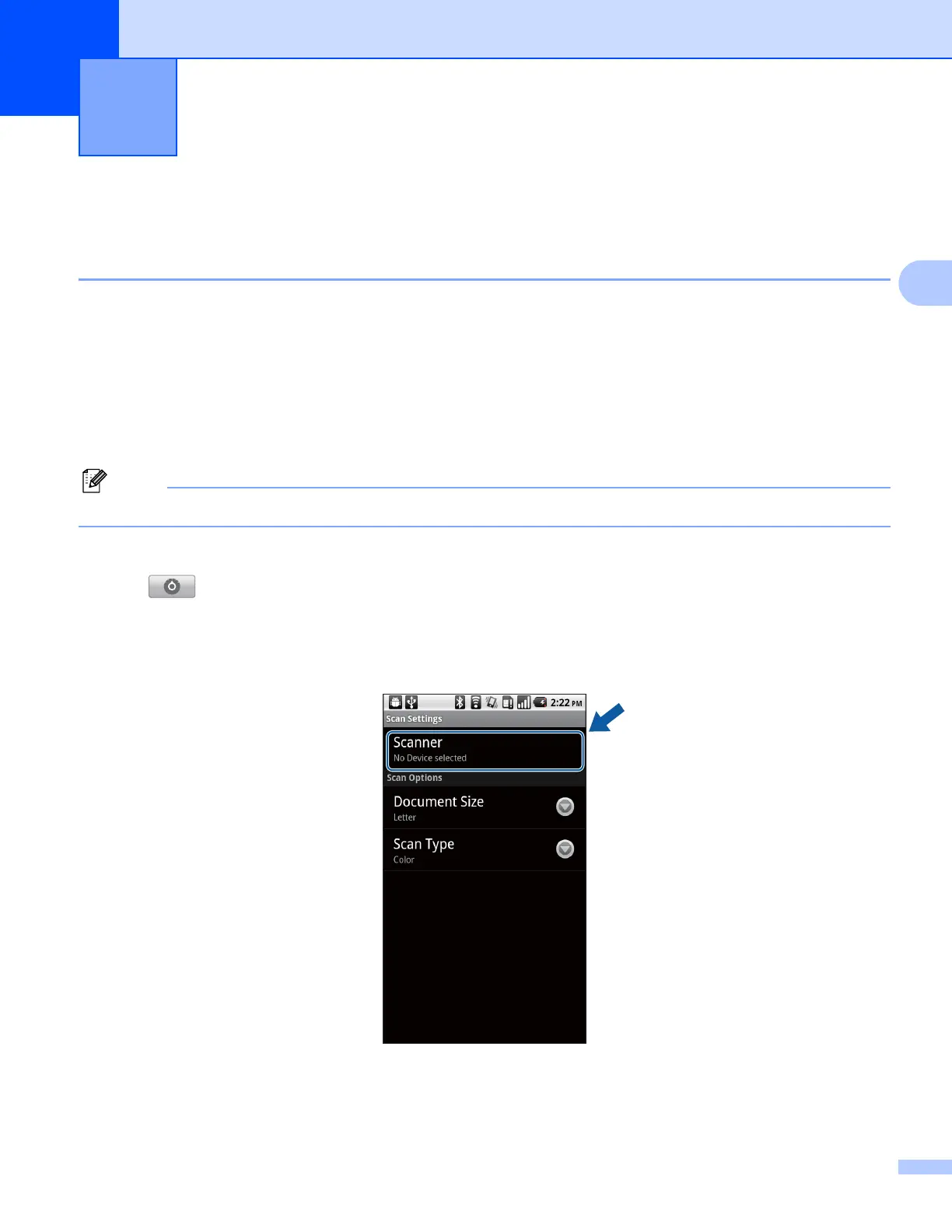
g Make sure your machine is selected.
If a different machine is selected or if No Device selected is displayed, make sure your machine is
turned on and then tap Scanner.
h The application will search your network and display a list of available machines. Tap your machine from
the list.
Scanning 3







 To Next Page