63
9
9
Scanning documents directly to your mobile device 9
Make sure there is enough available space on your mobile device.
a Load your document on to your machine.
b Display the list of applications on your mobile device and tap the Brother iPrint&Scan icon.
When the license agreement screen appears, carefully read and accept the terms of the agreement.
c Tap Scan.
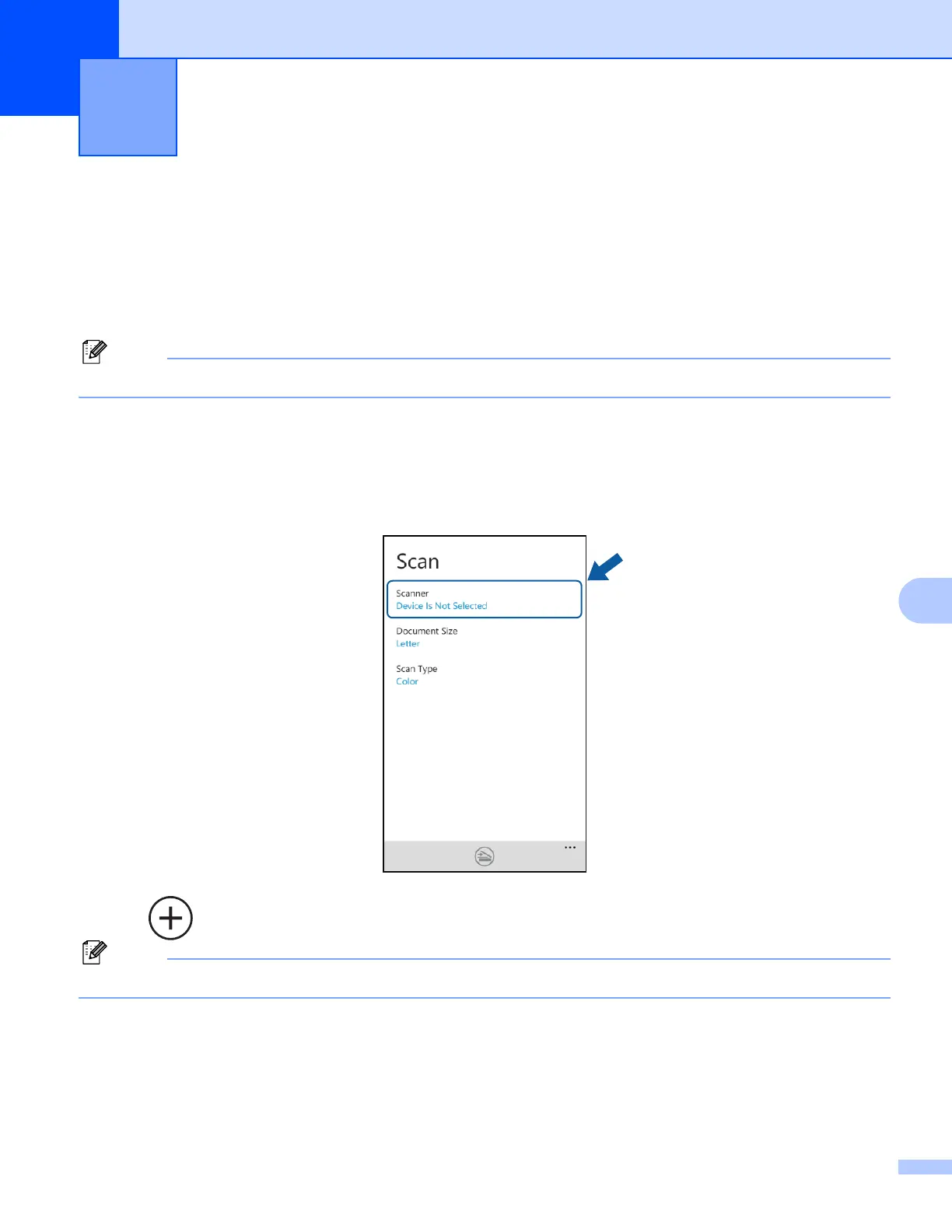
d Make sure your machine is selected.
If a different machine is selected or if Device Is Not Selected is displayed, make sure your machine is
turned on and then tap Scanner.
e Tap .
If the machine was used previously, you can select the machine from the device list.
f Enter your machine’s IP address, and then tap Connect.
The machine’s model name is displayed when the machine is found. Tap the machine to select it.
Scanning 9







 To Next Page